






Products
Trending searches
Popular collections

LONGER How To: Test Material Parameters in LightBurn with the Material Test Tool
When working with various materials, the recommended parameters from the manufacturer may sometimes be too strong or too weak for your specific needs. To quickly identify the optimal settings for your desired engraving or cutting effect, LightBurn offers a powerful feature called the Material Test. This tutorial explains how to use it efficiently.
Step 1: Open the Material Test Interface
Navigate to the top toolbar in LightBurn, click on Laser Tools, and then select Material Test from the dropdown menu. This will open the matrix testing tool.
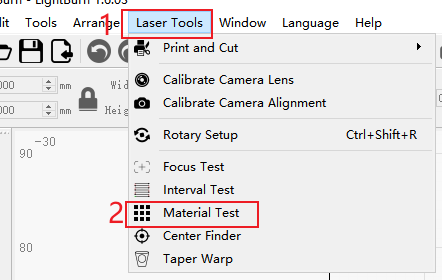
Step 2: Configure Matrix Parameters
In the Material Test window, you can define how the test will run:
Count
Set the number of rows and columns in the matrix grid. For example, a 5×5 grid will test 25 different parameter combinations.
Param
Choose which parameters to vary along the X and Y axes — options include Speed, Power, Interval, and Passes.
Min/Max
Define the minimum and maximum values for the selected parameters. These values determine the range of variation across the matrix.
Additional Settings (00/01/02 Tabs)
- Edit Material Setting: Configure specific engraving or cutting settings for each matrix cell.
- Edit Text Setting: Set up labels that display the parameter values outside the matrix.
- Edit Border Setting: Adjust settings for engraving a border around the matrix.
At the bottom of the panel, you can toggle whether to include Text and Border in the final output.
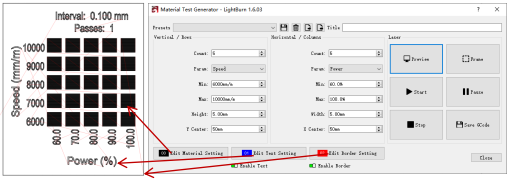
Step 3: Preview and Run the Material Test
Before starting the engraving:
- Click Preview to verify the layout and design.
- Use the Frame function to outline the test area on your material.
- If the area is too large or small, return to the Height and Width settings to adjust accordingly.
Once everything looks correct, click Start to run the test.

Step 4: Analyze the Results
After the matrix is engraved, observe the results and select the combination that provides the desired effect.
If needed, you can narrow the Min/Max range and re-run a smaller test to fine-tune your parameters for higher precision.
Conclusion
The Material Test tool in LightBurn is an essential feature for anyone looking to optimize settings for different materials. It saves time, reduces trial-and-error, and ensures the best possible result for your laser engraving or cutting projects. Whether you're a beginner or a seasoned maker, mastering this tool can significantly improve your workflow efficiency and output quality.
- Elegir una selección da como resultado una actualización de página completa.


!