






Products
Trending searches

LONGER LK4, LONGER LK5 PRO Upgrades【Firmware Update】
This guide explains how to update the firmware for LONGER LK4 Pro and LK5 Pro 3D printers.
Please follow the instructions in order to ensure the firmware update process is completed correctly.
Before You Start
Before updating the firmware, prepare the following:
- LONGER LK4 Pro or LK5 Pro printer
- Firmware files
- TF/Micro SD card
- Computer
- USB cable (if required)
Important:
Please ensure the correct firmware version is selected for your specific printer model. Installing an incorrect firmware version may cause abnormal printer behavior.
1.Since the motherboard of the LK4 Pro, LK5 Pro printer is an open source motherboard, use electrical tape to paste the pins on the side of the USB cable socket before connecting to the computer to isolate the computer from supplying power to the printer motherboard. If the pins are not attached, the printer will not work properly use.

2.To connect the computer to the printer, you need to install the driver, which can be installed on the LONGER official website. The official website link is as follows:
https://www.longer3d.com/blogs/news/printer-download-guildelines

3.After pasting the pins of the USB cable with tape, you can connect the printer to the computer, and then you need to update the printer's firmware through the slicing software cura.
4.Cura software version 4.8 or 4.9 does not add a LONGER printer by default. You need to add it manually. The following link is the video of adding a LONGER printer to cura4.8 or 4.9. Refer to the video in the link to add a LONGER printer;
MAC OS: https://www.youtube.com/watch?v=XKqRb434USw&t=6s
WINDOWS: https://www.youtube.com/watch?v=jdLYBYFEBlQ&t=9s
If the computer cannot connect to the printer, please refer to the video operation in the link below.
https://www.youtube.com/watch?v=KwmKZmtTOPw&t=10s
5.Next, you need to save the firmware to your computer. The firmware link of the corresponding model is below:
https://drive.google.com/file/d/11X1MZV4ll47kG4dhw2PgXniOwwo7UkmP/view?usp=sharing
6.After the firmware download is complete, please turn on the printer power, connect the printer to the computer, open the cura software, and select the "MONITOR" page to control the printer. And the firmware update is also completed on this page.
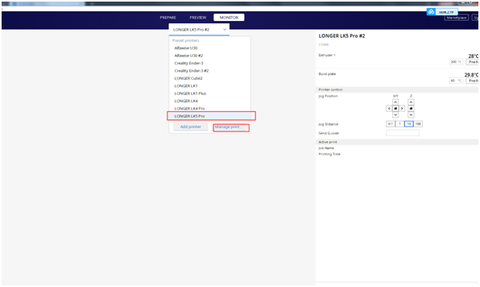
Next, on the "Monitor" page, select the corresponding model to update the firmware, and then click "Manage Printers", the operation is as follows
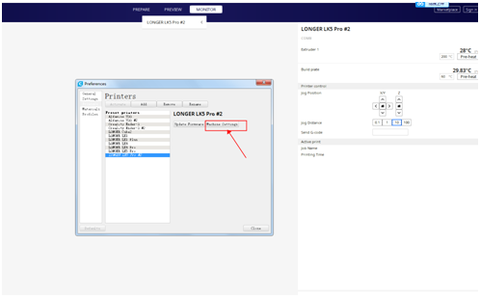
Click "Update Firmware" in the pop-up "Preferences" option box, refer to the figure below.
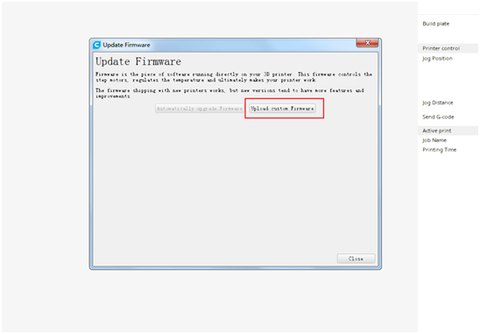
In the pop-up "firmware update" prompt box, click "upload custom firmware"
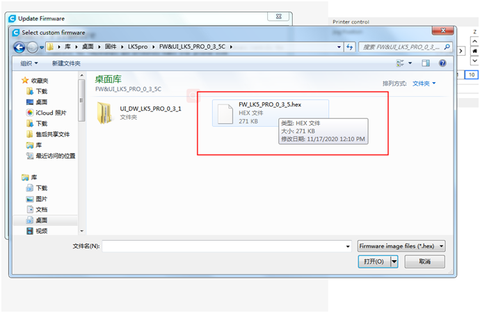
Then select the file with the suffix format ".hex" in the firmware installation package to upload, and you can start to update the printer's firmware. Do not cut off the power of the printer or turn off the computer during the firmware update process, and also ensure that the USB cable is properly connected.
LONGER LK5 Pro FDM printer base on 300x300x400mm printed size, if you interested, check the page get more detail: https://www.longer3d.com/blogs/academy/longer-lk4-pro-lk5-pro-3d-printer-firmware-update
Troubleshooting
If the firmware update does not complete successfully:
- Confirm the firmware version matches the printer model
- Check that files were copied correctly
- Verify the SD card format
- Repeat the installation process if needed
- 选择一个选项会导致整个页面刷新。


!