






Products
Trending searches

LONGER How-to: Achieve Optimal Focusing with the LONGER Nano Series Using the Rotary
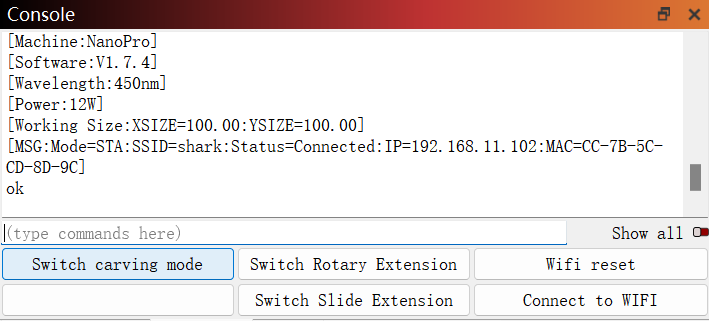
When engraving curved surfaces with the Longer Nano series, including the Nano Pro 12W, chucks are used to secure cylindrical objects for rotational engraving. If the chuck is not properly adjusted, vibrations may occur during engraving, which can distort the design. This guide provides essential steps for avoiding vibrations when using chucks on the Nano Pro 12W.
1) Control Clamping Pressure
Ensure the clamping pressure is moderate when using chucks to grip the material. Excessive clamping can damage the material or deform the chuck, affecting the engraving process. On the other hand, if the grip is too loose, the material might shift or rotate unexpectedly, compromising engraving precision and quality. The grip should allow you to manually rotate the chuck while maintaining firm control over the material.
2) Avoid Excessive Depth in Clamping
Avoid clamping the material too deeply inside the chuck. Clamping too far inwards can destabilize the axis of rotation, which may result in distorted images on the engraved surface.
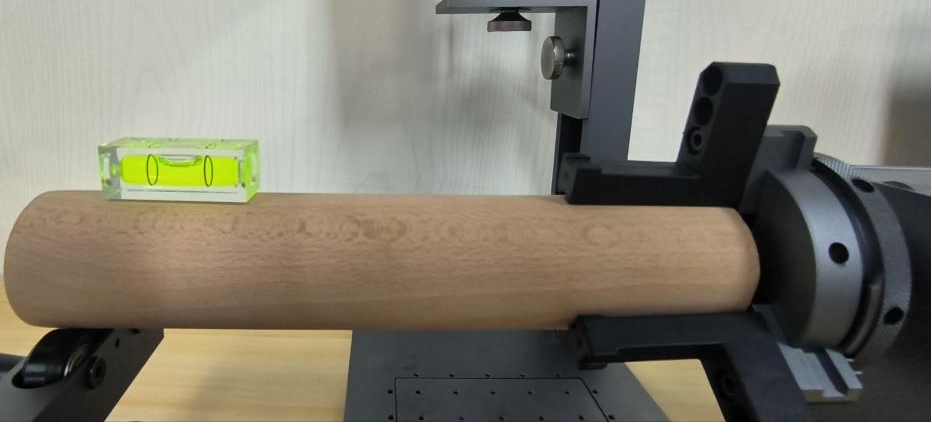
3) Adjust the Focus
Now it’s time to get focused! You can do this using either a ruler or the red laser light.
a) Ruler Focusing
Find the ruler in your rotary clamp accessory package (it’ll look like the one shown below).
In the LightBurn software, click “Fire” and adjust the rotary clamp until the laser is precisely aligned with the top of the material.
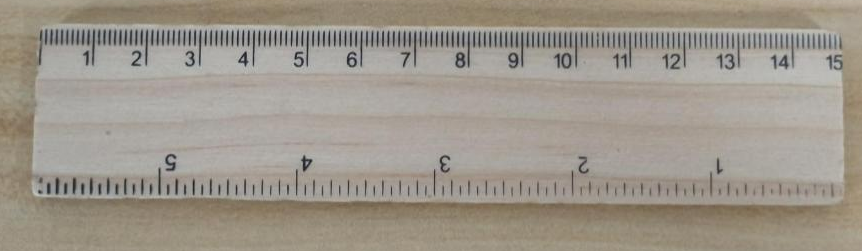
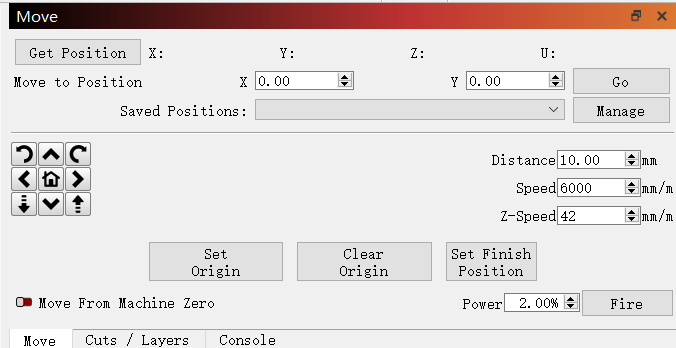
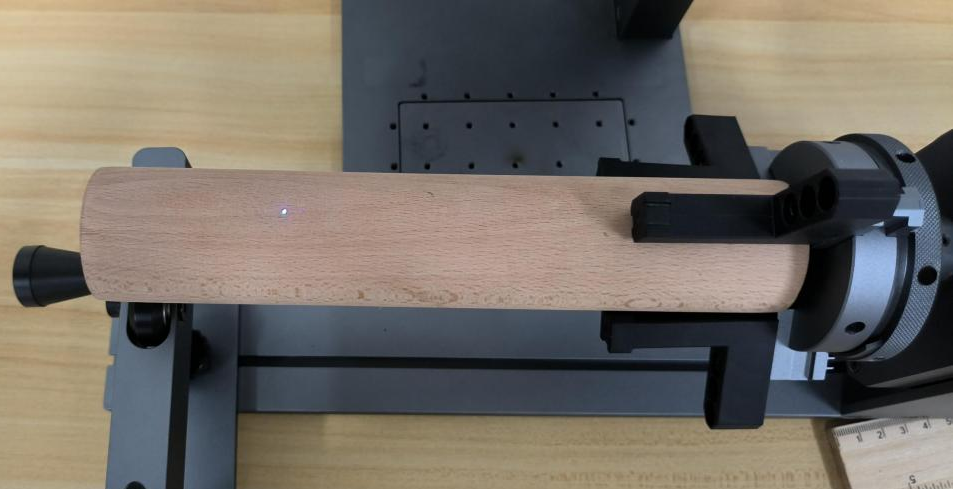
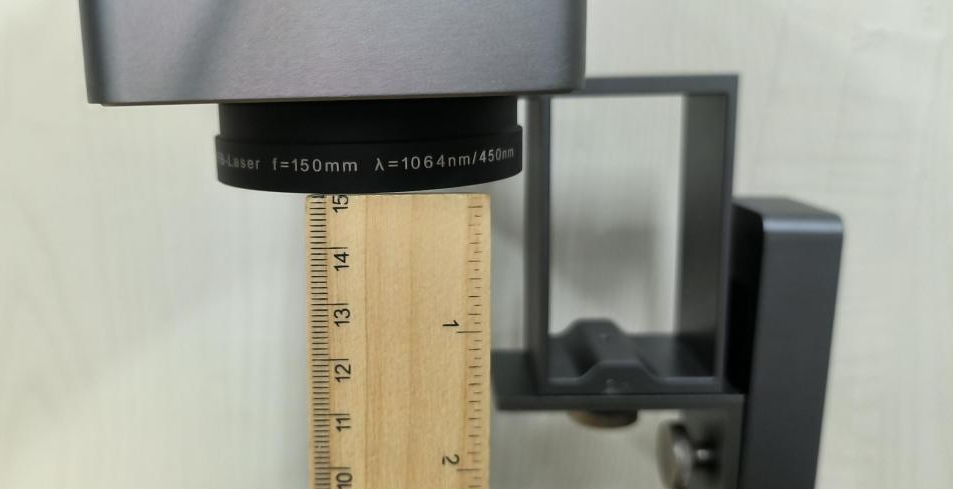
Finally, tweak the lifting platform to ensure the distance from the top of the material to the field lens is 151mm. Voila! You’ve completed the focusing process.
b) Red Laser Focusing
If you prefer using the red laser, head to the top of the machine and press the infrared focus button.
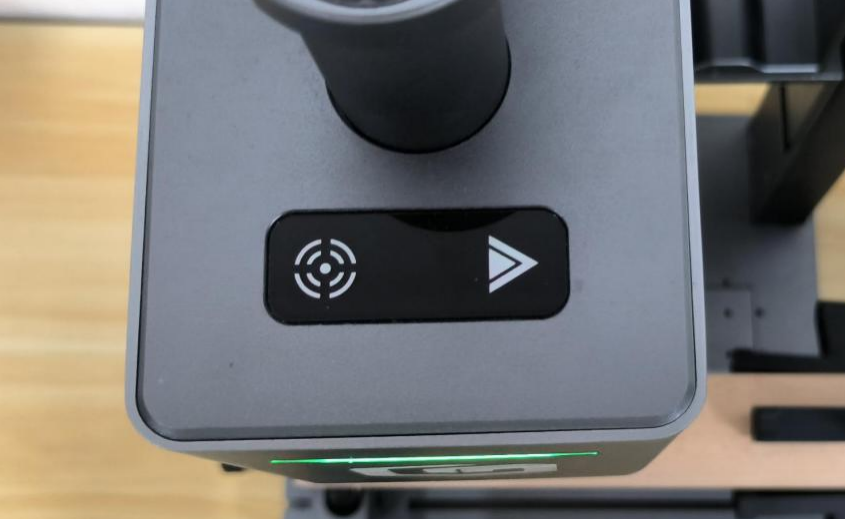
The laser head will emit two red dots. Move the rotary clamp until these red dots fall right on the top of your material.Adjust the lifting platform until the two red dots overlap, and just like that, you’ve adjusted the focus!
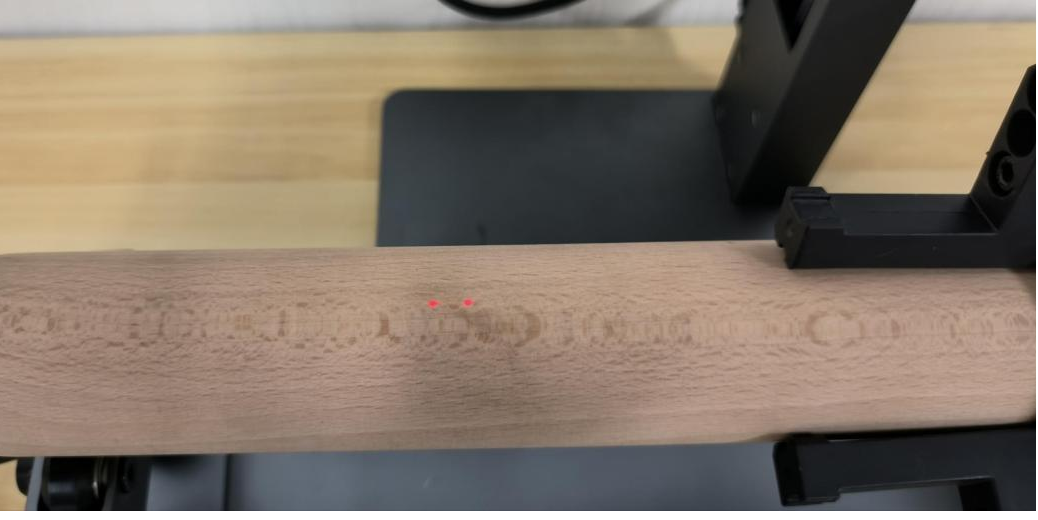
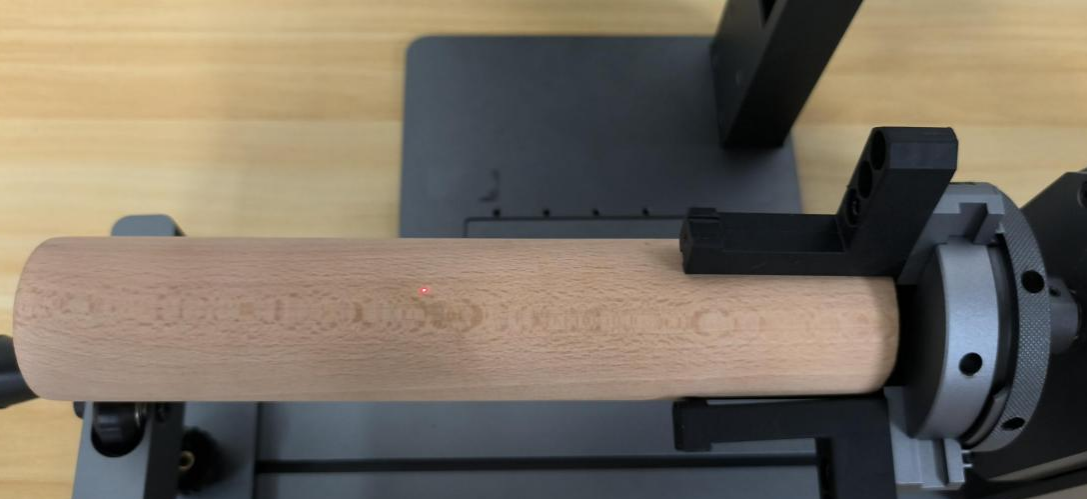
Next, go back to the LightBurn software, click “Fire” again, and move the rotary clamp to ensure the blue laser is hitting the top of your material.
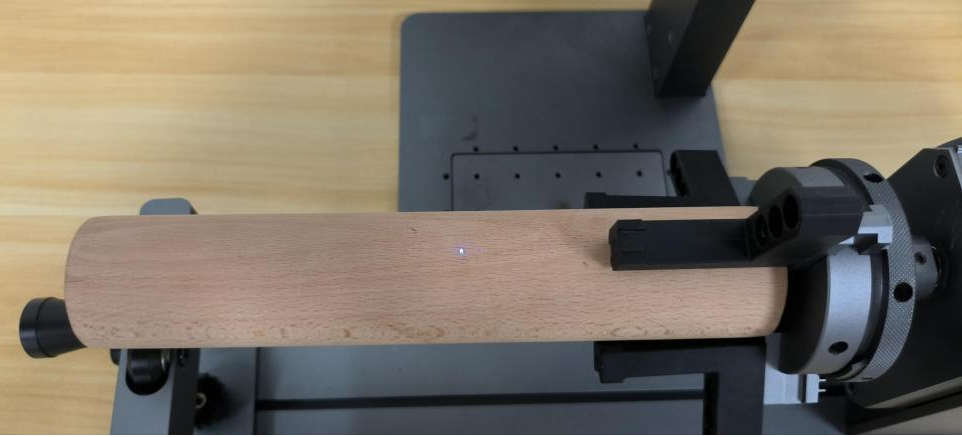
Finally, click “Preview” to confirm your engraving area, then hit “Start” to begin engraving. Don’t forget to wear your protective goggles during the engraving process!
Conclusion
By following these simple steps, you’ll ensure that your engravings with the LONGER Nano Pro 12W are sharp and clear, greatly enhancing the quality of your creative projects. With its powerful features and user-friendly interface, the Nano Pro 12W is here to help you achieve exceptional results across a variety of applications. Happy engraving!
- La scelta di una selezione comporta un aggiornamento dell'intera pagina.


!