






Products
Trending searches

LONGER How to: Ray5 Mini Laser Engraver Tips Using LightBurn
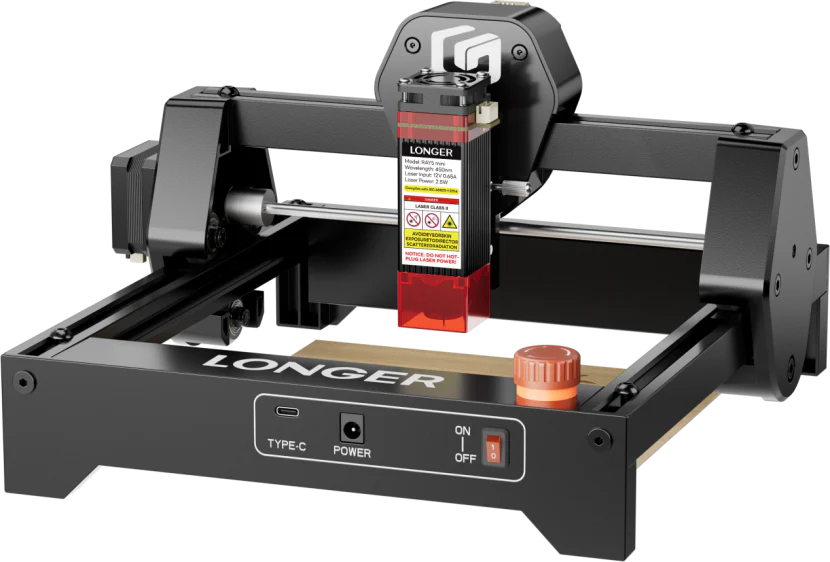
The Ray5 Mini is a compact yet powerful laser engraver designed for both beginners and professionals. It supports a variety of materials such as wood, plastic, leather, and acrylic, making it ideal for creative projects and small-scale production.
With the help of LightBurn, users can easily set up, control, and optimize engraving performance for precise and consistent results.
1. Introduction to the RAY5 Mini
The Ray5 Mini is LONGER's newly launched small-format laser engraver. Despite its compact footprint, it is equipped with powerful engraving capabilities suited for materials such as wood, plastic, leather and acrylic. It features a precision laser module and user-friendly operation, making it suitable for both hobbyists and professionals.
2. Preparing the Machine
Before starting your engraving project, follow these steps to configure your machine:
a)Import Device Configuration
Launch LightBurn software and import the RAY5 Mini device profile (RAY5 mini.lbdev).
b)Connect the Machine
Connect the RAY5 Mini to your computer. In LightBurn, select the correct communication port. Once the console displays device information, the connection is successful.
c)Setup the Work Area
Place a metal plate or other things base under the material to be engraved. In this case, we are using red cardstock for the demonstration.
3. Focusing the Laser
Proper focusing ensures clean and precise engravings. Here's how to focus the RAY5 Mini:
a)Place the focus block on top of the engraving material.
b)Loosen the thumb screw on the laser module.
c)Allow the acrylic cover of the laser module to rest gently on the focus block.
d)Re-tighten the thumb screw to secure the laser height.
e)Remove the focus block. Your laser is now properly focused.
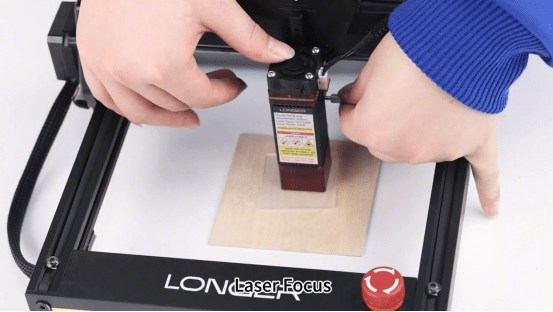
Focusing the Laser
4. Importing and Positioning the Design
a) Import Design File
Open your desired image or vector graphic in LightBurn.
b) Configure Engraving Parameters
Set the appropriate settings for speed, power, and number of passes according to the material type and thickness.
c) Frame the Work Area
Use the “Frame” or “Border” tool in LightBurn to preview the engraving area and ensure the material is properly aligned.
5. Start Engraving
Once everything is in place:
a)Double-check the material and laser focus.
b)Click “Start” in LightBurn to begin engraving.
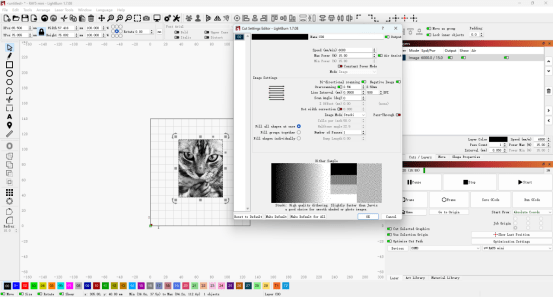
Importing and Positioning the Design
6. Finished Result
Upon completion, carefully examine the engraved design. The red cardstock should now display the shown below.
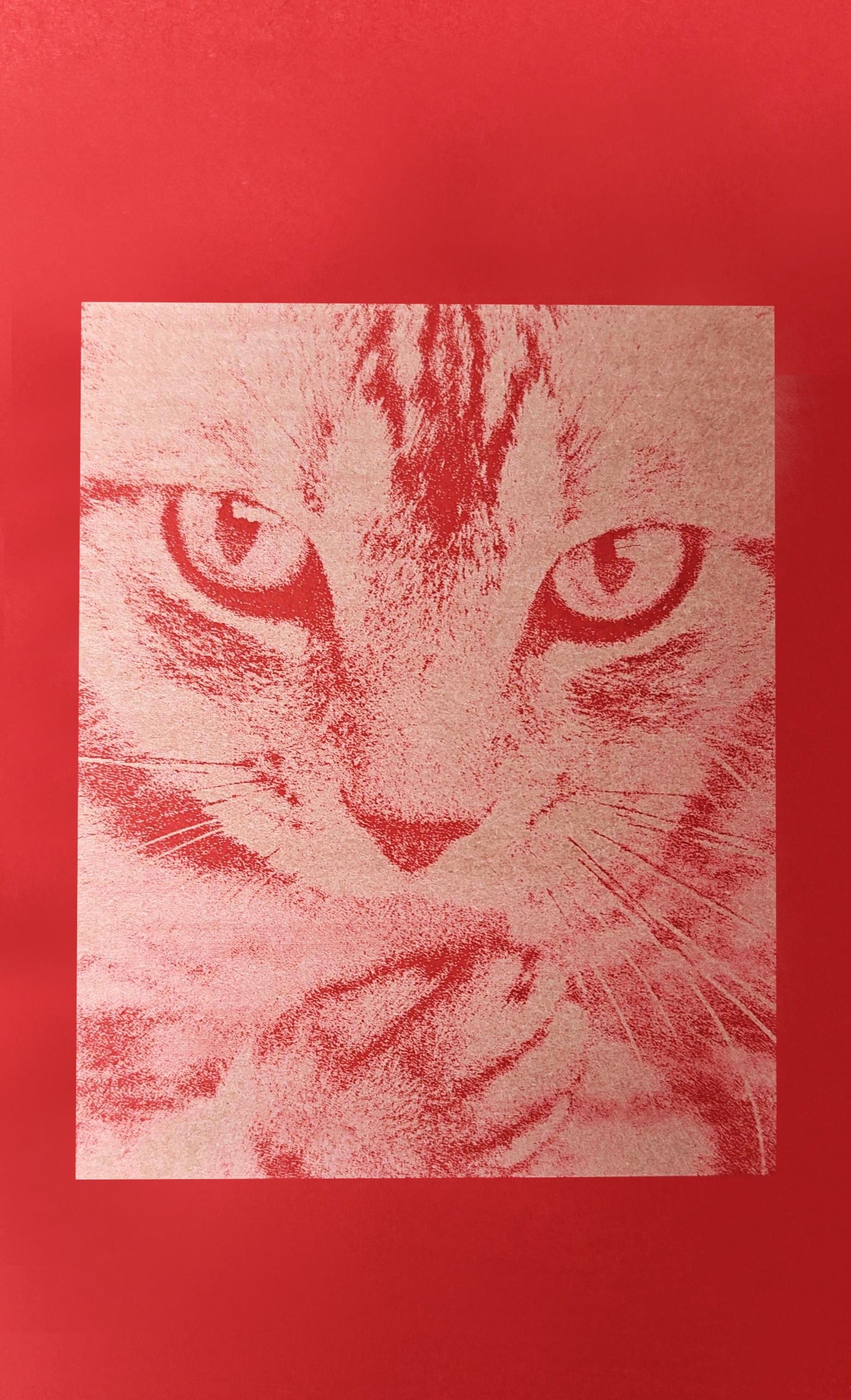
Finished Result Cat
Conclusion
The Ray5 Mini offers an accessible yet powerful solution for small-scale laser engraving projects. With proper setup and the use of LightBurn software, users can achieve precise results on various materials. Whether you're creating personalized gifts, intricate patterns, or prototyping small components, the Ray5 Mini is a dependable tool that balances performance, safety, and ease of use.
- La scelta di una selezione comporta un aggiornamento dell'intera pagina.


!