Academy

Installing Octoprint on Laptop/Tablet for 3D FDM printers - LONGER
Installing Octoprint on Laptop/Tablet for 3D FDM printers

Many FDM  3D printer users prefer to use advanced management systems to start and control the printing process, both locally and remotely.  One of these systems is Octoprint, probably the most preferred by users, as it is cheap to make and works in a simple and immediate way; based on an Raspberry, just install the official software to be able to immediately access the world of Octoprint , with all plugins and management and control features available.  For more information visit the official website of Octoprint (https://octoprint.org).

This article aims to present a method to make an OctoPrint system (with or without touch) for free, using an old laptop or a touch tablet; note that tablets based on Android/iOS are NOT compatible, and the guide only works with laptops and tablets that originally worked on the Windows operating system (that is, with an x86/x64 processor).

The guide is recommended for users who have a minimum of computer knowledge, otherwise some steps may be difficult and could create incompatibilities.


Procedure:

1 - In a computer different from the one you intend to transform into Octoprint:


  • Insert the USB drive into the computer, open Raspberry Pi image and click on "use custom image" using the one just downloaded; in this way you can prepare the usb drive with a bootable .ISO


2 - In the laptop/tablet you want to transform into Octoprint:

  • Insert the bootable USB drive prepared above and proceed with the installation of the Raspberry Pi Desktop operating system


Once the procedure is completed, the laptop/tablet will have all the features of an Octoprint on Raspberry, so it will be compatible with all classic Octoprint plugins.  
In addition, using a tablet it will be possible to interact with Octoprint via touchscreen and also implement the camera to be able to remotely monitor the printing process.  
For any other functionality always refer to the official Octoprint guides.

By Academy | July 28, 2022
Longer LK4 Pro & LK5 Pro – Upgrades by @Ciubecca - LONGER
Longer LK4 Pro & LK5 Pro – Upgrades by @Ciubecca

All Longer 3D printers offer excellent performance and guarantee high print quality, however some users love to install upgrades useful to change the aesthetic appearance or characteristics of the printer. For this reason, this article intends to present some of the most installed upgrades by users, offered by @Ciubecca Nicola.


1) LONGER LK4Pro & LK5Pro Display Cover


This upgrade allows you to install a cover on the display of the Longer LK4PRO & LK5PRO printers, so as to protect the screen from dust when the printer is not in use

Download link: https://www.thingiverse.com/thing:4929422


2) LONGER LK4Pro & LK5Pro Adjustable LED Light Bar Mount


This upgrade allows you to install a lamp through an adjustable stand, so as to obtain a good illumination of the printing plate of LK4PRO & LK5PRO.

Download link: https://www.thingiverse.com/thing:4980580


3) LONGER LK4Pro & LK5Pro Mini SD Card/USB Holder


This upgrade allows you to install a holder for microSD cards, USB pendrives and SD cards, so you always have any type of flash memory next to the printer

Download link: https://www.thingiverse.com/thing:5230892


4) LONGER LK4Pro & LK5Pro Front rail cover with Bed Leveling Reminder


If you do not need the previous Card Holder, then this upgrade can be a good choice; this upgrade is a reminder that allows you to remember from which direction you have to turn the leveling knobs to raise or lower the printing surface

Download link: https://www.thingiverse.com/thing:4981797


5) LONGER LK4Pro & LK5Pro Screw Cap


An upgrade as simple as it is functional, of the simple caps to cover the screws of the aluminum frame of the LK4PRO & LK5PRO printers. Choose your favorite color to customize your printer to the maximum!

Download link: https://www.thingiverse.com/thing:5186277


6) LONGER LK4Pro & LK5Pro Spool Clamp


Some filament coils tend to move on the Spool Holder; therefore, if this is a problem for you then you can install this upgrade, which allows you to hold the coil in its position

Download link: https://www.thingiverse.com/thing:5186749


7) LONGER LK4Pro & LK5Pro Flexible Arms


This upgrade consists of a flexible arm, which was used to install a camera that can record the printing process. However, if you have a different camera or if you don't need a camera, then you can modify the original design and use the flexible arm for any kind of customization you have in mind. Bring your ideas to life!

Download link: https://www.thingiverse.com/thing:5186245

By Academy | June 16, 2022
First Layer Calibration - LONGER
First Layer Calibration

The calibration of the first layer takes place by calibrating the distance between the tip of the nozzle and the surface of the printing plate; in this way the extruded plastic will stick correctly to the plane, being crushed slightly and correctly.

Longer 3D printers are equipped with a menu accessible from a display that allows you to calibrate accurately and precisely, by measuring it at 5 predetermined points. For calibration it is enough to leave the space of a sheet of paper between the tip of the nozzle and the surface of the plate, so that the sheet can move freely but with a slight friction, simply by turning each of the 4 knobs to manually adjust the distance between the nozzle and the plane.

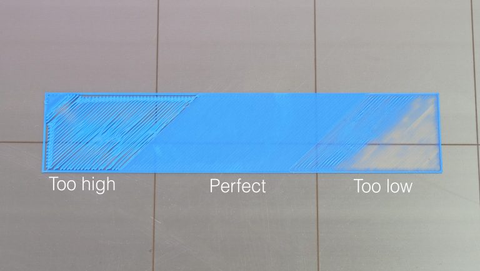
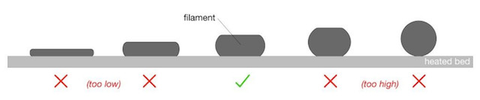
Once the calibration has been carried out correctly, it is possible to make a test print to evaluate the quality of the first layer, which will be perfect if the calibration has been carried out correctly or of poor quality if the calibration has been carried out incorrectly. Proper adjustment ensures a uniform and perfect surface, without gaps between the lines, nor ridges.

An extrusion too far from the printing plane is recognized by round lines instead of crushed, far from each other rather than united; an extrusion too close to the printing plane is recognized by lines crushed completely, too close to each other almost to overlap and create ridges that curl upwards.

In case of incorrect calibration, the following problems may occur: if the nozzle is too far from the print surface, there is a risk that the print will not stick properly, causing a harmful accumulation of material around the nozzle, instead if set too close, an occlusion of the nozzle, excessive adhesion to the printing plate or even permanent damages at the printing plane.

Therefore, it is a good idea not only to accurately calibrate the first layer, several times if necessary, and above all to monitor the printer every time you start a new print until the first layer has been completed correctly.


Sometimes, the first layer may fail to adhere to the print plane despite the calibration being done correctly. In these cases, you can proceed with the thorough cleaning of the printing surface, so as to remove the accumulated dirt; in case the problem persists, you can proceed with the increase of the flow related to the first layer, a topic that will be covered in a future lesson.

Once a perfect calibration has been obtained, this will not be eternal: the first layer calibration will have to be checked periodically, and surely it will have to be done again every time you move the printer to a different place, you make the nozzle replacement, the extruder change, the replacement of the plane or any other modification to one of the 3 axes.

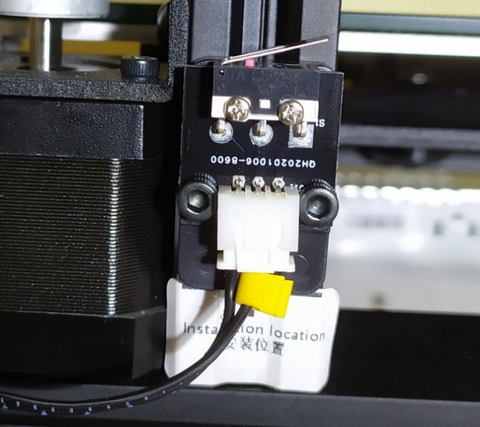
In some case, it could be found that the calibration is impossible to carry out on the 5 points, that is, the 4 corners of the plane are well calibrated while the center is too close to the tip of the nozzle. This could be caused by incorrect placement of the Z endstop. 


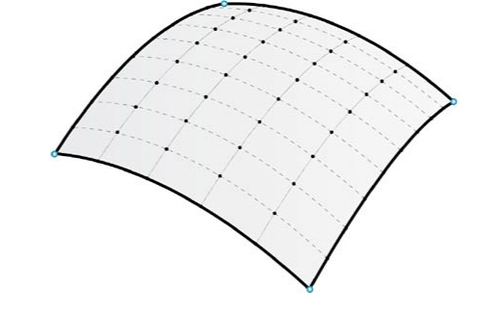
Longer 3D printers have a sticker that indicates where endstop Z should be placed. However, if endstop Z is placed too low, as a result it will be necessary to lower the printing plane as well, screwing more the 4 adjustment knobs; on the other hand, excessively screwing the corners inevitably causes a deformation of the aluminum top, which takes on a curved shape with the highest center of the corners.


In these cases, it is possible to place endstop Z higher, so as to be able to raise even the 4 corners of the plane and cancel the curvature. On the other hand, it is advisable not to exceed the positioning of endstop Z at the top, as this would cause an instability of the printing plane due to insufficient screwing of the 4 levelling knobs.


Above is the introduction of the first layer calibration, hope it can help you. If you still have any questions during the operation, please visit our Support Page. Our knowledgeable staff is happy to assist you and your team with any questions.


After mastering the above information, why not take a look at our exceptionally outstanding laser engraving machine, the Longer Laser B1 40W ?Unlock the pinnacle of laser engraving and cutting prowess with the B1 40W. Where precision meets versatility and innovation, seize the power to transform your visions into tangible achievements. With its powerful engraving and cutting capabilities, it transcends boundaries to become the best engraving machine and best laser cutter for a variety of materials. From wood, metal, acrylic, glass to leather and more, there are no limits to your creativity.

By Academy | June 16, 2022
Printing Flow Calibration - LONGER
Printing Flow Calibration

In 3D printing, extrusion flow is a key aspect to consider if you want to obtain not only quality prints, but also dimensionally correct prints.

The flow is closely related to the speed of rotation of the gear wheel attached to the extrusion motor; the faster it rotates in a certain time interval, the more filament will be extruded during that interval. For this reason it is necessary to set the correct amount of flow, corresponding to the exact amount of molten material needed to correctly compose the printed object.

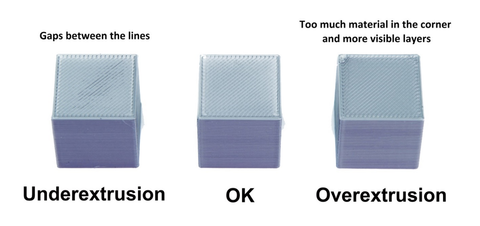
Depending on the amount of flow per unit of time, 3 scenarios can occur:

  • Underextrusion(too low flow), which occurs when little material is extruded and has prints with small gaps that appear between two layers or between two perimeter lines
  • Extrusion(correct flow), which when the right amount of material is extruded and has prints free of external defects
  • Overextrusion(too high flow), which occurs when too much material is extruded and features blobs prints on the outer walls and accumulation of unnecessary material on the upper layers


If the prints are affected by underextrusion, then it will be necessary to increase the print flow; instead, in case of overextrusion it will be necessary to decrease the print flow. In order to determine the exact amount of decrease/increase in flow, empirical tests can be failed to provide accurate reference data.

Starting from the premise that a underextrusion produces prints smaller than expected while an overextrusion produces prints larger than expected, in order to empirically verify the amount of flow we proceed as follows:

  • Download the following calibration cube.stl:

https://thingiverse.com/thing:5118535 

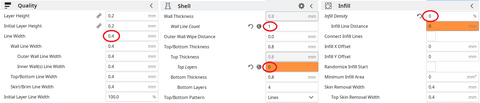
  • Import the cube.stl into Cura and apply the following slicing settings:


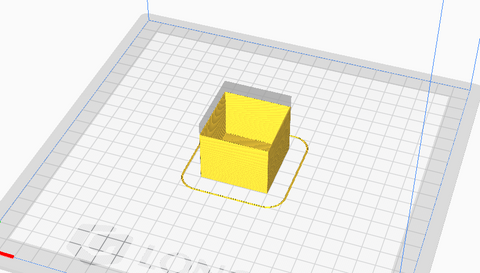
  • Print the cube, which will have only one perimeter wall, empty and without a top layer


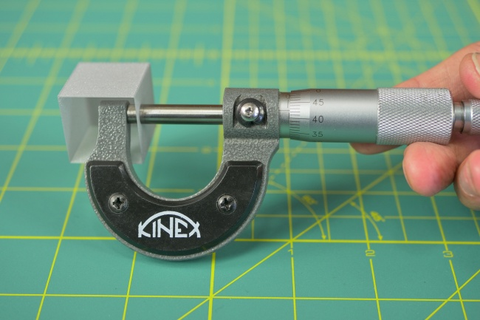
  • When printing is complete, proceed to the measurement of the walls with a gauge


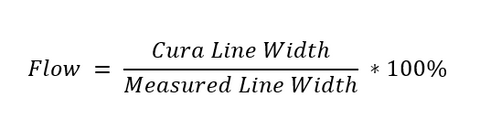
Each wall will have a certain size, which may be less, equal or greater than 0.4mm; from the average of these values, the flow is calculated by applying the following formula:


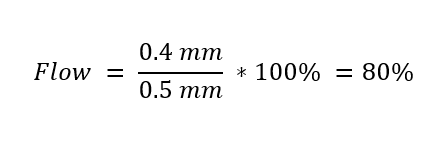
Therefore, assuming that the average of the measured walls is 0.5mm wide despite it should be 0.4mm, the flow to be set turns out to be:


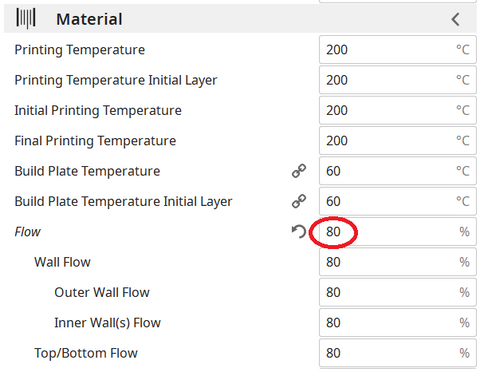
The result obtained must be set in the following Cura menu:

However, you have to pay close attention to the flow set, because even if it is the result of mathematical calculations, it is not always absolutely correct. In fact, the calculated flow can be to include errors due to a bad measurement with the caliber, from a bad leveling of the printing plane, and so on; therefore, it is a good idea to repeat the printing of the test cube several times to check for any variations, and above all it is necessary to verify that the prints do not yet have defects despite the new flow has been set correctly.

This means that, if, for example, mathematical calculations have returned a value of 80% as the correct flow, perhaps the best value for prints is that of an 85% stream. Then once the new flow is set, we proceed by increasing/decreasing the new value based on any aesthetic defects of the prints.

We proceed by applying a visual method:

  • Restore Cura to default settings
  • Print the cube.stl normally, with infill
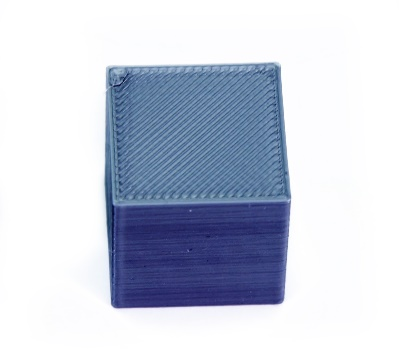
  • Visually examine the print quality of the cube

  • If the flow has been set correctly, the upper layers will be smooth, shiny and without scarring or filament accumulations near the perimeters, with the layers perfectly joined.
  • If there is too much material near the perimeters, slightly decrease the flow value and rerun the test.

If there are visible gaps between the layer lines, slightly increase the flow value and run the test again.

https://www.longer3d.com/collections/3d-printers-1

By Academy | June 16, 2022
Bridging Printing
Bridging Printing

The FDM 3D printing consists of a series of layers of molten material placed on top of each other; in this way, complex objects are created through a succession of layers. However, often some layers must be placed in areas without a base, so the layer is printed literally in a vacuum and it will inevitably fall down, but to overcome this problem it is possible to use supports, which act as a temporary scaffolding and can be removed once the print has been completed.

In some special cases it is possible to print suspended layers, without the use of supports. It may seem like an impossible feat, but over short straight distances you can print in a vacuum by instantly solidifying the layer using the air from the printer fans, thus creating a solid connection. This phenomenon is called Bridging and can be accomplished by means of some key print settings, such as flow, print speed and cooling.

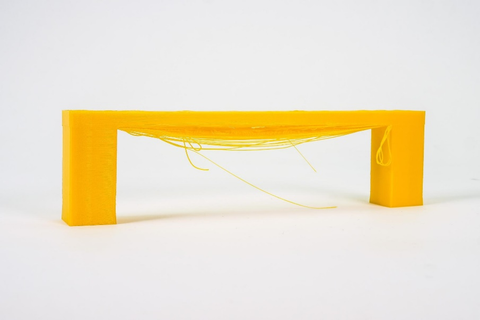
Depending on the settings used, the solidification of the layer may occur too slowly, thus causing it to sagging or lowering, as seen in the following photo.


By the way, below are some tips on how to improve bridging printing. 
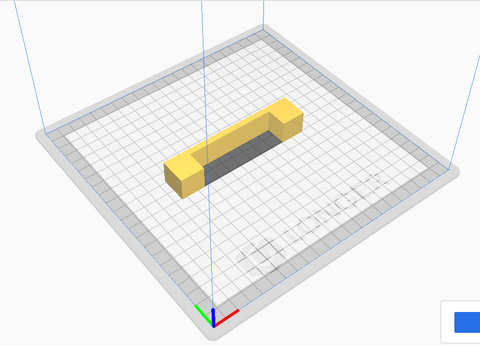
For tests you can download this sample, which can be printed several times depending on the settings chosen, until you find a satisfactory result: 
https://www.thingiverse.com/thing:476845


First you need to make sure that the print stream has been calibrated correctly; in this regard, it is possible to consult the previous lesson, relating to the "Printing Flow Calibration".

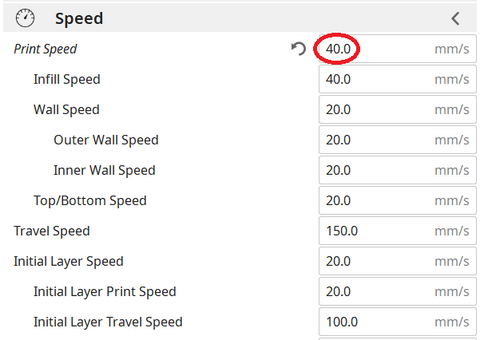
At this point, proceeding with the printing of the sample, if the bridging has unsatisfactory quality, it is possible to decrease the printing speed; progressively reducing the speed by about 5 mm/s it is possible to carry out various tests, until the ideal value is found.

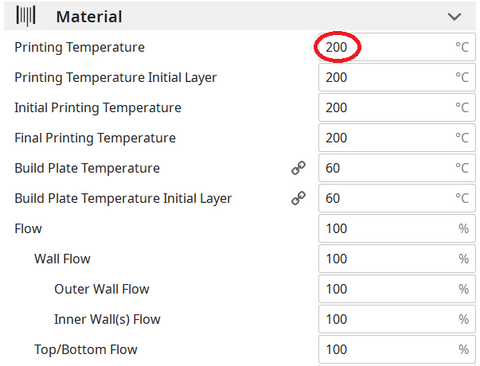
Printing temperature also plays a key role in bridging; in fact, the hotter the layer, the longer it takes for its solidification, thus causing a sagging. For this reason, by progressively reducing the printing temperature by about 5 ° C it is possible to carry out various tests, until the ideal value is found.

If the bridge is very long and the geometry of the object allows it, it is often possible to rotate the object until the suspended part disappears completely, as shown in the figure. However, in most cases this is not possible (including the case of printing the sample), so it is a solution that can be counted on very rarely.


Longer Dual Blower Kit

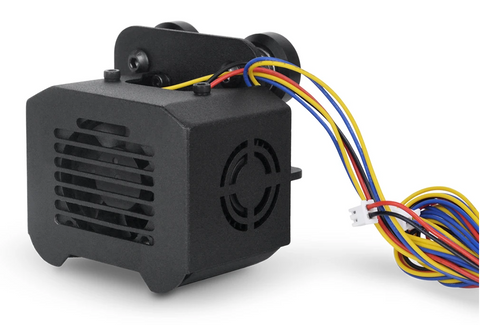
As mentioned from the beginning, for bridging the quality of air emitted by the cooling fan is fundamental, which must be able to instantly solidify the layer; for this reason, if changing the slicing settings is not enough, then the new Longer Dual Blower can help.

The new Longer Dual Blower has been specially designed to allow a faster and more uniform emission of cooling air, thanks to two bilateral turbo fans and a double ventilation duct; in this way the prints are much more detailed and the bridging printing greatly improved.

The installation is very simple, and can be done by consulting this video guide: https://youtu.be/zEA-eM5sfho

The purchase is available on the Official Longer Store:
https://www.longer3d.com/collections/accessories/products/longer-new-dual-blower-fan-kit

https://www.longer3d.com/products/lk5-pro-fdm-3d-printer

By Academy | June 16, 2022
Printing Supports - LONGER
Printing Supports

FDM 3D printing consists of a series of layers of molten material placed on top of each other; in this way, complex objects are created through a succession of layers. However, often some layers must be placed in areas without a base, so the layer is printed literally in a vacuum and it will inevitably fall down, but to overcome this problem it is possible to use supports, which act as a temporary scaffolding and can be removed once the print has been completed.

In a previous lesson, we saw how in some special cases it is possible to print suspended layers, without the use of supports, using the phenomenon called Bridging, but this technique is limited to particular designs mostly straight and of short distances. For most prints there will inevitably be a need to use Printing Supports.

As anticipated, the supports are printed structures that are not part of the original design, but are scaffolding external to the design that are used temporarily for printing the object, and in particular serve to ensure that the cantilevered parts of the object are extruded over a solid structure instead of in a vacuum, so as not to collapse downwards. These support structures are temporary because at the end of printing, they will have to be removed, thus having a model printed according to the original design.


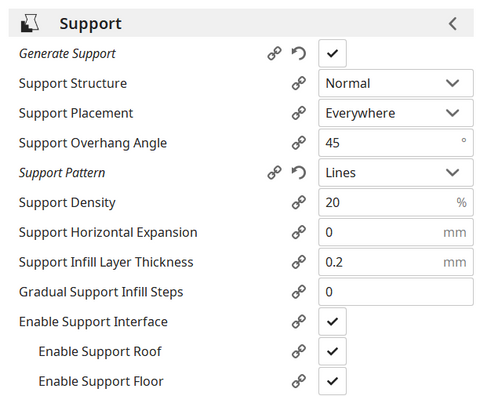
In the Cura slicer there are various types of supports to choose from, and most of them are equivalent, that is, choosing one type instead of another does not make a big difference; they are mainly based on vertical structures, more or less dense, and a good default configuration of the supports can be indicated in the following photo:


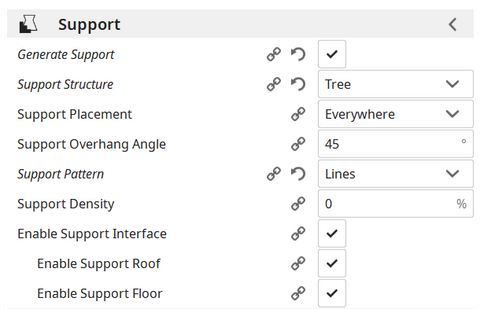
A separate case is the Tree Supports, which tend to be less dense and easier to remove at the end of printing, since just like a tree these supports have a common base at the bottom and expand upwards in more branches just with a tree. Therefore, a smaller support surface at the bottom corresponds to a greater support surface at the top, and this saves material for the realization of the supports and facilitates the removal of the supports thanks to their particular upward development configuration.


The example below shows how, with the same model, the two different types of support take on a different development, while performing the same function:


Although tree supports always seem to be the best choice for various reasons, in reality it is necessary to evaluate on a case-by-case basis what type of support to use, as depending on the geometry of the model it may be more convenient to use classic vertical supports, so as to guarantee greater resistance during printing. In any case, the best way to get answers in this regard is to empirically test the various types of support and evaluate those that best suit the type of model to be printed.

https://www.longer3d.com/products/lk5-pro-fdm-3d-printer

By Academy | June 16, 2022
Nozzle Size Comparing - LONGER
3D Printer Nozzle Size Comparing: Speed, Detail & Layer Height Explained

In 3D printing, the nozzle diameter plays a key role in determining the maximum layer height you can use. As a general rule, the maximum layer height is about 80% of the nozzle’s diameter. For example:

  • With a 0.4 mm nozzle, the layer height can go up to 0.32 mm.

  • With a 0.8 mm nozzle, it can reach 0.64 mm.

  • With a 0.2 mm nozzle, the maximum is 0.16 mm.

What’s important to note is that the nozzle size only limits the maximum layer height — not the minimum. This means that even with a large 0.8 mm nozzle, you can still print with fine resolutions like 0.05 mm, just as you would with smaller nozzles.

In simple terms, larger nozzles allow faster printing while still being capable of high detail, and smaller nozzles focus on fine detail but print more slowly.

By Academy | June 16, 2022
Tolerance Test for Joints - LONGER
Tolerance Test for Joints

Very often interlocking objects are encountered, that is, an object fits perfectly with another object, providing a unique object; however, in order for two objects to fit together, it is necessary that they comply with precise measures relating to the interlocking zones.

Assuming you have a cylinder with a diameter of 1mm and a circular hole of 1mm, in theory the interlocking can take place, but in practice the interlocking will not take place as there is always a need for a certain "tolerance". Therefore, a cylinder with a diameter of 1mm can fit into a circular hole if it has a diameter of 1.1~1.4mm, that is, if there is a tolerance of 0.1~0.4 mm between the two objects. On the other hand, the tolerance cannot be applied at will but must be calculated accurately, as a tolerance that is too small will be insufficient to make the interlocking, while a tolerance that is too large will make the interlocking unstable, with the two objects passing through each other.
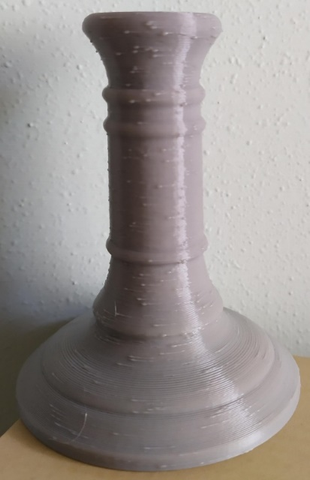
 

In 3D Printing the interlocking tolerance strongly depends on your 3D printer used, as usually a tolerance of 0.2mm is sufficient but depending on the printer used (and how it is configured) the tolerance may vary. If the flow calibration tests, the calibration of the first layer and the temperature test have been carried out (as illustrated in the previous lessons of the Longer 3D Academy), then it is now possible to perform the "Tolerance Test", which allows you to determine the exact tolerance value when you intend to fit two objects together. In this way, once the tolerance value has been established, when interlocking objects are drawn, it is possible to draw them with a measurement difference equal to the tolerance, so as not to have problems during the interlocking procedure.

In order to proceed with the Tolerance Test, proceed as follows:


Once the printing is complete, a visual evaluation of the tolerance can be made. In particular, the cylinder must be able to remove itself from its base, but must not slide through the hole; instead, the cylinder must be able to fit into the hole, and this will be the tolerance value sought.

Once you have the tolerance value, use it every time you draw interlocking objects.

https://www.longer3d.com/collections/3d-printers-1

By Academy | June 16, 2022
Blobs in 3D Printing - LONGER
Blobs in 3D Printing

Many users of 3D printing, regardless of their experience, often find themselves facing an annoying problem that is really difficult to eliminate: blobs on the outer surface of the prints. This phenomenon often appears suddenly, only on particular prints, even when you think you have found the perfect Slicer settings for optimal print quality. So we proceed with varying the temperature, the speed, the accelerations, etc., but despite this the problem is not solved, but only a little attenuated.

Blobs are deposits of molten material along the outer surface of a print, take on the appearance of "little balls" and are difficult to remove even by handworking the print in post-production. These occur when the nozzle abnormally releases molten material, and often this is independent of slicer settings such as retraction and flow.


When math is indispensable for 3D printing

In geometry, a polygon takes on a different name and appearance based on its number of sides (segments). In particular, a polygon composed of 3 segments will be called a triangle, composed of 5 segments will be called pentagon, 6 hexagon segments, 10 decagon segments, ..........., from 1.000.000.000 segments will be something very similar to a circumference, from 1.000.000.000.000 segments will look almost a circumference, from 1.000.000.000.000.000.000 segments will be practically a circumference.

Thus, a polygon of n-sides, with very large n and each segment very small, can be approximated with a circle, with greater precision as nincreases. This technique is used by 3D printers to print a circumference, transforming it into a series of XY coordinates of n segments, with n more or less large depending on the number of meshes of the original stl model.  Thus, a circumference is a series of countless segments, each of very small amplitude, made one after another on the hotbed of the 3D printer.

However, what to the eye seems to be a very simple circumference, actually requires a high computational cost for the mainboard of the 3D printer, as it is necessary to process in a fraction of a second millions of coordinates of millions of segments. In addition, depending on the number of meshes of the original stl model, 3D printing may often have to process much more data than is sufficient to achieve a perfect circumference, sometimes even more than its hardware capacity in terms of resolution.

Therefore, if for example the 3D printer can realize a perfect circumference starting from 10.000.000.000 segments, and this is also its maximum resolution, when its mainboard is found to process 1.000.000.000.000.000 segments this will perform unnecessary work, both because it is possible to obtain an optimal result with a lower computational cost and because such processing cannot be put into practice due to the hardware limitations of an FDM printer.


Correlation between geometry and blobs

As seen above, for a simple circumference, a 3D printer is faced with a very complex calculation in no time, often a calculation even greater than necessary. So it can happen that the mainboard cannot process the data in time, so the hardware not receiving print coordinates can only stop. These stops occur for a very short time, almost imperceptible, but they are enough for the nozzle to lose molten material along the outer perimeter of printing, thus forming a blob.

Therefore, regardless of one's slicing settings, the blobs phenomenon cannot be solved easily as it is dependent on the type of 3D drawing, its number of meshes, the original designer's ability to make it, and the computational ability of the mainboard of your 3D printer.


Resolve the problem

The optimal approach to solve this problem would be to manipulate the stl file in question, going to reduce the number of meshes, repair it and try to reduce its size in terms of megabytes. However, this operation often turns out to be complex, suitable only for experts, or even impossible.

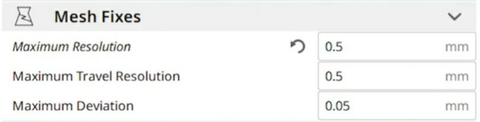
On the other hand, the Ultimaker Care slicer is equipped with a special, hidden feature that not everyone knows about, which is very useful for reducing the number of meshes of a 3D object. This option is called "Mesh Fixes" and is intended to reduce the number of meshes of an object by varying the maximum length of each segment. In this way, by increasing the maximum distance of each segment, at the same perimeter inevitably the number of segments must be smaller, and therefore the computational cost of the mainboard is also reduced. Therefore, by processing the gcode more easily, the 3D printer will be able to process a greater number of displacements without suffering from pauses, and therefore reducing the blobs.


In particular, by changing the default settings with the values above it will be possible to solve almost entirely the problem of blobs, without altering the standard FDM print quality. It should be considered in mind that professional 3D printers, such as FDM Ultimaker printers, adopt by default values of 0.7 mm without affecting their ability to make details and resolution. 

If after changing the parameters in question should still persist some sporadic blobs, it will be possible to totally solve the problem by slightly adjusting the values of temperature and downward flow, the upward retraction. Alternatively, you can always increment the Mesh Fixes values at the expense of details.

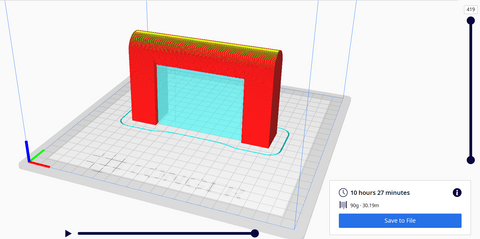
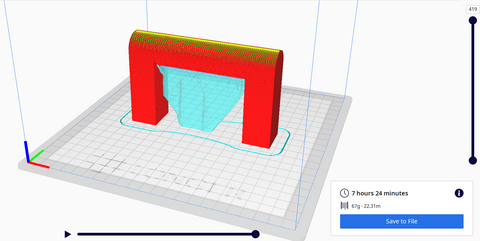
The print difference with the standard and custom Mesh Fixes settings are immediately visible:


Both tests were done keeping the exact same slicing settings for both, except for varying the Mesh Fixes values.

The test stl file has been modified, damaged and repaired three times, in order to make it difficult for the mainboard to be processed.

https://www.longer3d.com/products/lk5-pro-fdm-3d-printer

By Academy | June 16, 2022
Cyclonic Separator - LONGER
Cyclonic Separator

After completing the calibration of your 3D printer, following the previous articles of the Longer 3D Academy, you can check the results obtained through the test below.

The object that we are going to print is a "Cyclonic Separator", that is a particular object that is placed between the vacuum cleaner and the suction pipe, and which allows you to separate up to 99% of the dirt present in the suction pipe. In this way the vacuum cleaner will always remain clean and above all its filters will not freeze; so this object turns out to be extremely useful when you intend to vacuum the residues produced by woodworking, the fine dust produced by the processing of 3D prints, the residues produced by laser cutting, and so on.

Printing the Cyclone requires that the printer has been perfectly calibrated, otherwise the print will not be perfect and will not guarantee the promised results. Therefore, if the printer is ready, here's how to proceed.


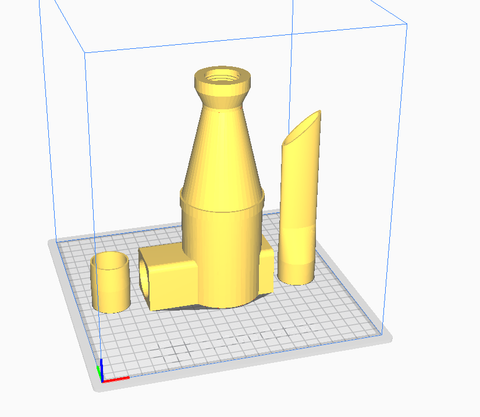
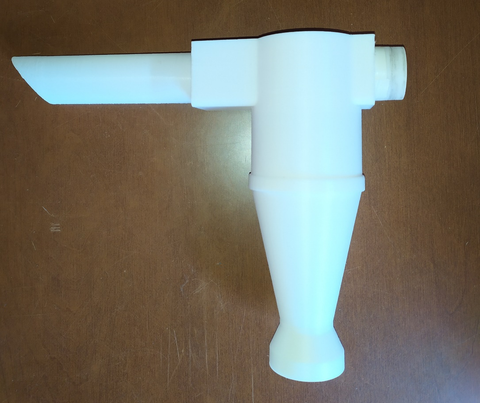
The model consists of the main body of the cyclonic separator and two input and output adapters, which serve as a connection between the cyclone and the vacuum cleaner pipes. For best results it is recommended to use PETG, however if you do not have some experience with this material then you can also use PLA.


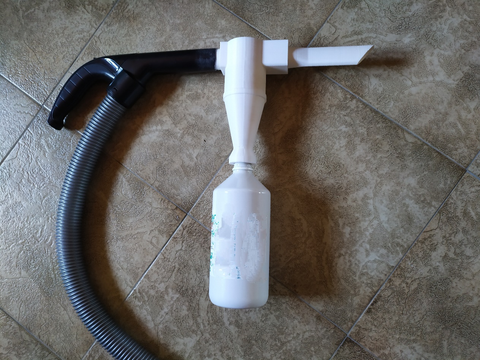
To make the connection more stable, it is possible to put a little rubber insulating tape around the adapters, so as to have more stable and sealed joints. In addition, the Separator will need a container compatible with its screw attachment, and an easily accessible example is a classic transparent bottle of Coca-Cola or any other container with a similar thread.


Once the Cyclonic Separator is installed as shown in the figure, almost all the sucked dirt will go inside the bottle instead of inside the vacuum cleaner, thus avoiding clogging the filters with fine dust.
Remember never to put your hand in front of the suction, as the Cyclonic Separator works on pressure differences; therefore, obstruction of the suction will cause the container to implode!
This video shows the Cyclonic Separator in action:  https://youtu.be/FEvztl8UPPk

https://www.longer3d.com/collections/accessories

By Academy | June 16, 2022