Blog de grabador láser

Longer Camera Installation Guide

Installing a camera on your laser engraver can significantly improve positioning accuracy and workflow efficiency. This Longer camera installation guide walks through the installation process in a beginner-friendly format so you can properly set up and use your camera system without confusion.

Whether you are engraving wood, acrylic, leather, or custom projects, proper camera installation helps reduce alignment errors and saves setup time.


Table of Contents


Quick Answer

A properly installed laser engraver camera helps improve material positioning and job alignment. Follow the original Longer camera installation process exactly, including mounting location, connection methods, and software configuration steps.

Do not change settings or procedures from official instructions. Correct positioning and calibration directly affect engraving accuracy.


What This Guide Covers

This tutorial explains:

  • Required items before installation
  • Camera mounting preparation
  • Installation workflow
  • Important setup notes
  • Common issues and troubleshooting
  • Expert tips for better results
  • Frequently asked questions

Why Longer Camera Installation Matters

Many users manually align materials before engraving. This can be slow and may cause:

  • Material placement errors
  • Repeated positioning attempts
  • Wasted materials
  • Longer production times

Adding a camera system provides a live workspace view that can help with:

  • Faster material positioning
  • Improved engraving consistency
  • Reduced setup time
  • Better workflow for batch production

For users running small businesses, this becomes even more valuable because reducing setup time can improve productivity.


Before You Start

Requirements

Prepare the following before installation:

Hardware

  • Longer laser engraver
  • Longer camera kit
  • Included mounting accessories
  • Connection cables
  • Fasteners included in the package

Software

  • Longer software or required machine software
  • Camera setup files if provided

Workspace Requirements

  • Stable working surface
  • Adequate lighting
  • Sufficient installation space

If any required information is missing:

Follow official machine specifications or instructions.


Precautions

Before beginning installation:

⚠️ Turn off the machine before connecting hardware.

⚠️ Avoid placing cables where moving machine components can interfere.

⚠️ Do not force connectors into ports.

⚠️ Ensure the camera lens remains clean during installation.

⚠️ Avoid changing any original software settings not mentioned in official instructions.

⚠️ Keep installation hardware organized to avoid missing parts.


Step-by-Step Longer Camera Installation Guide

Step 1: Prepare Installation Components

Action:

Unpack the camera kit and verify all included components.

Check:

  • Camera module
  • Mounting hardware
  • Connection cables
  • Fasteners
  • Accessories

Expected Result:

All required items are present and undamaged.

Important Notes:

Missing components can interrupt installation later.


Step 2: Locate the Camera Mounting Position

Action:

Identify the specified mounting location according to the original installation instructions.

Expected Result:

The camera location provides a clear view of the engraving workspace.

Important Notes:

Camera placement directly affects:

  • Workspace visibility
  • Positioning precision
  • Calibration quality

Do not modify mounting locations unless instructed.


Step 3: Install the Camera Bracket

Action:

Attach the camera bracket according to official instructions.

Secure all fasteners properly.

Expected Result:

The bracket remains stable without movement.

Important Notes:

Avoid over-tightening screws because this may damage components.


Step 4: Mount the Camera

Action:

Attach the camera to the installed bracket.

Ensure the camera orientation matches official instructions.

Expected Result:

The camera sits securely and faces the working area correctly.

Important Notes:

Incorrect orientation may affect later calibration.


Step 5: Connect Cables

Action:

Connect the supplied cables according to the installation guide.

Route wires neatly.

Expected Result:

All cables are securely connected.

Important Notes:

Avoid:

  • Tight cable bends
  • Loose connectors
  • Cable contact with moving machine parts

Step 6: Power On and Verify Camera Detection

Action:

Power on the machine and launch the required software.

Verify that the software recognizes the camera.

Expected Result:

The camera feed becomes available.

Important Notes:

If the camera is not detected:

  • Check cable connections
  • Restart software
  • Follow official machine specifications or instructions

Step 7: Perform Camera Configuration

Action:

Complete required software configuration according to official procedures.

Expected Result:

Camera functionality becomes available for workspace viewing.

Important Notes:

Do not alter menu names, settings values, or configuration procedures.


Helpful Resources

You may also find these related guides useful:

For machine setup and workflow improvement:


Common Problems and Solutions

Problem Requirements Solution
Camera not detected Check hardware connection Reconnect cables and restart software
Camera image appears blurry Clean lens Remove dust and debris carefully
Camera view misaligned Verify mounting position Recheck installation position
Camera image unstable Check bracket installation Tighten hardware correctly
Software does not recognize camera Verify compatibility Follow official machine specifications or instructions

Tips for Better Results

1. Keep the Camera Lens Clean

Dust buildup can reduce image quality and affect alignment precision.

2. Use Consistent Lighting

Changing light conditions may affect workspace visibility.

3. Check Hardware Regularly

Machine vibration during long use can loosen fasteners.

4. Keep Cables Organized

Neat cable routing reduces accidental disconnection risks.

5. Test Before Starting Large Projects

Run a small test job before beginning important engraving work.


Frequently Asked Questions

Q: How to install a laser engraver camera for beginners?

A: Follow the original installation process step by step. Do not change mounting positions, settings, or procedures.


Q: Why is my laser camera image blurry?

A: Common causes include dust on the lens, incorrect focus, or improper installation positioning.


Q: Can I change the camera mounting location?

A: Only use the mounting location specified in official instructions.


Q: Why is my software not detecting the camera?

A: Check cable connections and verify that all hardware is installed correctly.


Q: Does camera installation improve engraving accuracy?

A: A properly configured camera can improve positioning efficiency and reduce alignment errors.


Q: Is a camera necessary for laser engraving?

A: A camera is optional but can improve workflow speed and positioning convenience.


Q: What is the best laser camera setup for engraving accuracy?

A: The best results come from correct mounting, stable hardware installation, and following official setup instructions.


Final Thoughts

Completing the Longer camera installation guide correctly helps create a smoother and more efficient engraving workflow. Proper mounting, secure connections, and following the official setup sequence are critical for achieving reliable results.

After installation, test the camera with small engraving projects and verify that positioning behaves as expected.

For more laser tutorials, troubleshooting resources, and machine guides, explore additional resources from Longer support and training materials.

By Blog de grabador láser | March 4, 2025
Longer B1 Enclosure Installation Guide

Installing a laser enclosure correctly is important for both safety and workspace cleanliness. This Longer B1 enclosure installation guide walks through the complete installation process in a beginner-friendly way while preserving the official assembly sequence.

A properly installed enclosure helps reduce smoke exposure, improve airflow, minimize dust, and create a cleaner engraving environment. If you recently purchased a Longer B1 enclosure, this guide explains exactly what happens during installation and what to expect at each stage. Information is based on official installation instructions.


Table of Contents


Quick Answer

The Longer B1 enclosure installation process involves assembling the frame using Beam 1, Beam 2, Beam 3, corner clips, hook clips, lighting components, fan brackets, silicone sheets, and the exhaust system.

The most important details are maintaining the official assembly order and ensuring the exhaust tube is connected to an outdoor ventilation path after installation.


What This Guide Covers

This tutorial explains:

  • Required components and preparation
  • Safety precautions before assembly
  • Complete enclosure installation steps
  • Fan and exhaust installation guidance
  • Common setup problems
  • Tips for improved airflow and usability

By the end of this guide, you should understand how to assemble the enclosure and prepare it for operation.


Why Longer B1 Enclosure Installation Matters

Laser engraving and cutting can generate:

  • Smoke
  • Fine particles
  • Odors
  • Airborne debris

The Longer B1 enclosure was designed to help direct fumes away from the workspace through an exhaust system and improve operating conditions. The enclosure also helps reduce smoke spread inside indoor environments.

Benefits include:

  • Cleaner working environment
  • Reduced smoke exposure
  • Better airflow
  • Reduced dust accumulation
  • Additional protection from stray light

For Class IV laser devices, controlled operating environments are strongly recommended.


Before You Start

Requirements

Prepare the following:

Hardware

  • Longer B1 enclosure kit
  • Beam 1 components
  • Beam 2 components
  • Beam 3 components
  • Corner clips
  • Hook clips
  • Lamp
  • Fan brackets
  • Fan
  • Silicone rubber sheets
  • Plastic connector
  • Exhaust pipe
  • Longer B1 laser engraver

Knowledge

  • Basic understanding of component identification
  • Workspace preparation

If component information is incomplete:

Follow official machine specifications or instructions.


Precautions

Before beginning installation:

⚠️ Work on a flat surface.

⚠️ Keep all parts organized before assembly.

⚠️ Do not force clips into position.

⚠️ Verify beam labels before installation.

⚠️ Ensure adequate workspace around the enclosure.

⚠️ Keep the laser disconnected during installation.

⚠️ Connect the exhaust system to an outside ventilation area after assembly.


Step-by-Step Longer B1 Enclosure Installation Guide


Step 1: Connect Beam 1 with Beam 2

Action:

Connect all "Beam 1" components with their respective "Beam 2" components.

Expected Result:

Individual Beam 1+2 assemblies are created.

Important Notes:

Make sure beam identification is correct before continuing. Incorrect identification may affect later steps.


Step 2: Form the First Square Frame

Action:

Take four Beam 1+2 assemblies and connect them with corner clips.

Expected Result:

A square base frame is formed.

Important Notes:

Check alignment before fully securing connections. 


Step 3: Install Vertical Beam 3 Components

Action:

Vertically engage four Beam 3 components.

Expected Result:

The frame begins forming its vertical structure.

Important Notes:

Ensure each beam sits securely.


Step 4: Form the Upper Square Frame

Action:

Connect corner clips and create another square using four Beam 1+2 components.

Expected Result:

The enclosure frame structure becomes complete.

Important Notes:

Avoid twisting the frame.


Step 5: Attach Hook Clips to Beam 3

Action:

Take a Beam 3 component and attach a hook clip to both ends.

Repeat four times.

Expected Result:

Four Beam 3 assemblies with hook clips attached.

Important Notes:

Ensure hook clips are fully seated.


Step 6: Connect Beam 3 with Hooks

Action:

Connect the four Beam 3 with hooks.

Expected Result:

Secondary support structure completed.

Important Notes:

Maintain even alignment.


Step 7: Attach Hook Assemblies to Beam 1+2

Action:

Connect hook clips to two Beam 1+2 ends and attach them to the frame.

Expected Result:

Hook-supported structure is attached.

Important Notes:

Do not force connections.


Step 8: Install Lamp Clips

Action:

Attach two metal clips to lamp ends.

Expected Result:

Lamp prepared for installation.


Step 9: Install Lamp onto Structure

Action:

Connect the lamp to the structure.

Adjust the distance between the vertical Beam 3 parts if necessary.

Expected Result:

Lamp installed correctly.

Important Notes:

Small spacing adjustments may be required.


Step 10: Install the Cover

Action:

Install the enclosure cover.

Pay attention to fan outlet position.

Expected Result:

Cover installed correctly.

Important Notes:

Incorrect orientation may affect airflow.


Step 11: Install Fan Brackets

Action:

Install fan brackets.

Expected Result:

Fan mounting position prepared.


Step 12: Install Silicone Rubber Sheet and Fan

Action:

Install silicone rubber sheet and fan outside the cover.

After fan installation, insert another silicone rubber sheet.

Expected Result:

Fan and sealing structure completed.

Important Notes:

Do not omit silicone components.


Step 13: Install Plastic Connector and Exhaust Pipe

Action:

Install plastic connector.

Connect the exhaust pipe.

Expected Result:

Ventilation system becomes operational.

Important Notes:

Connect the exhaust tube toward outdoor airflow.


Step 14: Place Longer B1 Inside Enclosure

Action:

Place the Longer B1 machine inside the enclosure.

Expected Result:

Installation completed.


Common Problems and Solutions

Problem Requirements Solution
Frame feels unstable Verify beam placement Check Beam 1, Beam 2, and Beam 3 orientation
Cover appears misaligned Verify installation sequence Recheck fan outlet orientation
Fan not fitting correctly Verify bracket installation Reinstall fan brackets
Poor smoke extraction Confirm ventilation path Connect exhaust tube outdoors
Lamp position incorrect Check beam spacing Adjust vertical Beam 3 distance

Tips for Better Results

  1. Assemble components in a spacious area.
  2. Organize clips and beams before beginning.
  3. Verify component labels before connecting.
  4. Keep the exhaust tube as straight as possible.
  5. Inspect fan installation before operation.

Frequently Asked Questions

Q: How to install Longer B1 enclosure for beginners?

A: Follow the official assembly sequence exactly. Start with Beam 1 and Beam 2 assemblies, create the frame, install supports, then complete fan and exhaust installation.


Q: Why does my Longer B1 enclosure have poor smoke extraction?

A: Check whether the exhaust tube is connected correctly and directed outdoors.


Q: Can I change the installation order?

A: No. The official installation sequence should be maintained.


Q: What should I do if some information seems missing?

A: Follow official machine specifications or instructions.


Q: What is the purpose of the silicone rubber sheets?

A: They help create proper sealing around the fan assembly.


Q: Is the Longer B1 enclosure necessary for indoor use?

A: The enclosure helps reduce smoke spread and improves air handling inside indoor environments.


Final Thoughts

Completing a Longer B1 enclosure installation is relatively straightforward when the official sequence is followed carefully. The enclosure helps create a cleaner operating environment and supports more effective smoke management.

For additional setup resources, explore related Longer guides:

  • Longer B1 firmware update guide
  • Longer B1 lens cleaning tutorial
  • Longer B1 camera installation instructions
  • Longer B1 rotary roller installation guide

For model-specific details or accessory information, follow official machine specifications and support documentation.

By Blog de grabador láser | March 4, 2025
Ray5 5w-10w-20w, which one is better for you?

Ray5 5w-10w-20w, which one is better for you?

The Longer Ray5 Laser Engravers are versatile tools that allow you to engrave and cut a wide range of materials with precision and speed; the powers currently available for Longer Ray5 are 5W, 10W and 20w (also available in 30W laser head). This comparison will explore the key differences between these three models, helping you choose the one that best suits your needs. 

Laser Module Power
One of the factors to take into account is the laser power, measured in watts (W), which is important to consider when choosing a Laser Engravers, as power determines the cutting capacity and processing speed of the laser. 
a) Longer Ray5 5W is ideal for beginners and engraving projects on thin materials such as wood, metal, leather and acrylic and many more. The 5W power is sufficient for most home engravings and offers high accuracy thanks to its ultra-fine spot compression of 0.08mm x 0.08mm.
b) Longer Ray5 10W offers more power, allowing you to cut thicker materials and work faster. This module is suitable for projects that require a little more power than the 5W model, but still remains accessible for home use.
c) The Longer Ray5 20W is a more powerful model, ideal for cutting materials up to 15mm thick and for jobs that require a higher cutting speed. This laser module is perfect for advanced users and professionals who work with more resistant materials and need greater efficiency, so it is a valuable ally both in the home and in professional environments with mass production

Working speed
Working speed is another crucial aspect to consider. All three Longer Ray5 models reach a speed of 10,000 mm/min, but the power of the laser affects the actual cutting and engraving speed. The 20W model, thanks to its higher power, can complete projects faster than the 5W and 10W models, also reducing the number of passes during the cutting phase. 

Workspace
The workspace is another important feature. All three models offer a working area of around 400 x 400 mm, which means that all models are suitable for projects of similar size, but the 20W model allows you to make more use of the area as it can carry out extensive machining in less time. 

Variety of materials
Each Longer Ray5 model is designed to work with a variety of materials, but the power of the laser determines which materials can be cut and engraved more or less effectively. The 5W model is ideal for materials such as wood, metal and acrylic, while the 10W model can handle the same materials but with greater thickness when cutting. On the other hand, the 20W model increases the processing possibilities, as it is perfect for very thick and resistant materials, such as wood up to 15 mm, aluminum, glass, stainless steel, leather, and many other materials typical of the professional field.

Engraving accuracy
The accuracy of the engraving is another factor to consider. All three models offer high accuracy; in particular, the 5W model turns out to be a good compromise between quality and price, but the 10W model is particularly appreciated for its ability to emit a laser beam with an ultra-fine spot of 0.06 mm x 0.06 mm, excellent for detailed engravings. On the other hand, the 20W model, thanks to its greater power, can easily obtain engravings on tough materials such as stainless steel, and expresses its full potential during cutting operations. 

In conclusion, the choice between the Longer Ray5 5W, 10W, and 20W Laser Engravers depends on your specific needs. For a beginner, the 5W model is a good option to start this hobby. For greater power and processing speed, the 10W model is a good option and certainly the most recommended in the home. On the other hand, for more demanding jobs and thick materials, the 20W model is the ideal choice, especially for professional use. 

By Blog de grabador láser | February 17, 2025
LONGER Research: How can the Nano Series Combines Lightweight Design with High Performance for the Best Laser Engraving Experience?

ABSTRACT
In today’s fast-paced world, efficiency and convenience are essential, especially for those seeking the best laser engraver to handle diverse engraving projects. The Nano series laser engraver, known for its compact and portable laser engraving machine design, exemplifies a balance of lightweight build and high functionality. Here, we’ll explore how this engraver cutter laser model achieves impressive portability while maintaining powerful performance, making it ideal for everything from wood engraving to intricate stone engraving.

1. Lightweight Design of the Nano Series

From the outset, the Nano series was designed as a portable laser engraver, with a focus on a streamlined layout that reduces unnecessary components and weight without compromising functionality. By integrating components like the main board, laser head, lenses, sensors, and galvanometer motors into a compact structure, the Nano series achieves the power of a full-sized laser cutter and engraver in a much smaller, lighter form.


Constructed from lightweight but high-strength aluminum alloy, this portable engraver prioritizes durability alongside weight reduction, creating an engraving machine for jewelry, glass, wood, and other materials. At a fraction of the weight of traditional frame lasers, the Nano series still provides outstanding power and precision, earning it a place among the best laser engravers for portability without sacrificing quality.

2. High Performance Capabilities of the Nano Series
The high-performance aspects of the Nano series cover several key features:

(1) Laser Power
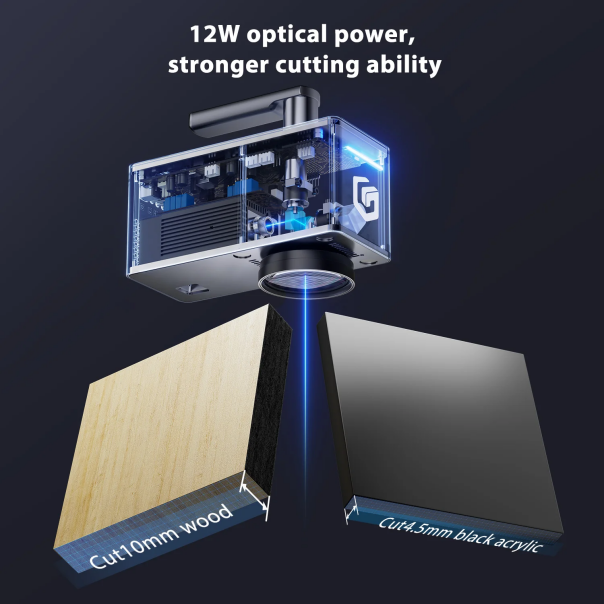
Equipped with high-power imported diode laser heads, the Nano series laser cutter offers significant power advantages. For example, the Nano Pro incorporates two high-performance laser chips, reaching up to 12W, providing a 20% increase over the more common 10W laser heads. This power boost enables the Nano Pro to cut wood up to 10mm thick and engrave color on stainless steel, making it a top choice as a laser engraver for wood and other materials.


(2) Engraving Speed
Using a high-speed galvo system, the Nano series enables engraving speeds that exceed those of traditional frame-based machines. Additionally, its unique distortion correction algorithm ensures precise laser beam positioning, making it highly effective for detailed wood engraving, glass engraving, and stone engraving applications. With speeds up to 5000mm/s and a preview speed of 32000mm/s, the Nano series stands out as a fast, reliable handheld laser engraver.


(3) Safety Measures 
Prioritizing user safety, the Nano series laser engraver includes temperature sensors and accelerometers. The laser engraver automatically shuts off if it detects sudden tilting or drops, providing peace of mind during operation. Additionally, the protective enclosure, made from a flame-resistant material, intercepts over 99.5% of blue light, protecting users’ eyes from potential harm (although proper laser goggles are always recommended during operation).


Conclusion
Combining portability, high performance, and safety, the Nano series is truly the best laser engraver for users who need a reliable, portable laser engraver and cutter for various materials and applications. Whether you’re setting up a little machine shop store or crafting intricate designs at home, the Nano series is the versatile, powerful solution you’ve been looking for.

By Blog de grabador láser | February 17, 2025
LONGER How to: Adjust the Engraving Position When Using a Rotary for Engraving

Using a rotary attachment allows your laser engraver to process cylindrical objects such as tumblers, bottles, mugs, and pipes. However, incorrect positioning can cause engraving misalignment, uneven graphics, or incomplete results. This guide explains how to adjust engraving position with rotary accessories correctly using Longer laser engravers.


Table of Contents


Quick Answer

To adjust engraving position when using a rotary attachment, you must properly align the object, configure the rotary settings in your engraving software, and confirm the laser start position before engraving. Accurate positioning helps prevent skewed artwork and ensures the engraving appears in the correct location on cylindrical objects.


What This Guide Covers

This tutorial explains:

  • How rotary engraving positioning works
  • How to align objects correctly
  • How to adjust the engraving starting position
  • Common rotary alignment mistakes
  • Troubleshooting positioning problems
  • Tips for improving engraving accuracy

This guide is beginner-friendly and suitable for Longer laser engraver users working with rotary attachments.


Why Rotary Engraving Position Adjustment Matters

Rotary engraving requires more precision than flat-surface engraving. Since cylindrical objects rotate during operation, even small alignment errors can affect engraving quality.

Correct rotary positioning helps:

  • Keep graphics level and centered
  • Prevent engraving distortion
  • Avoid engraving outside the target area
  • Improve repeatability for batch production
  • Reduce wasted materials

For businesses and hobbyists alike, accurate rotary alignment saves time and improves engraving consistency.


Before You Start

Requirements

Before adjusting engraving position with a rotary attachment, prepare the following:

  • Longer laser engraver
  • Compatible rotary attachment
  • Laser engraving software
  • Cylindrical object for testing
  • USB connection and power supply
  • Properly focused laser module

If your machine requires additional configuration, follow official machine specifications or instructions.


Precautions

Before beginning rotary engraving setup:

  • Ensure the machine is powered off before connecting the rotary attachment
  • Confirm the object is securely mounted
  • Avoid loose cables around moving components
  • Verify the laser focus before engraving
  • Use proper laser safety glasses
  • Test positioning using low-power framing before full engraving

Improper setup may cause engraving offsets or object slippage during rotation.


Step-by-Step Tutorial: How to Adjust Engraving Position with a Rotary

Step 1: Connect the Rotary Attachment

Action

Connect the rotary attachment to the laser engraver according to the machine instructions.

Expected Result

The machine recognizes the rotary accessory and prepares for cylindrical engraving operation.

Important Notes

  • Ensure the connection cable is fully inserted
  • Disconnect the Y-axis motor if required by your machine model
  • Follow official machine specifications or instructions

Step 2: Place the Cylindrical Object Correctly

Action

Position the cylindrical object securely on the rotary attachment rollers or chuck system.

Expected Result

The object rotates smoothly without wobbling or slipping.

Important Notes

  • Center the object carefully
  • Uneven placement may cause tilted engraving
  • Test manual rotation before starting engraving

Objects with irregular surfaces may require additional support.


Step 3: Adjust the Laser Focus

Action

Adjust the laser head height to achieve the correct focal distance.

Expected Result

The laser beam is focused properly on the surface of the cylindrical object.

Important Notes

  • Improper focus can reduce engraving quality
  • The highest point of the cylinder is usually used for focusing
  • Recheck focus after changing object size

If your machine includes automatic focus tools, follow official machine instructions.


Step 4: Configure Rotary Settings in Software

Action

Enable rotary mode in the laser engraving software and configure the required rotary parameters.

Expected Result

The software adjusts movement calculations for cylindrical engraving.

Important Notes

  • Use the correct roller or chuck mode if available
  • Enter the object diameter accurately
  • Incorrect diameter settings may distort engraving dimensions

Do not guess measurement values. Use actual measurements whenever possible.


Step 5: Set the Engraving Start Position

Action

Move the laser head to the desired engraving starting point on the object surface.

Expected Result

The engraving begins in the correct location during operation.

Important Notes

  • Use framing or preview mode first
  • Verify horizontal alignment before engraving
  • Small positioning adjustments may significantly affect results

This step is critical when engraving logos or text that must appear centered.


Step 6: Perform a Framing Test

Action

Run the framing or boundary preview function before engraving.

Expected Result

The laser path outlines the intended engraving area without firing at full power.

Important Notes

  • Confirm the artwork fits within the desired engraving area
  • Stop immediately if the object shifts or rotates incorrectly
  • Reposition the object if alignment appears uneven

Framing tests help prevent wasted materials and positioning errors.


Step 7: Start the Rotary Engraving Process

Action

Begin the engraving job after confirming alignment and positioning.

Expected Result

The laser engraves the design accurately onto the cylindrical surface.

Important Notes

  • Monitor the first few rotations carefully
  • Pause the job immediately if slipping occurs
  • Avoid touching moving components during engraving

Consistent object rotation is essential for clean engraving results.


Common Problems and Solutions

Problem Requirements Solution
Engraving appears tilted Object alignment check Reposition the object evenly on the rotary attachment
Design starts in the wrong location Verify origin position Reset the engraving start point and rerun framing
Object slips during engraving Secure object placement Tighten the chuck or adjust roller pressure
Engraving looks stretched Correct diameter input Re-enter accurate cylinder diameter settings
Laser engraving is blurry Proper focus adjustment Re-focus the laser on the object surface
Rotary does not rotate properly Connection verification Check rotary cable and machine configuration
Uneven engraving depth Stable object rotation Ensure the object rotates smoothly without wobble

Tips for Better Rotary Engraving Results

Use Accurate Diameter Measurements

Even small diameter measurement errors can affect engraving proportions. Use calipers or precision measuring tools when possible.


Always Run a Framing Test

Framing previews help verify alignment before engraving begins. This reduces wasted materials and setup errors.


Clean the Object Surface

Dust, oils, or fingerprints may affect engraving quality. Wipe the surface before engraving.


Start with Low-Speed Test Engravings

Testing with lower speeds allows you to confirm positioning and rotation accuracy before final production.


Keep the Rotary Attachment Level

Uneven rotary placement may cause inconsistent engraving depth or tilted graphics.


Frequently Asked Questions

Q: How do I adjust engraving position when using a rotary?

A: Position the object correctly, configure rotary settings, set the laser origin carefully, and run a framing test before engraving.


Q: Why is my rotary engraving not centered?

A: Incorrect object placement or improper origin settings are common causes. Re-align the object and verify the engraving start position.


Q: How do I align a rotary attachment on a laser engraver?

A: Place the rotary attachment securely, ensure the object rotates evenly, and confirm the laser head aligns with the intended engraving area.


Q: Why does my engraving appear stretched on a tumbler?

A: Incorrect diameter settings in the software can distort the engraving. Measure the object carefully and enter the exact diameter value.


Q: Can beginners use rotary engraving attachments?

A: Yes. Rotary attachments are beginner-friendly when proper alignment, focus, and framing procedures are followed.


Q: What objects can I engrave with a rotary attachment?

A: Rotary attachments are commonly used for tumblers, bottles, mugs, pipes, cylindrical containers, and similar round objects.


Q: Why is my rotary attachment slipping during engraving?

A: Slipping may occur if the object is not secured properly or if the rollers lack enough grip. Reposition the object and verify stability.


Q: How important is focus for rotary engraving?

A: Correct focus is extremely important. Poor focus can reduce engraving clarity and affect engraving consistency across curved surfaces.


Final Thoughts

Learning how to adjust engraving position with a rotary attachment is essential for producing clean and professional cylindrical engravings. Proper positioning, accurate alignment, and careful framing help improve engraving consistency while reducing setup mistakes.

Whether you are engraving tumblers, bottles, or custom gifts, taking time to configure the rotary correctly can greatly improve your final results. For additional setup tutorials, software guides, and troubleshooting resources, explore more tutorials from Longer3D Official Website.

By Blog de grabador láser | February 17, 2025
LONGER How to: Prevent Vibration When Using Chucks with the Longer Nano Pro 12W
Welcome to our guide on using the LONGER Nano series engravers with the rotary clamp! Getting the right focus is key to preventing any blurriness or distortion in your engraving patterns. Let’s dive in and explore how to quickly and accurately adjust the focus when using the Nano Pro 12W alongside the rotary clamp.
By Blog de grabador láser | October 29, 2024
LONGER How-to: Achieve Optimal Focusing with the LONGER Nano Series Using the Rotary
This guide provides essential steps for avoiding vibrations when using chucks on the Longer Nano. When engraving curved surfaces, chucks are used to secure cylindrical objects for rotational engraving. If the chuck is not properly adjusted, vibrations may occur during engraving, which can distort the design.
By Blog de grabador láser | October 29, 2024
LONGER Research: LONGER Nano Pro 12W Field Lens Function Introduction
The Nano Pro 12W laser engraver's field lens is designed with this focal length-to-wavelength relationship in mind, optimizing lens curvature and lens combinations to achieve a minimized spot size. This design not only enhances engraving detail but also enabling users to complete intricate engraving tasks in less time.
By Blog de grabador láser | October 28, 2024
LONGER Research: Introduction to Galvo Technology in LONGER Laser Systems
In LONGER's Nano series laser engraving machines, particularly the LONGER Nano Pro 12W, the structure of the galvo scanning marking head is composed of XY scanning mirrors, field lenses, galvos, and computer-controlled marking software.
By Blog de grabador láser | October 28, 2024
LONGER Research: Enhancing Personal Electronics with the Laser B1 20W Engraver

Laser engraving technology has revolutionized the personalization of personal electronics, moving beyond industrial applications to become an accessible tool for individual use. LONGER has been at the forefront of this transition, developing compact and efficient laser engravers that allow users to customize their electronic devices with unique designs.

Introduction

The Laser B1 20W engraver is an excellent example of this advancement, offering a powerful 20W diode laser with a wavelength of 450nm. Its working area of 450x440mm (17.72x17.32 inches) provides ample space for engraving various devices, while the fixed focus length of 50mm and a precise laser spot size of 0.08x0.15mm ensure detailed and accurate engravings. This makes it ideal for customizing a wide range of materials, including wood, acrylic, and metals commonly used in electronics.

One of the standout features of the Laser B1 20W is its ability to work at a fast speed of 36,000 mm/min, powered by a rated power of 105W. This high-speed capability is particularly beneficial for businesses and hobbyists who need to produce intricate designs quickly and efficiently. Moreover, the engraver's compatibility with popular design software like LaserGRBL and LightBurn, as well as various image formats (JPG, PNG, BMP, GIF, SVG, AI, etc.), allows for seamless integration into existing workflows.

Owning a laser engraver like the Laser B1 20W offers significant advantages over traditional customization methods. For instance, it allows for the creation of highly personalized items, which can make electronic devices not only unique but also serve practical purposes, such as labeling for security or organization. The engraver can cut up to 25mm of pine wood and 35mm of acrylic, and even 0.05mm of stainless steel, making it versatile enough to handle a variety of projects.

Here are some applications of laser engraving in personal electronics:

Smartphone and Tablet Customization:

LONGER Research: Innovations in Ray5 20W Laser Engraving for Ceramic Art

Users can engrave distinctive patterns, logos, or personal designs on the back covers of smartphones and tablets, providing a unique look and feel that stands out.

Laptop and Notebook Personalization:

Engraving laptops and notebooks with custom artwork, monograms, or business logos not only enhances the aesthetic appeal but also adds a layer of security by making the devices easily identifiable.

LONGER Research: Innovations in Ray5 20W Laser Engraving for Ceramic Art

Wireless Earbuds and Headphones:

Laser engraving initials, designs, or text on the surfaces of wireless earbuds and headphones can create fashionable and personalized accessories.

USB Drives and Power Banks:

These everyday gadgets can be transformed into stylish accessories with engraved logos, messages, or images, making them perfect for gifts or promotional items.

LONGER Research: Innovations in Ray5 20W Laser Engraving for Ceramic Art

Smartwatch Customization:

Smartwatches, with their intricate designs and limited space, are ideal for laser engraving. Users can add personal numbers, favorite drawings, or other designs to the watch face or casing.

LONGER Research: Innovations in Ray5 20W Laser Engraving for Ceramic Art

Game Console Personalization:

Gamers can engrave their consoles, controllers, and accessories with unique tags or designs, adding a personal touch to their gaming experience.

 LONGER Research: Innovations in Ray5 20W Laser Engraving for Ceramic Art

Laser-Etched Circuit Boards:

Although not as common, laser engraving can also be used by DIY enthusiasts and small-scale producers to create printed circuit boards (PCBs), offering a more precise and faster alternative to traditional chemical etching processes.

The Laser B1 20W engraver thus opens up numerous possibilities for personalization and customization in the realm of personal electronics. By enabling the creation of unique designs, it not only enhances the aesthetic appeal of devices but also adds practical benefits, such as easy identification and branding. As laser engraving technology continues to develop, we can expect even more innovative applications in the consumer electronics sector.


By Blog de grabador láser | October 25, 2024