News

Empowering Education with Innovation
Empowering Education with Innovation: How Longer Laser Helps Students Create, Learn, and Inspire

In today’s world, where creativity meets technology, education is no longer confined to textbooks and lectures. It’s about hands-on learning, innovation, and empowering young minds to build, design, and explore. At Longer Global, we believe in nurturing this creative spark—and our recent collaboration with Joliet Central High School in Illinois perfectly reflects that mission.

A Gift That Sparks Imagination

In September 2025, Longer Global proudly donated a set of advanced laser tools to Joliet Central High School’s Introduction to Technology class, led by Mr. Carrasquillo. The donation included a Ray 5 Framework, a Ruby Laser Head, and a Camera Module, giving students access to cutting-edge engraving and fabrication equipment.

Principal Shad Hallihan expressed the school’s gratitude in an official letter:

“Your continued support provides our students with new and exciting opportunities in Mr. Carrasquillo’s classroom. They have been doing very creative things with your amazing donation! I hope this could be an ongoing and long-lasting relationship.”

This heartfelt message reflects more than appreciation—it represents how technology can change the way students learn, think, and create.

Nano in the classroom 1

Learning by Doing: Turning Ideas into Reality

With Longer’s laser machines, students are not just learning about technology—they’re living it. From conceptualizing designs to executing them with precision, the classroom has transformed into a creative workshop buzzing with innovation.

One of their first projects? Custom backpack tags engraved using the Longer Laser Nano Pro 12W. Each student designed a personal tag, many featuring the iconic Joliet Central Steelmen logo. Even when the laser power was turned a bit too high on the first run, the results were stunning—sharp lines, bold details, and a strong sense of pride.

As the school shared on social media:

“Had the power turned up a little high on this run, but the end result came out 🔥 – crisp lines, bold detail, and ready to show off that Steelmen pride.”

The experience didn’t stop there. Soon, students were engraving logos on black aluminum cards, custom blades, and even pet portraits—each project showing a new layer of creativity and technical skill.

The Tools Behind the Transformation

The Longer Ray5 Framework and Nano Pro are more than just machines—they are bridges between imagination and reality. The Ray 5 Framework offers stability and scalability for classroom projects, while the Ruby Laser Head and Nano Pro provide precision and versatility for engraving everything from wood to metal.

One standout project came when students engraved their school logo—originally designed using ChatGPT—onto sleek black aluminum cards. The project demonstrated a full workflow: from AI-assisted design to laser execution and final presentation.

“From digital concept ➡️ to precision laser engraving ➡️ to a stunning finished piece—this project shows just how versatile and powerful the Nano Pro can be.”

These moments show how AI, design, and hardware innovation can converge in the classroom, inspiring students to think like designers, engineers, and entrepreneurs.

Nano in the classroom 2

Creativity Meets Community

But it’s not just about learning laser engraving—it’s about building confidence, community, and collaboration. Students are encouraged to share their projects on social media, where they proudly showcase their results and inspire others.

When the class welcomed a new furry friend, Remi, the students used the Longer Duo Pro to engrave a special keepsake featuring the puppy’s name and pawprint:

“Thanks to the Longer Duo Pro, we captured this little memory in the most creative way — precision, detail, and a touch of love etched perfectly.”

Moments like these make learning deeply personal and memorable. They blend emotion, technology, and storytelling—skills that will serve these students long after graduation.

Beyond the Classroom: Inspiring Future Makers

By introducing laser engraving and digital fabrication into education, Longer Global aims to inspire a new generation of makers, engineers, and innovators. Students who once saw technology as intimidating now see it as a tool for expression and opportunity.

Instructors like Mr. Carrasquillo are playing a vital role in this transformation. With support from Longer Global, he continues to create a hands-on environment where students can test, fail, learn, and improve—just like real-world creators do.

These experiences not only build technical skills but also teach problem-solving, design thinking, and entrepreneurship, which are essential for 21st-century learning.

Building a Lasting Partnership

For Longer Global, this collaboration with Joliet Central High School is more than a one-time donation—it’s the start of a long-term commitment to education and innovation.

As Principal Hallihan mentioned, “I hope this could be an ongoing and long-lasting relationship.”

That’s precisely what Longer Global envisions: an ecosystem where companies and schools collaborate to bridge the gap between education and industry, giving students the resources to dream bigger and achieve more.

A Shared Vision for the Future

At Longer Global, we believe that technology should empower creativity, not limit it. By donating laser machines and supporting educational programs like this one, we hope to inspire schools around the world to integrate practical STEM experiences into their curriculum.

Every engraving, every project, and every smile from a student reminds us why we do what we do—because the future belongs to those who make.

About Longer

Longer Global is a leading innovator in laser engraving and cutting technology, offering solutions for creators, educators, and professionals worldwide. With a focus on user-friendly design, precision engineering, and community empowerment, Longer continues to support makers and educators in shaping a more creative, hands-on future.

By News | October 27, 2025
LONGER Donates Nano 12W Laser Engraver to Joliet Central High School to Support STEM Education

LONGER has donated a Nano 12W laser engraver to Joliet Central High School in Illinois to enhance STEM education. Integrated into the school’s technology course, the laser engraver will give students hands-on experience with digital fabrication tools, encouraging creativity and technical skills. The Nano 12W Pro is compact, safe, and ideal for classroom use—making it a perfect educational tool for future engineers, artists, and innovators. This initiative reflects LONGER’s ongoing mission to make advanced technology accessible and inspiring for the next generation.

By News | June 24, 2025
Chitubox Plugins & Configuration of Orange 4K | Chitubox Set Printer - LONGER
Chitubox Plugins & Configuration of Orange 4K | Chitubox Set Printer

This article will help you solve CHITUBOX printer settings or CHITUBOX set printer issues. The LONGER Orange 4K 3D Printer is compatible with CHITUBOX slicing software. Please follow the steps below to complete the setup and configuration for stable resin printing.


Table of Contents

  • What This Guide Covers
  • Why This Process Matters
  • Before You Start
    • Requirements
    • Precautions
  • Step-by-Step Tutorial
    • Step 1: Install the Plugin for Orange 4K in CHITUBOX
    • Step 2: Import the Configuration for Orange 4K Printing Parameters
  • Common Problems and Solutions
  • Tips for Better Results
  • Frequently Asked Questions
  • Final Thoughts

What This Guide Covers

In this guide, you will learn how to:

  • Install the official Orange 4K plugin in CHITUBOX
  • Import default printing configurations from LONGER
  • Use the Orange 4K Mono and 4K Color parameters correctly
  • Reference printing parameters when using other resin brands

Quick Answer

To configure the Orange 4K in CHITUBOX:

  1. Download the appropriate .CHplugin file for your operating system.
  2. Run CHITUBOX and import the plugin.
  3. Import the official Orange 4K configuration file.
  4. Use default LONGER printing parameters as a reference for all your resin profiles.

Following these steps ensures compatible slicing files, correct exposure settings, and stable print results.


Why This Process Matters

CHITUBOX requires the correct plugin and configuration to communicate with the LONGER Orange 4K printer. Without it:

  • Print files may not be compatible
  • Resin exposure settings may be incorrect
  • Print quality can degrade
  • Print failures may occur

Using the official plugin and default configuration ensures stable printing, especially for beginners.


Before You Start

Requirements

  • LONGER Orange 4K or Orange 4K Mono 3D printer
  • CHITUBOX installed on your computer
  • Internet connection for downloading plugins and configuration files
  • Official LONGER Orange 4K configuration files
  • Administrative access to your computer

Precautions

  • Use only official plugin and configuration files
  • Close unnecessary software before installation
  • Do not rename plugin files
  • Do not modify exposure values initially
  • Follow official machine specifications or instructions

Step-by-Step Tutorial

Step 1: Install the Plugin for Orange 4K in CHITUBOX

Action

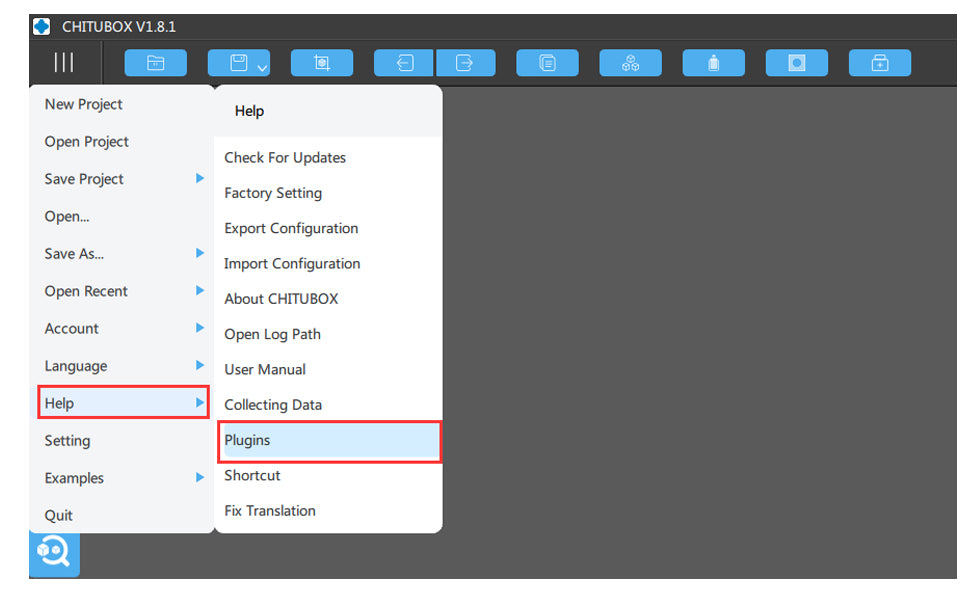
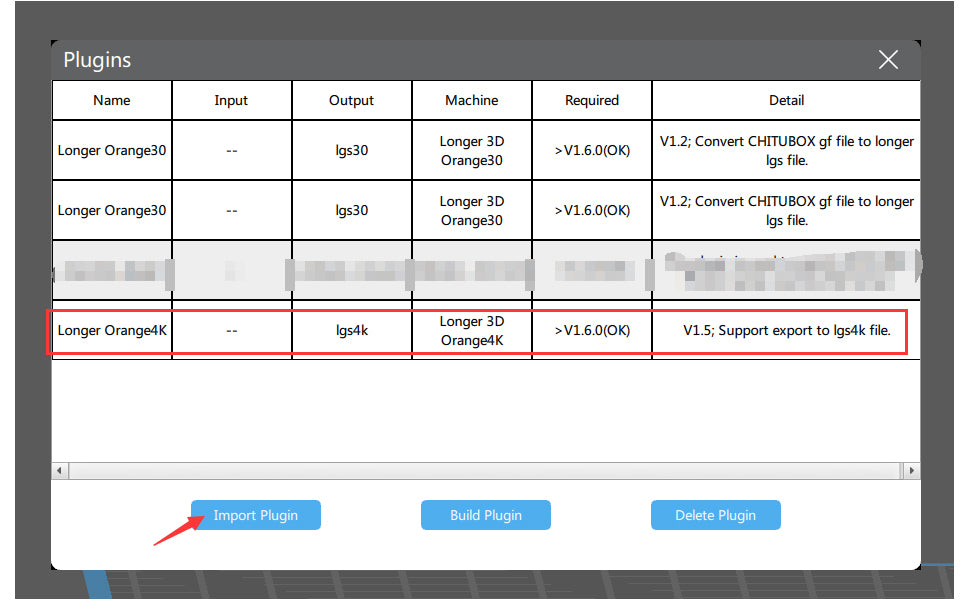
Run CHITUBOX and import the plugin. Download the plugin files for your system:

Open CHITUBOX and import the .CHplugin file from:

Main Menu > Help > Plugin

Expected Result

  • CHITUBOX recognizes the Orange 4K printer
  • Compatible slicing files can be generated
  • Orange 4K printer becomes available for all supported workflows

Important Notes

  • Ensure the plugin matches your operating system
  • If the plugin fails, restart CHITUBOX and re-import the file


Step 2: Import the Configuration for Orange 4K Printing Parameters

Action

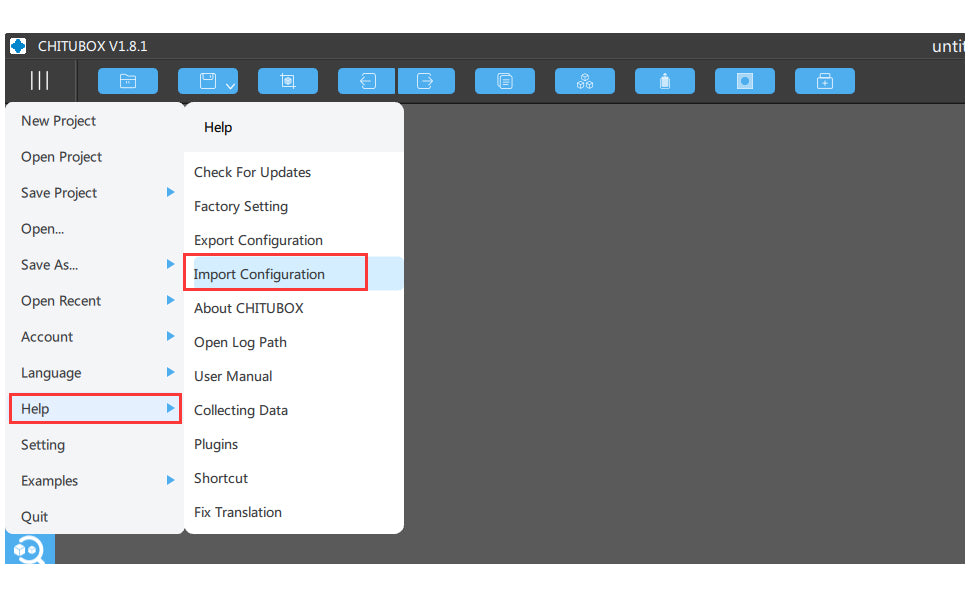
Import the official Orange 4K configuration file into CHITUBOX. After importing:

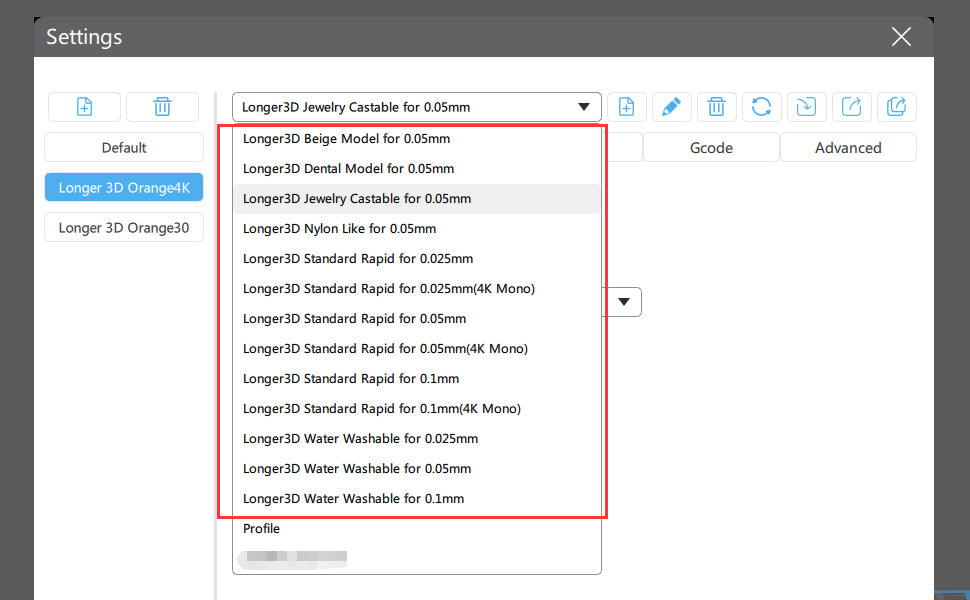
  • Default printing parameters from LONGER are applied
  • Resin profiles become available for reference

Note: Resin names with (4K Mono) are for Orange 4K Mono printers and use much less exposure time than 4K Color profiles.

Configuration of Orange 4K in Chitubox

Expected Result

  • Default print parameters appear in CHITUBOX
  • You can begin slicing files with correct exposure settings
  • Parameters can serve as references for other resin brands

Important Notes

  • Mono and Color printers use different exposure times
  • Incorrect settings may cause failed prints or overexposure
  • Always start with official profiles before adjusting for other resins

Understanding the Orange 4K Hardware

  • 5.5-inch monochrome LCD screen
  • 6480 × 3840 resolution at 10.5/31.5µm
  • Dual Z-axis for stable printing

The Orange 4K Mono prints faster and with higher precision due to its monochrome LCD, making it one of the finest LCD 3D printers available.

More information: Orange 4K Page

https://www.longer3d.com/collections/3d-printers-1

Common Problems and Solutions

Problem Possible Cause Solution
Plugin does not import Wrong OS version Download the correct .CHplugin
CHITUBOX cannot save slices Plugin missing Reinstall the plugin
Printer profile missing Config file not imported Re-import official Orange 4K configuration
Incorrect exposure Wrong resin profile Select (4K Mono) or 4K Color appropriately
Print fails to adhere Exposure mismatch Recheck default printing parameters

Tips for Better Results

  • Use official resin profiles first
  • Store plugin and config files in a dedicated folder
  • Verify printer type (Mono vs Color) before slicing
  • Reinstall plugin after CHITUBOX updates if needed
  • Test new resins with reference to LONGER profiles

Frequently Asked Questions

Q1: Does the Orange 4K need a plugin in CHITUBOX?
Yes, the official .CHplugin file is required for CHITUBOX compatibility.

Q2: Where to import the plugin?
Main Menu > Help > Plugin in CHITUBOX.

Q3: Difference between Orange 4K Mono and 4K Color?
Mono profiles use much lower exposure times than Color profiles.

Q4: Can I use other resin brands?
Yes, but start with LONGER default profiles as references.

Q5: Why is CHITUBOX not saving my slices?
This can happen if the plugin is missing or incompatible. Reinstalling the correct plugin solves this.

Q6: Which plugin file should I download?
Download the one matching your OS: Linux, macOS, Windows 32-bit, or Windows 64-bit.

Q7: Can I adjust print parameters manually?
Yes, but beginners should start with the official configuration first.

Q8: Is Orange 4K compatible with CHITUBOX?
Yes, it is officially supported for slicing and printing.


Final Thoughts

Following these steps ensures a stable setup for the LONGER Orange 4K in CHITUBOX. Using the official plugin and configuration files provides correct exposure settings and reliable slicing for both Mono and Color printers. Beginners should always start with official profiles and only adjust parameters after initial test prints.

Enjoy your printing with LONGER Orange 4K and share your results with the community!


By News | July 21, 2021
Steps of Orange 4K Color Upgrade to 4K Mono - LONGER
Steps of Orange 4K Color Upgrade to 4K Mono

Upgrading the Orange 4K Color Version 3D Printer to the Orange 4K Mono configuration improves UV light transmission, enhances printing efficiency, and delivers sharper print quality. This guide follows the original official procedure exactly while adding beginner-friendly explanations, setup tips, troubleshooting advice, and FAQs for easier operation.


Table of Contents

  1. What This Guide Covers
  2. Quick Answer
  3. Why This Process Matters
  4. Before You Start
    • Requirements
    • Precautions
  5. Step-by-Step Tutorial
  6. LCD Screen Replacement Guidance
  7. Common Problems and Solutions
  8. Tips for Better Results
  9. Frequently Asked Questions
  10. Final Thoughts

What This Guide Covers

This tutorial explains how to:

  • Upgrade the Orange 4K Color firmware to Orange 4K Mono firmware
  • Prepare the USB drive correctly
  • Complete the firmware update safely
  • Understand exposure parameter adjustments after the LCD replacement
  • Learn important precautions before replacing the LCD screen

This guide preserves the original operation sequence and official instructions.


Quick Answer

How do you upgrade the Orange 4K Color Version to Orange 4K Mono?

  1. Download and unzip the correct firmware package.
  2. Copy the firmware file to the root directory of a USB drive.
  3. Turn off the Orange 4K machine.
  4. Insert the USB drive into the printer.
  5. Turn the printer back on.
  6. Wait for the firmware update to complete automatically.
  7. The machine will reboot and become ready for printing.

After replacing the LCD screen, exposure settings must be adjusted because UV intensity increases significantly with the 4K Mono LCD.


Why This Process Matters

The Orange 4K Mono uses a 5.5-inch monochrome LCD screen with a resolution of 6480 × 3840 at 10.5/31.5µm and features a dual Z-axis design for more stable printing.

Compared with a color LCD:

  • Monochrome LCDs allow higher UV light transmission
  • Resin curing becomes faster
  • Print details become sharper
  • Screen lifespan is generally longer
  • Printing efficiency improves significantly

Because UV intensity increases after the upgrade, exposure settings must be adjusted properly to avoid overexposure during printing.


Before You Start

Requirements

Prepare the following before starting the upgrade:

  • Orange 4K Color Version 3D Printer
  • USB drive
  • Correct firmware package:
    • Orange 4K Color firmware
    • Orange 4K Mono firmware
  • Firmware version:
    • Orange4KMono_1.3.2
  • Computer for downloading and copying firmware files
  • LCD replacement tools if replacing the screen

Follow official machine specifications or instructions.


Precautions

Before beginning the upgrade:

  • Ensure the printer remains powered off while inserting the USB drive.
  • Do not rename firmware files.
  • Copy the firmware file only to the root directory of the USB drive.
  • Avoid disconnecting power during firmware updating.
  • Be careful when replacing the LCD screen to avoid cable or screen damage.
  • Exposure parameters must be adjusted after replacing the LCD screen.

Step-by-Step Tutorial

Step 1: Download and Unzip the Firmware

Action

Download and unzip the appropriate firmware:

  • Orange 4K Color firmware
  • Orange 4K Mono firmware

Firmware version:

Orange4KMono_1.3.2

Expected Result

The firmware files are extracted and ready to copy onto the USB drive.

Important Notes

Ensure you select the correct firmware version for your machine configuration.

Step 2: Copy the Firmware File to the USB Drive

Action

Copy the firmware file:

Orange4K

to the root directory of a USB drive.

Expected Result

The firmware file is stored directly in the USB drive root directory and ready for installation.

Important Notes

Do not place the firmware file inside folders.


Step 3: Switch Off the Orange 4K Machine

Action

Turn off the Orange 4K printer completely.

Expected Result

The printer is safely powered down before firmware installation.

Important Notes

Disconnecting power during updating may damage the firmware installation.


Step 4: Connect the USB Drive

Action

Insert the prepared USB drive into the Orange 4K machine.

Expected Result

The printer detects the USB drive after startup.

Important Notes

Make sure the USB drive is securely connected.


Step 5: Switch On the Orange 4K Machine

Action

Power on the Orange 4K printer and wait for the firmware update process.

Expected Result

The firmware update starts automatically.

Important Notes

Do not remove the USB drive or power off the machine during the update.


Step 6: Wait for Automatic Reboot

Action

Allow the machine to complete the firmware installation process.

Expected Result

The machine automatically reboots and becomes ready for printing.

Important Notes

The automatic reboot indicates the firmware update process has completed successfully.


LCD Screen Replacement Guidance

After replacing the 4K Color LCD with the 4K Mono LCD, UV intensity increases significantly.

Because of this:

  • Exposure parameters should be adjusted accordingly.
  • Parameters can be modified through the printer touch screen.
  • Parameters of a job file (*.lgs4k) can also be changed on a computer using LongerWare.

Follow official machine specifications or instructions.


LCD Screen Replacement Video

Please follow the official video tutorial carefully when replacing the LCD screen:

Youtube Video → How to replace the LCD screen for Orange 4K

Be careful during the replacement process to avoid damaging the LCD cable or connector.

Common Problems and Solutions

Problem Possible Cause Solution
Firmware update does not start Firmware file not in root directory Copy the file directly to the USB root directory
Printer does not detect USB drive USB connection issue Reinsert the USB drive securely
Printer freezes during update Power interruption or corrupted firmware Restart the process using the correct firmware
Prints become overexposed after upgrade UV intensity increased with Mono LCD Reduce exposure settings accordingly
LCD screen does not display properly LCD connection issue Recheck LCD cable installation carefully
Print quality becomes inconsistent Incorrect parameter settings Adjust exposure settings through touch screen or LongerWare

Tips for Better Results

  • Use a reliable USB drive during firmware updating.
  • Keep the printer on a stable surface during operation.
  • Double-check LCD cable orientation during replacement.
  • Test exposure settings with a small calibration print after upgrading.
  • Save backup copies of important print profiles before modifying settings.
  • Clean the LCD surface carefully before printing.

Frequently Asked Questions

1. Why do exposure settings need adjustment after upgrading to Mono LCD?

The 4K Mono LCD allows significantly higher UV transmission, causing resin to cure faster than with the original color LCD.


2. What firmware version is used for the upgrade?

The firmware version referenced in this guide is:

Orange4KMono_1.3.2


3. Can exposure settings be modified directly on the printer?

Yes. Exposure parameters can be modified through the printer touch screen.


4. Can I edit .lgs4k job files on a computer?

Yes. The parameters of a job file (*.lgs4k) can be modified using LongerWare.


5. What should I do if the printer does not reboot automatically?

Restart the process and verify the firmware file placement and USB drive connection.


6. Is the LCD replacement difficult for beginners?

The process requires careful handling of cables and components. Follow the official video tutorial carefully.


7. What are the advantages of the Orange 4K Mono?

The Orange 4K Mono features:

  • 5.5-inch monochrome LCD
  • 6480 × 3840 resolution
  • 10.5/31.5µm precision
  • Dual Z-axis design
  • Faster and more stable resin printing

Final Thoughts

Upgrading the Orange 4K Color Version 3D Printer to the Orange 4K Mono configuration can significantly improve resin printing speed, detail quality, and printing stability. By carefully following the official firmware update sequence and properly adjusting exposure settings after the LCD replacement, users can achieve more reliable and professional printing results.

If there are any questions or further assistance is needed regarding the upgrade procedure, please contact:

support@longer3d.com

The Orange 4K Mono is built with a 5.5-inch monochrome LCD screen, reaching 6480 × 3840 resolution at 10.5/31.5µm and comes with dual Z-axis support for steady printing.

More information can be found on the Orange 4K product page.

https://www.longer3d.com/collections/3d-printers-1

By News | July 16, 2021
3D Printer leveling tutorial follow by steps - LONGER
3D Printer leveling tutorial follow by steps

For some beginner of 3D printer user, they don't know how leveling. in this article, we going to tech you how leveling 3d printer before printing. and our Lk5 pro 3d printer suitable for new 3d printer user, if you interested, could have a look. 

Table of Contents

  • What This Guide Covers
  • Quick Answer
  • Why 3D Printer Leveling Matters
  • Before You Start
    • Requirements
    • Precautions
  • Step-by-Step 3D Printer Leveling Tutorial
  • Common Problems and Solutions
  • Tips for Better Leveling Results
  • Frequently Asked Questions
  • Final Thoughts

What This Guide Covers

This guide explains:

  • How to level a Longer 3D printer manually
  • How to use the A4 paper leveling method
  • Why heating the print bed matters
  • How to adjust leveling knobs correctly
  • How to check nozzle-to-bed spacing
  • Common leveling mistakes beginners make

This tutorial follows the original Longer leveling procedure and is suitable for beginner users.


Quick Answer

To level a Longer 3D printer:

  1. Make sure the limit switch is installed correctly.
  2. Heat the hot bed to 60°C.
  3. Prepare one piece of A4 paper.
  4. Enter leveling mode on the touch screen.
  5. Move the nozzle to each corner in sequence.
  6. Adjust the leveling knobs until the paper has slight friction between the nozzle and the bed.
  7. Check the center position and repeat if necessary.

Correct leveling helps improve first-layer adhesion and print quality.


Why 3D Printer Leveling Matters

Bed leveling ensures the nozzle stays at a consistent distance from the print surface across the entire build area.

If the nozzle is too high:

  • Filament may not stick properly
  • Prints can detach during printing
  • First layers may look thin or incomplete

If the nozzle is too low:

  • The nozzle may scrape the bed
  • Filament can become overly compressed
  • Extrusion may become inconsistent

Proper leveling helps:

  • Improve first-layer adhesion
  • Reduce failed prints
  • Improve print accuracy
  • Protect the nozzle and build surface
  • Create smoother bottom layers

Even modern printers with assisted leveling still require proper setup and verification.


Before You Start

Requirements

Prepare the following before leveling your Longer 3D printer:

  • Longer 3D printer
  • One piece of A4 paper
  • Power connection
  • Access to the printer touch screen

Follow official machine specifications or instructions.


Precautions

Before starting the leveling process:

  • Ensure the printer is placed on a stable surface
  • Make sure the hot end and bed are clean
  • Avoid forcing the nozzle against the print bed
  • Keep fingers away from hot surfaces
  • Do not move the print head aggressively by hand

Heating the bed before leveling is important because thermal expansion can slightly change the bed height.


Step-by-Step 3D Printer Leveling Tutorial

Step 1: Check the Limit Switch Installation

Action

Before leveling, make sure the limit switch is installed correctly.

Manually lower the hot end until it just touches the print bed.

Then:

  1. Loosen the fixing screw of the limit switch
  2. Adjust the limit switch to the position just triggered

Expected Result

The printer should correctly detect the nozzle home position.

Important Notes

An incorrectly positioned limit switch can cause inaccurate leveling or nozzle crashes.

If the nozzle presses too hard into the bed during homing, stop immediately and recheck the switch position.

Step 2: Power On the Printer

Action

Turn on the Longer 3D printer.

Expected Result

The printer should boot normally and display the main interface on the touch screen.

Important Notes

Allow the printer to complete startup before proceeding to the next step.


Step 3: Heat the Hot Bed to 60 Degrees

Action

Heat the hot bed to 60°C.

Expected Result

The bed temperature should stabilize at 60°C before leveling begins.

Important Notes

The original Longer procedure specifies heating the hot bed because thermal expansion and contraction may affect leveling accuracy when cold.

Do not skip this step.


Leveling 3d printer

Step 4: Prepare a Piece of A4 Paper

Action

Prepare one piece of standard A4 paper.

Expected Result

The paper will be used to measure the gap between the nozzle and the print bed.

Important Notes

The paper acts as a simple thickness reference during leveling.

Do not use excessively thick material unless specified by official instructions.


Step 5: Enter Leveling Mode

Action

Select the leveling mode on the printer touch screen.

Press the buttons in sequence according to the leveling interface.

Expected Result

The nozzle should move automatically to different leveling positions.

Important Notes

Wait for the hot end to stop moving completely before making adjustments.

Avoid touching moving parts during positioning.


Step 6: Adjust the First Corner

Action

When the hot end stops:

  1. Place the A4 paper between the nozzle and the print bed
  2. Slowly adjust the leveling knob under the print bed
  3. Continue adjusting until you feel slight friction on the paper

Expected Result

The paper should move with light resistance.

Important Notes

The paper should not move freely, and it should not become tightly trapped.

The correct spacing is reached when the paper slides with slight friction.


Step 7: Repeat for All Four Corners

Action

Repeat the same leveling process for all four corners of the print bed.

At each corner:

  • Insert the A4 paper
  • Adjust the leveling knob
  • Check for slight friction

Expected Result

All four corners should have similar nozzle spacing.

Important Notes

Adjusting one corner may slightly affect another corner.

You may need to repeat the process multiple times for consistent results.

This is normal during manual bed leveling.


Leveling 3d printer


Step 8: Check the Center Position

Action

After adjusting the four corners, press the "5" button.

Use the A4 paper to check the friction in the center of the print bed.

Expected Result

The center should have the same slight friction as the corners.

Important Notes

If the center feels incorrect, repeat the leveling steps again until the entire bed feels consistent.

And you can follow video below, leveling your 3D printer: https://youtu.be/TJ0MOFPuOTQ

https://www.longer3d.com/collections/3d-printers-1

Common Problems and Solutions

Problem Possible Cause Solution
Filament does not stick Nozzle too high Re-level the bed and reduce nozzle distance
Nozzle scratches the bed Nozzle too low Loosen the leveling knobs slightly
One corner prints differently Uneven leveling Repeat corner leveling process
Paper feels different in center Bed not evenly leveled Recheck all corners and center
Prints warp or detach Poor first layer adhesion Re-level bed and clean print surface
Bed leveling keeps changing Loose hardware or springs Inspect leveling hardware
Extruder clicks during first layer Bed too close to nozzle Increase nozzle gap slightly

Tips for Better Results

Heat the Bed Before Leveling

Always level with the bed heated to the target temperature specified in the tutorial.

Thermal expansion can affect leveling accuracy.


Use Consistent Paper Pressure

Try to maintain the same amount of paper friction at every corner.

Consistency is more important than excessive tightness.


Recheck After Moving the Printer

Transporting or moving the printer can affect bed alignment.

Re-level the bed after relocation.


Clean the Print Surface

Dust, glue buildup, or leftover filament can affect leveling accuracy.

Clean the print bed regularly.


Be Patient During Manual Leveling

Manual leveling often requires several adjustment passes before all corners become consistent.

Beginners commonly need multiple attempts before achieving reliable results.


Frequently Asked Questions

How often should I level my 3D printer bed?

You should check leveling:

  • Before important prints
  • After moving the printer
  • After nozzle replacement
  • If first-layer issues appear

Why is A4 paper used for leveling?

A4 paper provides a simple reference thickness that helps estimate the correct nozzle gap.

The paper should slide with slight friction during leveling.


Why does the bed need to be heated to 60°C?

Heating compensates for thermal expansion and helps create more accurate leveling conditions.


What happens if the nozzle is too close to the bed?

The nozzle may:

  • Scratch the surface
  • Block filament flow
  • Damage the build plate
  • Cause poor extrusion

What happens if the nozzle is too far from the bed?

The filament may not stick properly, leading to:

  • Weak adhesion
  • Failed prints
  • Uneven first layers

Why do I need to repeat leveling multiple times?

Adjusting one corner can slightly affect the others.

This is normal with manual leveling systems.


Can I level the bed while the printer is cold?

The original Longer procedure specifies heating the bed to 60°C before leveling.

Follow official machine instructions for best results.


Final Thoughts

Learning how to level a 3D printer is one of the most important beginner skills in FDM printing. A properly leveled bed improves first-layer adhesion, reduces failed prints, and helps produce cleaner, more reliable models.

By following this Longer 3D printer leveling tutorial carefully and using the A4 paper method, beginners can achieve stable and consistent printing results. If leveling still feels inconsistent after several attempts, repeat the process slowly and verify that the limit switch and bed hardware are installed correctly.

Consistent leveling is the foundation of successful 3D printing.


By News | May 24, 2021
Advantages of 3D printing - LONGER
Advantages of 3D printing

Speed 

One of the main advantages of 3D printing is that the production speed of parts is more efficient compared to traditional manufacturing methods. Models with complex designs can be exported from the software and produced using a 3D printer within a few hours. The advantage of this is that the design ideas can be quickly verified and iterated.


In the past, it may take days or even weeks to manufacture prototypes through traditional processing methods, while designers can obtain models within a few hours through 3D printing. Although more industrial 3D printers take longer to print and post-process parts, the ability to produce functional final parts in small and medium batches provides a huge time-saving advantage compared to traditional manufacturing techniques (usually for hand-offs). The delivery time is advanced, and a separate injection mold may take several weeks).


Spend

Manufacturing costs can be divided into three categories: machine operating costs, material costs and labor costs.


Machine operating cost: Most household 3D printers consume power similar to a computer. Industrial 3D printing technology may consume more electricity to produce individual parts. However, the ability to generate complex geometries in just one step can lead to higher efficiency and turnover. Machine operating costs are usually the lowest contribution to the total cost of manufacturing.


Material cost: The material cost of 3D printing varies by technology. Household FDM printers 1KG Filament about $20, as Longer PLA Filament, free ship from our local warehouse to Euro, USA and Russia

Labor cost: One of the main advantages of 3D printing is the lower labor cost. Except for post-processing, most 3D printers only need one or two operators. The machine then follows a fully automated process to produce the parts. Compared with traditional manufacturing, which usually requires skilled machinists and operators, the labor cost of a 3D printer is almost zero.


Compared with the traditional manufacturing process, the cost of small batch 3D printing is very competitive. For the production of prototypes for verification of shape and assembly, it is much cheaper than other alternative manufacturing methods (such as injection molding) and is generally competitive in manufacturing disposable functional parts. With the increase in production, traditional manufacturing technology will become more cost-effective, so 3D printing is an important supplement to traditional manufacturing.


Reduce potential risks

If you accidentally make a defective prototype, it will waste the designer's time and money. The use of traditional mold processing and manufacturing methods, even small changes, may bring huge financial expenses (high mold opening costs).


People can verify the design by printing prototypes that can be used for production before purchasing expensive manufacturing equipment (such as molds or tooling and fixtures), thereby eliminating the risk in the prototyping process. This helps to verify the feasibility of the project through trial and error at low cost of 3D printing before the large investment required for large-scale production.


Complexity and design freedom

Traditional manufacturing methods have relatively high restrictions on the products that can be manufactured. Design requirements such as draft angle, undercut and tool entry are not suitable.


For 3D printing, there may be some restrictions on the minimum size features of accurate printing, but in most cases, the main limitation is how to optimize the printing direction to reduce the support dependence and the possibility of printing failure. This provides designers with a lot of design freedom and allows very complex geometric shapes to be easily created.

 https://www.longer3d.com/products/lk5-pro-fdm-3d-printer


By News | May 14, 2021
 LK1/LK4/LK4 PRO/LK5 PRO
BLTouch for LK1/LK4/LK4 PRO/LK5 PRO Leveling
This article is to help the LONGER LK and LK Pro series 3d printer users who want to upgrade with auto bed leveling sensor, like BL-TOUCH, LK5 PRO Leveling, etc.
By News | February 9, 2021
3D Printer Download Guidelines - LONGER
3D Printer Download Guidelines

To help users efficiently access all necessary resources for LONGER 3D printers, this guide organizes firmware, slicing software, manuals, and drivers in a clear structure. Each section also includes brief usage guidance to ensure proper installation and operation.

Longer3D Printers

1. LKxPro-Marlin

These firmware versions are based on the Marlin system and are mainly used for LK series FDM 3D printers. Users can choose the appropriate version based on compatibility and stability requirements. It is recommended to use stable versions unless specific features from newer firmware are needed.

2. Slicing Software Download - FDM 3D Printer

Slicing software converts 3D models into machine-readable G-code. LONGER Slicer is optimized for LONGER printers, while Cura provides more advanced parameter control for experienced users. Make sure to select the correct printer profile before slicing.

3. Slicing Software Download - Resin 3D Printer

These slicing tools are specifically designed for resin 3D printing. Chitubox and Lychee offer advanced support generation and exposure control, while LongerWare is optimized for compatibility with LONGER resin printers.

4. Firmware Download 

Firmware controls the core operation of your machine. Updating firmware can improve performance, fix bugs, and enhance stability. Always confirm your printer model before upgrading.

LK4 3D Printer

LK4 PRO 3D Printer

LK5 PRO 3D Printer

LK5 3D Printer

LK1 3D Printer

Cube 2 3D Printer

LK1 PRO 3D Printer

LK1 PLUS 3D Printer

Orange 10 3D Printer

  • Because there are several versions of firmware for Orange 10, please contact our support team first before updating at support@longer3d.net

Orange 4K 3D Printer

LONGER RAY5 laser engraver

5. Manual Download 

Manuals provide essential instructions for setup, operation, and maintenance. It is highly recommended to read them before using your machine.

LK4 3D Printer

LK4 PRO 3D Printer

LK5 PRO 3D Printer

LK1 3D Printer

Cube 2 3D Printer 

LK1 PRO 3D Printer

Orange 10 3D Printer

Orange 30 3D Printer

Orange 4K 3D Printer

6. Drive Program for FDM 3D Printer 

These drivers are required for establishing a stable connection between your computer and the printer. After installation, ensure the correct COM port is recognized by your system.

7. TF Card / USB Disk Content to LONGER 3D Printer  

These files usually include test models, sample G-code, and default configurations. They are useful for initial setup and functional verification.

8. TF Card Format Tool

Conclusion

If you still have any questions during operation, please visit our Support Page, where our knowledgeable staff is ready to assist you and your team with any technical inquiries. LONGER provides comprehensive support to ensure you can fully unlock the potential of your 3D printer. On the LONGER website, you will find an overview of products and services, frequently asked questions, software compatibility downloads, and detailed comparisons between different machine models to help you make informed decisions.

This comprehensive resource guide is designed to help users quickly locate and correctly use all necessary files for the LONGER 3D printers. By following the structured categories and ensuring compatibility between firmware, software, and hardware, users can significantly reduce setup issues and improve overall workflow efficiency. Whether you are installing your machine for the first time or optimizing performance through updates, having access to the correct resources and understanding their purpose is essential for achieving stable operation and high-quality results across different applications.

By News | January 24, 2021
Unboxing Vidoes of Longer 3D printers - LONGER
Unboxing Vidoes of Longer 3D printers

Getting started with a 3D printer can feel overwhelming—but it all begins with a proper unboxing.

To help you set up your Longer 3D printer quickly and correctly, we’ve compiled a collection of official and creator-made unboxing videos. These videos walk you through everything from what’s in the box to assembly, setup, and first print tips.

Whether you're a beginner or an experienced maker, this guide will help you get up and running faster.

Longer 3D Printers

Official Longer 3D YouTube Channel

For the most accurate and up-to-date guidance, we recommend starting with the official Longer 3D YouTube channel.

Here, you’ll find:

  • Step-by-step unboxing tutorials

  • Assembly and setup instructions

  • Product feature overviews

  • First print recommendations

👉 Visit the LONGER 3D Youtube Channel

Unboxing Videos by Creators

We’ve also selected popular unboxing videos from trusted YouTubers. These provide real-world insights and hands-on experiences with different Longer 3D printer models.

🔹 FDM 3D Printers

LONGER LK4 PRO Unboxing Video by The 3D Print General

LONGER LK5 PRO Unboxing Video by Just Vlad

LONGER LK4 Unboxing Video by Just Vlad

LONGER LK1 Unboxing Video by Br Makers

🔹 Resin (LCD) 3D Printers

LONGER Orange 30 Unboxing Video by Heliox

LONGER Orange 10 Unboxing Video by 3DPN

Why Watch Unboxing Videos Before You Start?

Watching an unboxing video before setting up your printer can save you time and prevent mistakes.

Here’s why it matters:

  • Make sure all parts and accessories are included

  • Follow the correct assembly steps with confidence

  • Avoid common beginner setup errors

  • Learn useful tips from experienced creators

Start Your 3D Printing Journey Today

With the right guidance, your first print can be smooth and successful.

These unboxing videos are the perfect first step to understanding your Longer 3D printer and unlocking its full potential.

If you need further help, feel free to visit our support page or connect with our Longer 3D Official Group for tips, troubleshooting, and inspiration.


By News | January 23, 2021