

Academy

Hotend Replacement for Longer FDM 3D Printer - LONGER
Hotend Replacement for Longer FDM 3D Printer

While using an FDM 3D printer, you may need to replace the hotend. In fact, a little space between the heatbreak and nozzle, or a failure of the heatsink fan, or any other type of problem could cause a clog that prevents normal extrusion during printing, and the only way to repair the fault is to disassemble or replace the hotend.

Replacing the hotend is an easy procedure but one that requires the utmost attention.
In order to proceed with the replacement, follow these steps.

Disassembly

1) Unscrew the screw that holds the thermistor in place and remove the thermistor and temperature sensor

Unscrew the screw that holds the thermistor in place and remove the thermistor and temperature sensor

2) Disassemble the Hotend, then unscrew the screw that holds the Heatsink in place and remove the heatsink.

Disassemble the Hotend, then unscrew the screw that holds the Heatsink in place and remove the heatsink.

3) Remove the PTFE tube from the heatbreak.

4) In case the end of the PTFE tube is damaged, cut the damaged part, taking care to make a vertical cut at 90 degrees; an inaccurate cut will cause molten material to leak during printing, causing a new clog. In order to proceed to a precise cut, it is recommended to use a "PTFE cutter" available as an accessory for 3D printing or you can proceed to print an STL file by searching on Thingiverse for "PTFE cutter."

Replacement

1) Screw the Heatbreak correctly into the heatblock.

Screw the Heatbreak correctly into the heatblock.

2) Screw the Nozzle into the Heatblock

3) Install the Heatsink

4) Mount the Hotend on the 3D printer

5) Unscrew a little the Nozzle (about half a turn), then insert the PTFE tube until it hits with the nozzle.

6) Insert the thermistor and the temperature sensor into the block, fixing them with the appropriate screw

7) Heat the Hotend up to 200°C, then screw the Nozzle well so that it is tight with the PTFE tube and the heatbreak.

Heat the Hotend up to 200°C, then screw the Nozzle well so that it is tight with the PTFE tube and the heatbreak

Once you have completed these steps, the new hotend will be ready to use.
The correct assembly ensures good operation and avoids new clogs due to leakage of molten material between the heatbreak and the nozzle.
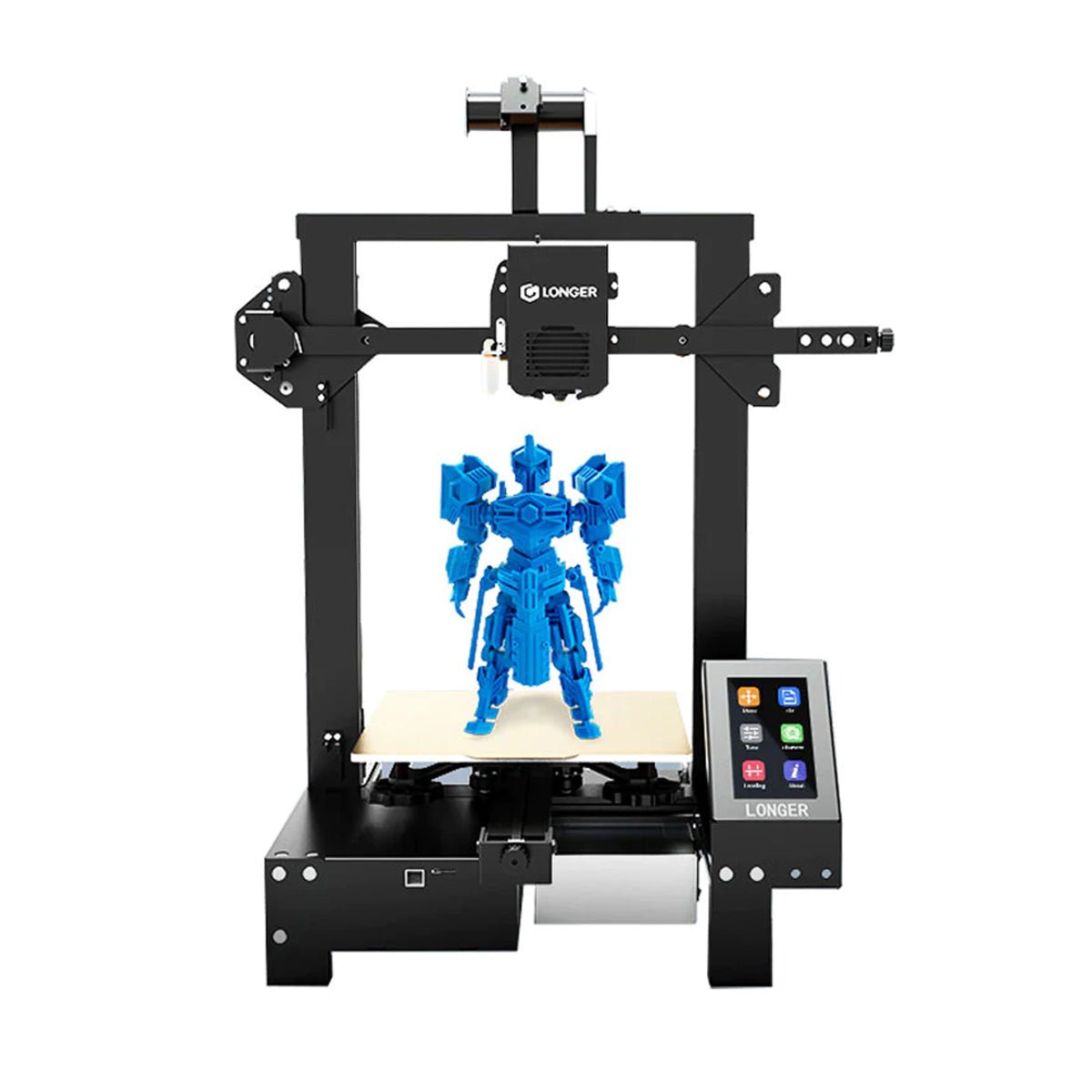
https://www.longer3d.com/products/lk5-pro-fdm-3d-printer

By Academy | March 28, 2023
LONGER New Dual Blower Kit installation tutorial - LONGER
Tutoriel d'installation plus long du kit de double ventilateur double

Dernier mont 3D plus long Relâchez un nouvel accessoires pour les imprimantes 3D FDM.

Ce Dual Blower Kit parfaitement adapté à plus longtemps LK4 / LK4 PRO / LK1 /Lk5 pro et compatible avec l'imprimante U20 / U30 / U30 PRO 3D, améliore la qualité de l'impression, une puissance forte sur la buse de refroidissement pour obtenir une surface de modèle meilleure et lisse.

Et étapes d'installation, certains fans d'imprimantes 3D ne savaient pas. Maintenant, vous pouvez suivre notre étape terrible à l'étape.

https://www.youtube.com/embed/zEA-eM5sfho

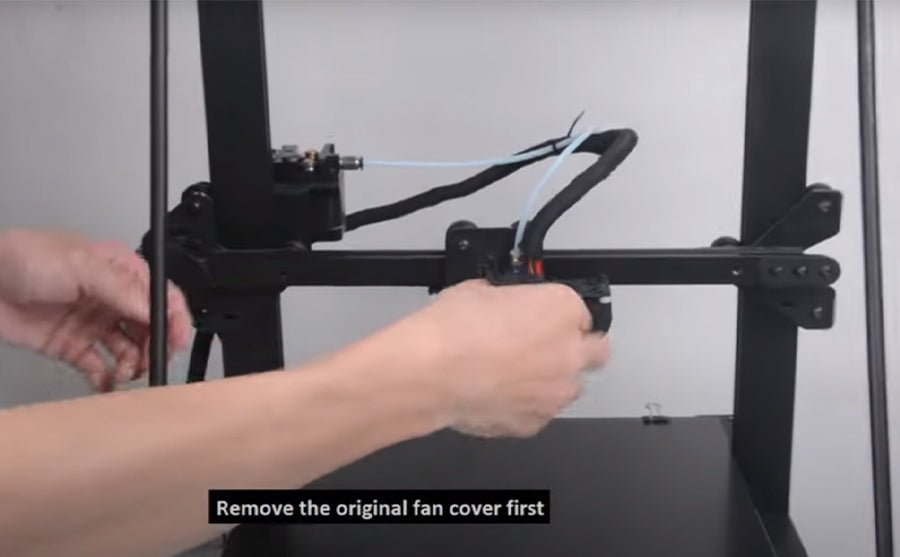
Ainsi, installez un nouveau kit de ventilateur double pour votre imprimante FDM, vous devez d'abord retirer l'ancien capot de ventilateur d'extrémité à chaud et d'abord, le nouveau kit de ventilateur à double ventilation dans les faisceaux de portique, connectez les fils de ventilateur dans l'ordre, puis terminé.

PS: Les bouchons ne sont pas remplacés de la même manière que le ventilateur de stock, ils doivent être commutés exactement en face. (L'ancien rouge / noir obtient de nouveau bleu / jaune et visa versa.)

Si vous allez installer BL Touch, téléchargez-vous Support de support pour la touche BL

3D plus long collecter tous Coupon d'imprimantes 3D dans la page de remise. Si vous avez besoin d'imprimantes 3D ou d'une pièce de mise à niveau à partir de 3D plus long, vérifiez le lien et découvrez le code de coupon dont vous avez besoin.

Poste original:https://global.longer3d.com/longer-new-dual-blower-kit-installation-tutorial/

By Academy | November 8, 2021
How to fix extruder in abnormal - LONGER
Comment réparer l'extrudeuse en anormal

Lorsqu'il y a un problème d'inturer à partir d'une plus longue imprimante LK1 / LK4 / LK4 PRO / LK5 PRO 3D, comment le réparer? Il y a généralement deux raisons dans lesquelles l'extrudeuse fonctionne anormalement.


1. Buse encrassée
Dans ce cas, vous pouvez vous référer à la méthode de nettoyage de la buse ci-dessus.
2. Extrudeuse endommagée
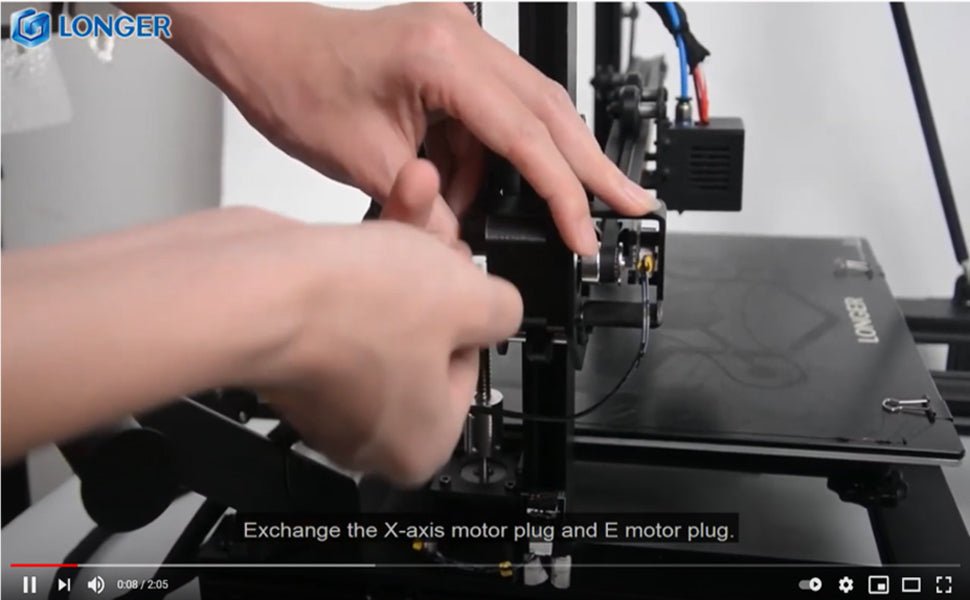
Vous pouvez échanger le câble d'extrudeuse avec le câble de l'axe X. Démarrez la machine, contrôlez l'axe X et laissez l'extrudeuse fonctionner. Observer s'ils travaillent. Si l'axe des x fonctionne correctement, le moteur d'extrudeuse se caractérise par fonctionner. A cette époque, vous ne pouvez remplacer qu'avec un nouveau moteur.
Mais si l'axe X ne fonctionne pas après échange du câble. Il peut s'agir d'une défaillance du câble ou de la carte mère. À ce stade, modifiez le câble de l'axe des Y sur l'extrudeuse et le câble de port d'extrudeuse de la carte mère à l'axe X. Si l'axe X fonctionne correctement, le câble est intact. Si l'axe X ne fonctionne toujours pas, cela signifie que la carte mère et le câble doivent être remplacés par un nouveau.
Vous pouvez vous référer à la vidéo dans le lien ci-dessous.


Regarder la vidéo Obtenir plus de détails:https://youtu.be/XCjrieoyZ1c

By Academy | March 29, 2021
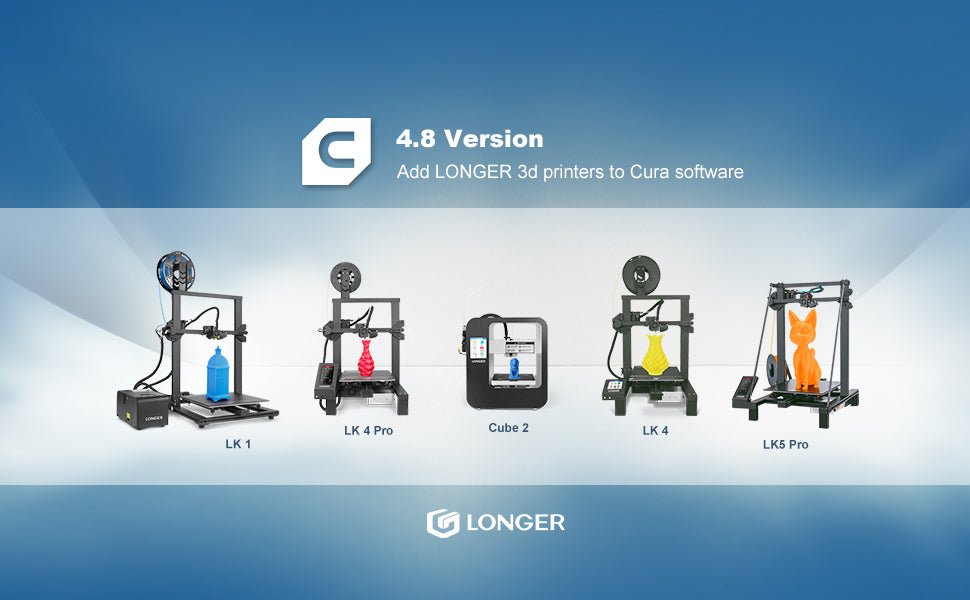
How to Add LONGER 3D Printers into Cura 4.8 Version - LONGER
Comment ajouter des imprimantes 3D plus longues dans la version CURA 4.8

Atteindre ce lien pour regarder comment ajouter plus longtemps Imprimantes 3D dans le dernier logiciel de Cura. Et obtenez plus de connaissances sur les réglages de Cura plus longs LK4, des réglages plus longs de Cura LK4 et des réglages plus longs LK5 PRO CURA.

Ajouter des imprimantes 3D plus longues dans Cura 4.8

Télécharger les fichiers de ressources de plus >> [RSavources de fichiers] <<, avec le dernier paramètre d'impression, la qualité de l'impression sera parfaite sur la conifguration.

By Academy | February 5, 2021