

Academy

Lens Cleaning for Longer Ray5 10W

Keeping your Longer Ray5 10W lens cleaning routine consistent is one of the most important maintenance tasks for maintaining engraving quality and cutting performance. During engraving and cutting, smoke, dust, and residue gradually build up around the laser module. Over time, this contamination can reduce laser output and negatively affect results.

This guide explains exactly how to clean the lens window and nozzle of the Longer Ray5 10W safely while preserving the original maintenance process.


Table of Contents


Quick Answer

Dirty lenses and nozzles can significantly reduce the output power of a laser engraver. To perform Longer Ray5 10W lens cleaning, turn off and unplug the machine, remove dust using an air blower, gently clean with high-purity alcohol and lint-free swabs, inspect the lens carefully, and reinstall components after they are completely clean and dry.


What This Guide Covers

This tutorial will help you learn:

  • Why lens contamination affects engraving quality
  • Required tools and preparation steps
  • How to safely clean the laser lens window
  • How to clean the Ray5 10W nozzle
  • Common troubleshooting situations
  • Maintenance tips for extending laser life

Why Longer Ray5 10W Lens Cleaning Matters

The lens window inside the laser module acts as a protective barrier for internal optical components.

During laser engraving, smoke particles and debris gradually settle onto the lens surface. As contamination increases:

  • Laser output becomes weaker
  • Cutting depth decreases
  • Engraving appears faded
  • Lines become blurry
  • More power becomes necessary for the same results
  • Laser modules may experience unnecessary stress

Users often assume the issue is caused by incorrect software settings or material parameters when the actual cause is simply a dirty optical surface.

A clogged nozzle can create similar issues because airflow becomes restricted, reducing cooling efficiency and smoke removal.


Before You Start

Requirements

Prepare the following tools:

For lens cleaning:

  • Anhydrous alcohol (≥99% purity)
  • Lint-free cotton swabs or lens cleaning sticks
  • Air blower or camera dust blower
  • Gloves (optional)

For nozzle cleaning:

  • Anhydrous alcohol
  • Lint-free swabs
  • Fine needle, nozzle cleaner, or toothpick
  • Small soaking container

Follow official machine specifications or instructions.


Precautions

Before cleaning your machine:

⚠️ Turn off the laser engraver completely

⚠️ Unplug the power cable

⚠️ Allow the laser module to cool completely

⚠️ Never use paper towels or clothing

⚠️ Never apply excessive pressure to the lens

⚠️ Avoid touching coated lens surfaces with fingers

⚠️ Do not wipe back and forth across the lens

The coating on a laser lens can be damaged by scratches, and even small damage may permanently reduce performance.


Step-by-Step Longer Ray5 10W Lens Cleaning Tutorial

Step 1: Remove the Lens Window

Action:

Gently unscrew the lens holder (typically counterclockwise).

Place the lens on a clean and soft surface.

Expected Result:

The lens should be safely separated and accessible for cleaning.

Important Notes:

Avoid placing the lens on rough surfaces.


Step 2: Blow Off Surface Dust

Action:

Use an air blower to remove loose particles from both sides of the lens.

Expected Result:

Dust particles should be removed before wiping begins.

Important Notes:

Removing particles first helps avoid scratching during cleaning.


Step 3: Clean with Alcohol

Action:

Take a new lint-free swab and add 1–2 drops of anhydrous alcohol.

The swab should be damp, not dripping.

Begin at the center of the lens and wipe outward using a spiral motion.

Repeat with a new swab if deeper cleaning is necessary.

Expected Result:

Smoke residue and fingerprints should gradually disappear.

Important Notes:

Do not wipe back and forth.


Step 4: Dry and Inspect

Action:

Use a clean dry lint-free swab to absorb any remaining alcohol.

Hold the lens toward a light source and inspect multiple angles.

Expected Result:

The lens should appear clear and free of:

  • Dust
  • Fingerprints
  • Water spots
  • Smudges

Important Notes:

If contamination remains, repeat previous steps.


Step 5: Reinstall the Lens

Action:

Clean the holder if necessary using the air blower.

Reinstall the lens in its original orientation.

Secure the retaining ring.

Expected Result:

The lens should fit properly and remain stable.

Important Notes:

Do not overtighten.

Incorrect installation can damage the lens.

If orientation is unclear:

Follow official machine specifications or instructions.


How to Clean the Ray5 10W Nozzle

Step 1: Remove the Nozzle

Action:

Unscrew the nozzle beneath the laser head counterclockwise.

Expected Result:

The nozzle should separate from the module.

Important Notes:

Some accumulated debris may fall out.


Step 2: Remove Blockages

Action:

If blockage exists, use:

  • Fine needle
  • Nozzle cleaner
  • Toothpick

Gently remove debris.

Expected Result:

The air passage should become unobstructed.

Important Notes:

Do not scratch internal surfaces.


Step 3: Soak and Clean

Action:

For stubborn residue:

Soak the nozzle in anhydrous alcohol for 10–15 minutes.

Use a soft brush or lint-free swab.

Expected Result:

Oil and residue should loosen.


Step 4: Dry Completely

Action:

Rinse again with fresh alcohol.

Use an air blower for drying.

Expected Result:

No moisture should remain.

Important Notes:

Residual moisture may affect cutting quality.


Step 5: Reinstall Nozzle

Action:

Reinstall the dry nozzle and tighten carefully.

Expected Result:

The nozzle should sit securely.


Common Problems and Solutions

Problem Requirements Solution
Weak engraving results Check lens contamination Clean lens window
Reduced cutting depth Check lens and nozzle Remove smoke residue
Uneven engraving lines Inspect optical surfaces Clean lens again
Large unusual sparks Inspect contamination Clean immediately
Strong ozone-like smell Check lens condition Remove contamination from lens surface
Air assist seems weak Inspect nozzle blockage Clean nozzle opening

Symptoms above are common signs that maintenance may be required.


Tips for Better Results

  1. Use an air blower before every engraving session.
  2. Perform visual inspections weekly or every 40 operating hours.
  3. Clean immediately if laser power suddenly decreases.
  4. Wear gloves during cleaning to avoid fingerprints.
  5. Store cleaning tools in dust-free containers.

Helpful related guides:


Frequently Asked Questions

Q: How to clean Longer Ray5 10W lens for beginners?

A: Power off the machine, remove dust with an air blower, use a lint-free swab with anhydrous alcohol, clean in spiral motion, inspect, and reinstall.


Q: Why is my Ray5 10W laser losing power?

A: A dirty lens is a common cause. Smoke buildup can block laser transmission and reduce output power.


Q: How often should I perform laser engraver lens cleaning?

A: Blow off dust daily or before use. Perform deeper inspections weekly or approximately every 40 operating hours.


Q: Can I use paper towels?

A: No. Paper towels may leave fibers and can scratch optical coatings.


Q: What alcohol should be used?

A: Use anhydrous alcohol with at least 99% purity.


Q: Can a dirty nozzle affect engraving?

A: Yes. A clogged nozzle may reduce airflow and cooling efficiency, affecting engraving and cutting quality.


Q: What happens if I wipe back and forth?

A: Back-and-forth wiping may drag particles across the lens and increase the chance of scratches.


Final Thoughts

Proper Longer Ray5 10W lens cleaning is simple maintenance that can dramatically improve engraving consistency and restore cutting performance. Small amounts of smoke residue may gradually reduce laser efficiency, so regular inspection and cleaning help keep your machine operating at its best.

If you're maintaining your Ray5 regularly, explore additional setup, focusing, and troubleshooting resources through the LONGER knowledge base and support materials.

By Academy | July 25, 2023
Lens Cleaning for Longer Ray5 5W - LONGER
Lens Cleaning for Longer Ray5 5W

Keeping your machine clean is one of the most important parts of laser engraver maintenance. This guide explains how to perform proper Longer Ray5 5W lens cleaning safely and correctly to maintain engraving quality, prevent laser power loss, and extend the lifespan of your laser module.


Table of Contents


Quick Answer

To clean the lens on the Longer Ray5 5W laser engraver, carefully remove dust and residue from the laser lens using appropriate cleaning materials and gentle handling techniques. Regular lens cleaning helps maintain engraving precision, prevents burning issues, and improves laser performance.


What This Guide Covers

This beginner-friendly tutorial explains:

  • Why lens cleaning is important
  • What tools and materials you need
  • Safety precautions before maintenance
  • Step-by-step instructions for cleaning the Longer Ray5 5W lens
  • Common problems caused by dirty lenses
  • Maintenance tips to improve engraving quality

Whether you are new to laser engraving or maintaining your machine regularly, this guide will help you clean your laser lens safely and effectively.


Why Longer Ray5 5W Lens Cleaning Matters

The laser lens is one of the most important components inside the laser module. During engraving and cutting, smoke, dust, resin, and debris can accumulate on the lens surface.

A dirty lens can cause:

  • Reduced laser power
  • Poor engraving quality
  • Uneven cutting results
  • Burn marks
  • Overheating of the laser module
  • Shortened laser lifespan

Regular laser engraver maintenance helps keep your machine operating efficiently and reduces the chance of expensive repairs.

For users engraving wood, leather, acrylic, or coated materials frequently, lens cleaning becomes even more important because smoke residue builds up faster.


Before You Start

Requirements

Before starting the Longer Ray5 5W lens cleaning process, prepare the following:

  • Longer Ray5 5W laser engraver
  • Clean working environment
  • Appropriate lens cleaning materials
  • Soft cleaning tools suitable for optical components

Follow official machine specifications or instructions.


Precautions

Before cleaning the laser lens, keep these safety tips in mind:

  • Turn off the machine completely before maintenance.
  • Disconnect power if required by official instructions.
  • Avoid touching the lens surface directly with fingers.
  • Never use excessive force while cleaning.
  • Do not use abrasive materials on optical components.
  • Keep dust and debris away from the laser module during cleaning.

Improper cleaning can damage the optical lens coating and affect laser performance permanently.


Step-by-Step Longer Ray5 5W Lens Cleaning Tutorial

Step 1: Power Off the Machine

Action

Turn off the Longer Ray5 5W laser engraver before starting any maintenance procedure.

Expected Result

The machine is completely powered down and safe to handle.

Important Notes

Never clean the laser module while the machine is operating. Cleaning while powered on may damage components or create safety risks.


Step 2: Access the Laser Lens Area

Action

Carefully access the lens area of the laser module according to the official machine structure.

Expected Result

The laser lens becomes visible and accessible for cleaning.

Important Notes

Handle the laser module carefully to avoid damaging internal optical parts.

If you are unsure about disassembly or access procedures, follow official machine specifications or instructions.


Step 3: Inspect the Lens Surface

Action

Check the lens surface carefully for dirt, smoke residue, fingerprints, or debris accumulation.

Expected Result

You can identify whether the lens requires light cleaning or more thorough maintenance.

Important Notes

A clean lens should appear clear and free from haze or dark spots.

Heavy smoke buildup may reduce laser output significantly.


Step 4: Clean the Lens Carefully

Action

Use appropriate optical cleaning materials to gently clean the lens surface.

Expected Result

The lens surface becomes clean and transparent without scratches or residue.

Important Notes

  • Use gentle movements only.
  • Avoid excessive pressure.
  • Do not scratch the optical surface.
  • Never use rough cloth or paper towels.

Improper cleaning methods may permanently damage the lens coating.


Step 5: Check for Remaining Residue

Action

Inspect the lens again after cleaning to confirm all visible residue has been removed.

Expected Result

The lens appears clean, clear, and free from contamination.

Important Notes

If residue remains, repeat the cleaning process carefully using approved methods.

Do not continue rubbing aggressively if contamination does not come off easily.


Step 6: Reassemble the Laser Module

Action

Reinstall or close the laser module components after cleaning is complete.

Expected Result

The laser module returns to its normal operating condition.

Important Notes

Ensure all parts are properly secured before restarting the machine.

Loose components may affect engraving precision.


Step 7: Test the Machine

Action

Power on the Longer Ray5 5W and perform a test engraving or cutting task.

Expected Result

The machine should produce cleaner engraving lines and more consistent laser output.

Important Notes

If engraving quality does not improve, inspect the lens again or check for additional maintenance needs.


Common Problems and Solutions

Problem Requirements Solution
Weak laser power Inspect lens condition Clean the lens carefully
Burn marks during engraving Check for smoke buildup Remove residue from optical components
Inconsistent cutting depth Verify lens cleanliness Re-clean the lens and test again
Blurry engraving results Inspect optical surface Ensure the lens is free from haze or fingerprints
Excessive smoke residue buildup Improve ventilation Clean the machine more frequently
Lens scratches Inspect cleaning method Use only approved optical cleaning materials

Tips for Better Results

Clean the Lens Regularly

Frequent maintenance prevents heavy smoke buildup and helps maintain consistent engraving quality.

Improve Airflow Around the Machine

Good ventilation reduces smoke accumulation inside the laser module.

Avoid Touching the Lens Directly

Fingerprints can leave oils on the optical surface and reduce laser performance.

Inspect the Lens Before Long Jobs

Checking the lens before large engraving projects helps avoid failed workpieces.

Keep the Workspace Clean

Dusty environments increase contamination inside the laser module.


Related Longer Laser Engraver Guides

If you want to improve your machine performance further, these tutorials may also help:


Frequently Asked Questions

Q: How often should I perform Longer Ray5 5W lens cleaning?

A: Cleaning frequency depends on usage and materials. Machines used frequently for wood or acrylic engraving may require more regular cleaning.


Q: Why does my laser engraver lens get dirty quickly?

A: Smoke, resin, dust, and debris produced during engraving can accumulate on the lens surface, especially when ventilation is limited.


Q: Can a dirty lens reduce laser power?

A: Yes. A dirty lens can block or scatter the laser beam, reducing engraving strength and cutting efficiency.


Q: What happens if I do not clean the laser lens?

A: Poor maintenance may lead to weak engraving results, overheating, inconsistent cuts, or shortened laser module lifespan.


Q: Is laser engraver lens cleaning safe for beginners?

A: Yes, as long as users follow official instructions carefully and handle optical components gently.


Q: Can I use regular paper towels to clean the lens?

A: Avoid abrasive materials or rough paper products because they may scratch the optical coating.


Q: How do I know if my lens is damaged?

A: Visible scratches, permanent haze, or reduced engraving quality after cleaning may indicate lens damage.


Q: What materials create the most lens residue?

A: Wood, leather, acrylic, and smoky materials often produce more debris and smoke buildup during engraving.


Final Thoughts

Proper Longer Ray5 5W lens cleaning is essential for maintaining engraving precision, improving cutting performance, and extending the life of your laser module.

By following the correct cleaning process carefully and performing regular maintenance, you can keep your laser engraver operating efficiently while reducing the risk of poor engraving results or hardware issues.

For additional maintenance tutorials and setup guides, explore more resources on Longer’s official website.

By Academy | July 25, 2023
Text Layout Cutting with Lightburn and Longer Ray5 - LONGER
Text Layout Cutting with Lightburn and Longer Ray5

Longer Ray5 allows you to engrave and cut multiple types of materials. In particular, many users of Longer Ray5 prefer to create a custom text and then engrave or cut it on wood panels or similar material. Engraving a text using the laser beam is not a big problem, as it is sufficient to set the right parameters for the type of material chosen, and the result will be excellent. However, if you want to cut (e.g., on wood or paper) your custom text, then setting the right parameters may not be enough.

In fact, depending on the type of text chosen, it may be necessary to make manual changes to the text so that the cut can take place correctly. Analyzing the issue in detail, assuming you want to laser cut the word "NICE," then there is no problem; however, if the word is "HELLO," then it should be noted that the letter "O" consists of a closed surface, which when cut will fall away from the material and thus change the layout of the letter "O."

Specifically, this problem occurs with all letters that contain a closed surface within them, such as the letters "A – B – D – O – P – Q – R."

Using LightBurn software, you can solve this problem really easily and quickly. In detail, first you proceed with the creation of your own personalized text within LightBurn. After entering the text, you will visually check for any letters that have problems when cutting.

In the example given here, there are some letters that cannot be cut correctly and therefore need to be corrected first. The solution to this problem lies in eliminating the closed surface inside the letter: to do this, just create a "bridge" that connects this closed surface with the rest of the letter.

In this way, after making the cut, this closed surface will remain attached to the cut panel, and therefore the layout of the letter will not be changed.

In particular, you must manually create a small rectangle, which must be pasted inside each problematic letter in order to create a bridge between the closed surface of the letter and the letter itself, as shown in the example below. After that, you have to make a Boolean subtraction between the letter and the rectangle.

We proceed to insert a rectangle for each letter that needs to be corrected, then we proceed with the subtraction (the procedure must be repeated for each letter, one letter at a time). Finally, the end result will look like this:

At this point, you can make a cutting preview or proceed with the export of the G-code on the microSD of Longer Ray5 and perform the cut (always remembering to set the correct parameters first to be able to cut the type of material chosen).

This technique can also be applied when using different text layouts, such as italic text or number format, so that you always eliminate any closed surfaces that prevent you from making a correct laser cut.

By Academy | July 6, 2023
Engraving & Cutting with Lightburn and Longer Ray5 - LONGER
Engraving & Cutting with Lightburn and Longer Ray5

Longer Ray5 allows you to engrave and cut multiple types of materials. In particular, many users of Longer Ray5 prefer to carry out engraving and cutting work at the same time, especially when it comes to working with wood panels; however, engraving and cutting do not necessarily have to be two distinct processes, as using Lightburn, you can perform both machining operations in one operation.

In particular, after opening an image in LightBurn, proceed to set the engraving parameters in the window on the right of the screen. I know that the engraving parameters are those of the model image.

After setting the engraving parameters, right-click with the mouse on the imported image, then select Trace Image.

In the screen that opens, define the quality of the cutting perimeter by increasing or decreasing the Threshold value, then confirm by pressing OK.

The image will be superimposed by a perimeter, as set in the previous screen, and at the same time in the window on the right of the screen will appear a new entry relating to the cut to be made, indicated with Model Line. For Model Line, set image cropping parameters, such as speed, power, and number of passes.

At the end, press Save Gcode to export the working file to the microSD of Longer Ray5, then proceed to start working on Longer Ray5. Alternatively, before exporting the GCode, you can check the simulation of the engraving and cutting process by pressing Preview.

In this way, Longer Ray5 will engrave the selected image, after which it will cut the image following the perimeter set above.


Above is the introduction of the first layer calibration; I hope it can help you. If you still have any questions during the operation, please visit our Support Page. Our knowledgeable staff is happy to assist you and your team with any questions.

Want to learn more about RAY5 Laser Engraver? Check out the video below.

https://www.youtube.com/playlist?list=PLLz1z_0pXsW0rjYbC2V_upO1YlU4HeuAg

Step into a world of precision craftsmanship with LONGER RAY5 Series. These high-accuracy laser engravers and cutters redefine what's possible, effortlessly mastering materials with unparalleled precision and ease. Whether you seek to infuse your home with personalized charm or elevate your professional projects, these versatile machines seamlessly adapt to your needs. Their compact design makes them an excellent choice for home laser engravers and cutters, adding a touch of sophistication to your creative space. Meanwhile, their precision engineering makes them equally at home in the professional arena, where they serve as the quintessential desktop laser cutter, providing industrial-grade precision right at your fingertips. Explore limitless possibilities and unlock your creativity with Longer RAY5 Series.


Read more

By Academy | June 19, 2023
Material Testing for Longer Ray5 10W & 5W

Longer Ray5 5W and Longer Ray5 10W allow you to engrave and cut different types of materials, quickly and easily. However, for each type of processing it is necessary to set different parameters regarding power and speed, precisely because each type of material reacts differently to the laser beam.

To have a reference about what power and speed to adopt for each type of material, there is a fairly complete table accurately reporting the best parameters to use.

about what power and speed to adopt for each type of material

However, the table can only be understood as a general reference; in fact, assuming you want to cut the basswood with Longer Ray5 10W, the recommended parameter is 100% power & 350 mm/min speed, but there are various types of basswood, and each one reacts differently during cutting, so it is not said that these parameters are perfect for each type of basswood, since some basswood could be burned instead of simply cut or not cut at all.

In order to obtain the correct parameters for the type of basswood you intend to cut, Lightburn has a powerful material test tool, which allows you to quickly determine the most specific and correct parameters. From the Lightburn home screen, select Laser Tools – Material Test; this screen will open:

select Laser Tools – Material Test

First, set the Count value to 5 for Vertical and Count to 4 for Horizontal; Also, set Height and Width to 5.00 mm.

Since the recommended parameters for cutting the basswood are 100% power & 350 mm/min speed, you can set a range between 100 and 500 mm/min for speed and a range between 50% and 80% for power (so as to avoid stressing the laser with 100% power).

Next, proceed with Edit Text Setting:

Edit Text Setting

This screen is used to engrave the labels of the test table. Since it is an engraving, set 3000 mm/min speed and 50% Power; Also, set Mode Fill.
Confirm by pressing OK.

At this point, proceed with Edit Material Settings:

Edit Material Settings

In this screen you can set the method of processing the material; since it is a matter of cutting, select Mode Line, and possibly set Number of Passes to 1 or more.
Confirm by pressing OK.

Once back on the main screen, press Save Gcode to export the test file, copy it to the microSD, and start testing on Longer Ray5.

When Ray5 has completed the job, reviewing the table will help you determine which parameters are best to set.


Similarly, if you want to proceed with an engraving test instead of cutting, open the Material Test screen. Since the recommended parameters for engraving the basswood are 35% Power & 3000 mm/min speed, set the testing range as shown in the image below:

set the testing range

On the Edit Material Settings screen, since this is an engraving, select Mode Fill:

the Edit Material Settings screen select Mode Fill

Once back on the main screen, press Save Gcode to export the test file, copy it to the microSD and start testing on Longer Ray5.

When Ray5 has completed the job, reviewing the table will help you determine which parameters are best to set.


Note that, before exporting the Gcode, both for a cut test and for an engraving test, you can always select Preview, which allows you to see in advance how the final result will look.


Lightburn Preview

Above is the introduction of parameter settings and material testing , hope it can help you. If you still have any questions during the operation, please visit our Support Page. Our knowledgeable staff is happy to assist you and your team with any questions.


The Longer Laser RAY5 Series is capable of engraving a wide range of materials, including plywood, basswood, hardwood, pinewood, acrylic, kraft paper, stainless steel, aluminum alloy, ceramics, and more. Additionally, the Longer RAY5 can cut materials such as basswood, acrylic, bamboo, kraft paper, and more.


With its powerful engraving and cutting capabilities, it transcends boundaries to become the best engraving machine and the best laser cutter for a variety of materials. Seamlessly transition from a wood laser cutter to a metal laser engraver, or even become a master jewelry engraver. Discover boundless, unlimited potential with the Longer Laser RAY5 Series.


Read more

By Academy | May 30, 2023
Air Assist Kit installation for Longer Ray5 10W & 5W

Visible light and laser beam have in common the same nature, as both are composed of photons, however the difference between them is in the fact that visible light has an optically isotropic propagation (that is, it propagates identically in all directions) while in the laser all the energy is concentrated within a single beam of very small section. Therefore, when the laser hits matter, it is instantly able to radiate a great power in a very small area, causing a sudden and rapid increase in temperature that alters the state of matter.

Laser engraving machines, such as Longer Ray5, are able to emit a laser beam that instantly transforms the state of matter by combustion, and the contrast between the laser-subjected surface and the surrounding surface creates the visual effect commonly called Laser Engraving. However, the energy hitting a single point is not limited to that point, but the heat generated is also transmitted to the areas surrounding the point, causing the typical burning effect of laser processing.

In order to avoid or reduce this effect, an air assist mechanism can be used, which consists of a compressor capable of continuously blowing pressurized air directly onto the area subjected to the laser. In this way, the heat exchanged between the laser area and the surrounding area is mitigated by the fresh air of the Air Assist compressor, thus avoiding the burnt effect around the laser engraving. In addition, the air blown on the engraving zone cancels the heat exchange with the surrounding areas but does not damage the engraving ability of the laser beam. A simple example to understand this phenomenon can be this: if on a summer day with the sun high in the sky you go to the sea, if there is wind, then you feel cool, while if there is no wind, then you feel hot, but in both cases the sun causes burns to the skin in the same way.


Longer Ray5 10W Air Assist installation

The longer Ray5 10W has an official Air Assist kit that consists of two parts, the nozzle kit and the air compressor, available at the following link: https://www.longer3d.com/products/air-assist-set .

Installing the Longer Air Assist on the 10W laser module is really easy; just follow the steps below:

  • First, proceed to disassemble the laser module from the rest of the machine


  • Install the metal nozzle on the laser module


  • Connect a rubber hose between the metal nozzle and the pressure regulator, and connect another part of the rubber hose to the regulator inlet


  • Connect the inlet pipe of the regulator to the outlet of the air compressor


    • Finally, install the laser module on the Ray5, activate the compressor switch and start an engraving from the Longer Ray5 display


Longer Ray5 5W Air Assist installation

To proceed with the installation of the Air Assist kit on the Longer Ray5 5W, it is necessary to purchase, as for the 10W version, the kit consisting of the nozzle kit and the air compressor, available at the following link: https://www.longer3d.com/products/air-assist-set . However, the metal nozzle included inside the kit is compatible with 10W module only; therefore, it is necessary to have a 3D printer to print with PLA or PETG the following nozzle:https://www.thingiverse.com/thing:5585296 .


Installing the Longer Air Assist on the 5W laser module is really easy; just follow the same steps as the installing method for the 10W laser module, but install the 3D-printed nozzle on the laser module instead of the metal nozzle. After that, as mentioned, just follow the same steps as shown for installation on the 10W module.


Conclusions

The use of air assist not only increases the engraving quality but can also increase the laser's cutting capacity thanks to the possibility of removing smoke and combustion debris thanks to the continuous breath of air; without air assist, these would end up settling on the laser lens, hindering the output laser beam of the module. Whether for hobbyist or professional use, Longer Air Assist is absolutely recommended if you want to achieve the maximum performance offered by Longer Ray5 10W and Longer Ray5 5W.

https://www.longer3d.com/collections/laser-engraver

By Academy | May 9, 2023
Longer Honeycomb Working Table - LONGER
Longer Honeycomb Working Table

Laser engraving quality is affected by more than just the laser module itself. Accessories can also play a major role in cutting performance, smoke control, and workpiece quality. The Longer Honeycomb Working Table is designed to improve airflow during engraving and cutting while protecting work surfaces and helping users achieve cleaner results.

Whether you are a beginner making your first laser projects or an experienced maker running frequent jobs, understanding how a honeycomb table works can help improve workflow and consistency.


Table of Contents

  • What Is This Product?
  • Quick Answer
  • Key Features and Benefits
  • Compatible Models and Applications
  • Why Users May Need This Product
  • How to Use the Product
  • Common Questions or Issues
  • Tips for Better Results
  • Frequently Asked Questions
  • Final Thoughts

What Is This Product?

Quick Answer

The Longer Honeycomb Working Table is a laser engraving accessory that provides a stable support surface beneath materials during engraving and cutting. It improves airflow, reduces smoke accumulation, protects the working surface, and helps produce cleaner cutting edges.

It is suitable for:

  • Laser engraving hobbyists
  • Small workshop users
  • Makers and DIY creators
  • Educational environments
  • Users performing frequent cutting operations

Its primary purpose is to improve engraving and cutting results while protecting equipment and work surfaces.


Key Features and Benefits

Feature 1: High-Strength Steel Construction

What it does

The honeycomb panel is made from high-strength steel.

Why it matters

A stable platform helps keep materials supported during cutting and engraving.

User benefit

  • Better support for workpieces
  • Improved durability
  • Rust-resistant structure
  • Longer service life

The steel structure is also designed for repeated use under regular laser operating conditions.


Feature 2: Fast Heat Dissipation

What it does

The honeycomb structure accelerates heat and smoke release.

Why it matters

Heat buildup can increase burn marks and smoke residue.

User benefit

  • Cleaner cuts
  • Reduced material discoloration
  • Improved engraving appearance

The flat honeycomb hole design allows smoke to escape more efficiently.


Feature 3: Optimized 9 mm Honeycomb Aperture

What it does

The table uses a honeycomb network with a 9 mm aperture size.

Why it matters

Airflow below the material can affect engraving and cutting quality.

User benefit

  • Better smoke removal
  • Improved cutting conditions
  • Cleaner edges on materials

Community feedback from laser users commonly notes that airflow underneath the workpiece can reduce smoke staining and scorching.


Feature 4: Built-In Measurement Scale

What it does

The X-axis and Y-axis include precise scale markings.

Why it matters

Material positioning can affect alignment and repeatability.

User benefit

  • Faster setup
  • Easier material placement
  • Convenient measurements

Feature 5: Surface Protection

What it does

The workbench set includes an aluminum cutting pad.

Why it matters

Laser cutting can damage the work surface beneath materials.

User benefit

  • Protects desks and work areas
  • Reduces accidental damage
  • Improves work safety

The aluminum panel also helps reduce reflections that may affect the laser head.

Compatible Models and Applications

The Longer Honeycomb Working Table is designed for broad compatibility.

Supported laser machine categories include:

  • Diode laser engravers
  • Fiber laser engravers
  • CO2 laser engravers

Compatible machine examples depend on official product specifications.

Supported material examples include:

  • Wood
  • Acrylic
  • Other supported engraving materials

Usage scenarios:

  • Sign making
  • DIY crafts
  • Small business production
  • Educational projects
  • Model making
  • Personalized gifts
  • Batch cutting jobs

Why Users May Need This Product

Many laser users encounter similar issues:

  • Dark burn marks beneath materials
  • Smoke buildup
  • Uneven support
  • Surface damage
  • Reduced workflow efficiency

A honeycomb table may help address these situations.

Improve engraving quality

Better airflow below materials may reduce smoke accumulation.

Improve workflow

Built-in measuring lines can speed up positioning.

Protect work surfaces

The included aluminum panel helps protect the desk area.

Increase efficiency

Users may spend less time cleaning smoke residue.

Reduce common cutting issues

Air circulation can help reduce dark edges and excessive scorching.

Community discussions frequently mention airflow and support as practical advantages of honeycomb beds. 


How to Use the Product

The following procedure follows available product information.

Step 1: Place the Honeycomb Working Table

Action

Position the honeycomb board beneath the engraving area.

Why it matters

Correct placement ensures support and airflow.

Expected result

Stable workpiece positioning.


Step 2: Place the Aluminum Cutting Pad

Action

Position the aluminum panel beneath the honeycomb structure.

Why it matters

The panel protects the working surface.

Expected result

Reduced risk of desk damage.


Step 3: Position the Material

Action

Place wood, acrylic, or other supported materials on the honeycomb surface.

Why it matters

Correct positioning improves cutting consistency.

Expected result

Stable material placement.


Step 4: Align Using Scale Lines

Action

Use X-axis and Y-axis markings for positioning.

Why it matters

Improves measurement accuracy.

Expected result

Faster setup and alignment.


Step 5: Start Engraving or Cutting

Action

Begin the laser job according to machine instructions.

Why it matters

Airflow beneath the material assists smoke release.

Expected result

Cleaner cutting and engraving results.


Common Questions or Issues

Question/Issue Explanation Recommendation
Dark marks under wood Smoke accumulation beneath material Improve ventilation and use honeycomb airflow
Uneven material support Material may shift or bend Ensure material sits flat
Desk damage concerns Laser energy can affect surfaces Use included aluminum cutting pad
Material alignment difficulties Incorrect positioning Use X/Y scale markings
Unsure about compatibility Machine dimensions vary Follow official product specifications

Tips for Better Results

  • Keep the honeycomb surface clean
  • Remove accumulated debris regularly
  • Use proper ventilation during engraving
  • Position materials flat against the work area
  • Check machine focus before starting
  • Use suitable cutting parameters for each material
  • Verify machine compatibility before installation

Frequently Asked Questions

1. Is this compatible with all laser engravers?

The Longer Honeycomb Working Table is compatible with various diode, fiber, and CO2 laser engravers. Follow official product specifications for exact compatibility.


2. Does this improve engraving quality?

It can improve airflow and smoke removal, which may help produce cleaner cutting results and reduce smoke discoloration.


3. Do I need additional accessories?

The package includes:

  • Honeycomb board ×1
  • Aluminum cutting pad ×1

Additional accessories depend on user requirements.


4. How often should it be replaced?

Replacement frequency depends on usage intensity and maintenance.


5. Can beginners use it?

Yes. The accessory is straightforward to set up and use.

6. What are the product specifications?

Product specifications:

  • Material: High-strength steel
  • Product size: 300 × 200 × 22 mm
  • Diameter of honeycomb network: 9 mm
  • Cutting pad: 295 × 195 × 0.5 mm
  • Gross weight: 1 kg
  • Package size: 335 × 245 × 40 mm

7. Does it help reduce smoke marks?

The honeycomb design allows smoke to escape more effectively during operation, which may reduce smoke-related discoloration.


Final Thoughts

The Longer Honeycomb Working Table is designed to solve several common laser engraving challenges: smoke buildup, surface protection, and material support.

Users who frequently cut wood, acrylic, or similar materials may benefit from improved airflow and cleaner edges. The included aluminum cutting pad adds protection for work surfaces, while the built-in measurement markings help improve workflow efficiency.

Before purchasing or installation, always confirm machine compatibility and follow official product specifications.


By Academy | April 19, 2023
Longer Laser Rotary Roller - LONGER
Longer Laser Rotary Roller

Longer Laser Rotary Roller is a fundamental accessory for all those who carry out laser engraving work, as it is possible to make engravings on curved surfaces with ease, which would be impossible to perform without this accessory.

Everyone who uses a laser engraving machine knows well that in order for the laser to engrave a surface it is necessary that the laser beam is focused. Assuming that, in order for the laser beam to be in focus it is necessary that the distance between the laser module and the surface to be engraved is 50mm, once the right distance has been established it is possible to engrave any point of the surface as the equidistance is respected at every point. However, if the surface to be engraved is not flat but curved, then the equidistance is not respected; in fact, as you can see from the image below, the focus (fixed in point A) is lost as soon as the laser module moves with respect to the focus point.

To solverand this problem it is necessary to use the Longer Laser Rotary Roller, which causes the surface to be engraved (through a rotation) to move instead of the laser module. In this way, each point of the curved surface to be engraved is brought to the focus point of the laser, i.e. the surface to be engraved makes a "rotation". For this technique to work correctly it is necessary that the surface to be engraved is cylindrical in shape, otherwise the problem of focusing would be solved with respect to the Y axis with the Rotary Roller, but it would occur with respect to the X axis.

The installation of Longer Rotary Roller is really easy: just connect it to the Y-axis connector of your Longer Ray5, and in this way the laser module will move to the X axis, but the movement with respect to the Y axis will be applied to the Rotary Roller instead of the Y axis of the laser module. As for the settings, they are almost the same settings used for engraving on a flat surface. In fact, if you want to engrave a 10x10cm image, instead of getting a 10x10cm image on a flat surface you will get a 10x10cm engraving on a curved surface, so the result in terms of size does not change. To better understand this concept, it is similar to when you remove the label from a jar: the label on the jar is curved, when you remove it and place it on a plane it becomes flat, but in both cases the label is always the same and the dimensions do not change.  

In order for the movement steps to be respected, the Rotary Roller must be set differently according to the size of the object on which you intend to make the laser engraving. In detail, about the gear of the roller, you can refer to these dimensions in order to keep the correct steps:

1: Distance between two axes is 5mm, suitable for engraving 6-38mm diameter objects

2: Distance between two axes is 23mm, suitable for engraving 38-70mm diameter objects

3: Distance between two axes is 41mm, suitable for engraving 70-102mm diameter objects

4: Distance between two axes is 59mm, suitable for engraving 102-134mm diameter objects

5: Distance between two axes is 77mm, suitable for engraving 134-166mm diameter objects

6: Distance between two axes is 95mm, suitable for engraving 166-200mm diameter objects


Using the Longer Laser Rotary Roller allows you to expand the functionality of your Longer Ray5, as you can easily engrave many everyday objects, such as pens, jars, cylindrical objects and much more.

https://www.longer3d.com/collections/laser-engraver-accessories

By Academy | April 7, 2023
LONGER RAY 5 Newest 20W vs. 10W vs. 5W, What's the Differences? Which One to Buy? - LONGER
LONGER RAY 5 Newest 20W vs. 10W vs. 5W, What's the Differences? Which One to Buy?

If you want to correctly engrave practically anything, you will need a laser engraver. This is because lasers are extremely precise. Because they sell the RAY5 5W and RAY5 10W engravers, the people at LONGER are a fantastic place to begin. The beam's size, power, and focal length are the key distinctions between them; nonetheless, they can engrave a significant amount of material.

If you are looking for a tool to engrave your selected object, then you should choose the model that is most suitable for your needs. Well, worry not, as we are here to tell you about the three basic types of laser engraving, their differences, and a guide to choose which one suits you according to your need. Without further ado, let's dive right in.

What Is Laser Power?

Before we learn about the three types of laser powers, let's just investigate what laser power is. The strength of the laser is what determines how much energy is taken up by the worksheet. The basic rule is that when the laser power is increased, the bend angle grows as well, reaches a peak, and then begins to fall again as the laser power is increased even further.

The higher the laser power, the more heat is absorbed, which results in a higher peak temperature and, therefore, a more incredible amount of plastic deformation at the scanned surface. This causes the bend angle to increase. After reaching its maximum, the bend angle begins to fall because of an increase in laser power.

This is primarily the result of two factors. First, the melting takes place in the region that is being irradiated at higher power, and the heat energy that is being applied is used up in the phase transformation rather than in the bending of the material. Second, when the power is increased, the peak temperature of the surface of the bottom of the vessel likewise increases.

This results in a reduction in the difference between the plastic deformation at the top surface and the bottom surface, which in turn leads to a reduction in the bend angle at greater power.

In terms of optical laser power, the vast majority of the most popular laser engravers on the market now fit into only two primary categories, namely the 5W and 10W optical power. The modules in the first category each contain a single laser diode. In contrast, the 10W modules contain ingenious optics that combine laser light from two different laser diode sources, resulting in output power that is twice as strong as that of the lower-powered modules.

What Exactly Does The "W" Stand For?

Wattage is one of the most significant aspects to consider when discussing laser cutters. It is something that you will need to specify when you first purchase the machine, and it is the factor that affects the final cutting power and speed of your project.

When the wattage rating is increased, the flow of energy also increases. When it comes to laser cutters, having a 20W laser rather than a 5W laser will enable energy to transfer at a substantially faster rate.

You can see a sequence of lasers inside the head of a LONGER RAY 5 if you crack it apart and look at the laser inside of it. However, we strongly advise against doing this. The head of the 20W laser is made up of four 5W lasers, all of which are pointed in the same direction and concentrated through the head of the laser.

Why? The purpose of this is to generate more power and more energy from a single laser beam.

Differences Between LONGER RAY 5  5W Vs. 10W Vs. 20W

The 5W, 10W, and 20W LONGER RAY 5 all share quite a few characteristics in common with one another. On the other hand, there are a comparable number of differences. Let's focus on what differentiates these machines in a series of head-to-head comparisons so that you can make the most informed decision possible about which one to purchase.

Power Of The Laser Head

Before we go any further, there is something that needs to be clarified: although the laser head is the only difference between the two, it has a significant impact on the operation of your LONGER RAY 5 laser engraver, and we will go over those differences in depth here.

Regardless of which wattage option you go with, the LONGER RAY 5 will provide you with the same framework, sensors, and attachments to use. The laser head is the only component that is different.

The LONGER RAY 5 staff refers to it as a "plug-and-play module" in their explanation. You only need two cables and ten minutes of your time to upgrade from a 5W or 10W laser cutter to a 20W model, which gives you more cutting power.

Variations in Laser Power Depend on Which Laser Head You Use and the Different Materials You Can Cut. You can improve the power of your 5W or 10W laser by purchasing a 20W module to add to it.

To put it another way, if you want a 20W, you have the option of either purchasing one specifically designed for that purpose. The only choice available to you if you want a 5W or 10W is to purchase the machine in its current state.

The benefits are significant even though the adjustment is rather straightforward. The next sections are all about the difference that the simple head swap makes.

Quickness Of Project Completion

The exact amount of time it will take to finish the project is contingent on a few different factors:

  • Quickness of the route
  • Precision in cutting depth, selection of materials, and complexity in design.
  • The depth of the etching or cut.

The remaining three of these five parameters are not dependent on your laser cutter in any way. The speed with which your laser cutter completes your job is solely dependent on the routing speed and cutting speed settings.

In this competition, the speeds of the various routes do not differ from one another. The routing speed of the 5W, 10W, and 20W is all 10000mm/min, which is far quicker than the previous generations.

Where do we stand with the cutting depth now? Here is where you'll see a significant deviation from the norm. A laser with 10W of power can cut nearly exactly twice as deep as a laser with 5W of power. When compared to the 10W, the 20W has twice the cutting depth.

This indicates that there is a theoretical difference in cutting depth that is equivalent to four times greater when going from 5W to 20W.

LONGER RAY 5 states that the difference might be very different depending on the material that is used:

When it comes to the amount of time, it will take to accomplish a project. A 20W laser cutter will get the job done the quickest, followed by a 10W laser cutter, and finally, a 5W RAY laser cutter will be the slowest.

Space For Making Cuts and Working Area LONGER RAY 5

While the chassis of each LONGER RAY 5 is the same, the cutting areas of the various configurations are also quite comparable. The LONGER RAY 5  5W and the LONGER RAY 5 10W lasers offer precisely the same cutting area, measuring 400x400mm (15.75×15.75inch).

Although the laser head on the 20W is significantly larger than that found on the 10W, the cutting area is marginally reduced. The cutting area for a 20-watt laser is 375×375mm (14.76×14.76 inch).

Although the difference isn't huge, it's nevertheless significant enough to indicate that the 5W and 10W laser cutters have a little advantage in this category.

Alternatives To Materials(Cutting Capability)

One further aspect of the topic that is connected to laser power is the many kinds of materials that can be worked with. While attempting to engrave or cut certain materials, significantly greater force and forcefulness are required.

You can work with a greater selection of materials when you have a 20W. You can also work with more substantial materials, which opens even more possibilities for the kinds of projects you can develop.

The Ray5 20W comes equipped with a powerful laser module with a 20W output. Also, this machine features the most recent generation of laser enhancement technology, which increases its capacity for cutting. It can cut through 0.002 inches (0.05 mm) of stainless steel, as well as 0.59 inches (15 mm) of pine wood and 0.31 inches (8 mm) of acrylic in a single pass.

Because of recent advancements in compressed laser technology, the laser spot may now be as small as 0.08*0.1mm2, making it possible to engrave artwork with thinner lines, clearer texture, and more attractive details. And the air-assisted interface is reserved, which allows for a wide variety of air pumps to be easily matched up with more hygienic surfaces.

While utilizing the 5W cutter, metal, ceramic, and stone become a great deal more challenging to work with, and in all honesty, the 5W power setting is more commonly used for engraving than it is for cutting. When utilizing a 5W or 10W laser cutter, most people adhere to cutting materials made of All Wood, Paper, Plastic, Leather, PCB Board, Aluminum Oxide, Non-Reflective Plating, And Lacquered Metal.

Think about getting the 20W laser if you wish to work with a variety of various types of materials. For the purposes of our projects, we have successfully cut through even the denser woodlands.

Precision

What should you do if you need to draw lines on a component that are extremely thin and accurate? In this scenario, we strongly advise you to avoid using the 20W laser head, even though the risk is still relatively low.

The spot size of the 20W laser is 0.08×0.10mm. Imagine that the laser spot is the point at which a laser pointer is pointed. If the RAY uses this laser pointer to cut, you will want the tip to be as small as it possibly can be.

The laser spots of the 5W are 0.08×0.08mm, and the 10W are 0.06×0.06mm lasers. The laser spot of the 20W laser is significantly larger.

So, if you require an accurate component, you should stick to either the 5W or the 10W.

Different Engraving Capability

Pieces can also be engraved with this type of laser cutter, which is another useful function of these machines. A small amount of material is removed from the top surface to produce designs via engraving. Because engraving does not go as deep as cutting, the power required is not as significant.

The 5W RAY's capacity to engrave is significantly improved thanks to a smaller laser point and higher precision than its predecessor. Because the component only needs one pass with the laser, and the routing speed is the same across the board for these three possibilities, the 5W is the one that should be chosen.

If you need to engrave and cut the same object, going with the 10W laser might be the best choice for you. It possesses an excellent equilibrium of slicing force and accuracy.

Make Colourful Creations

The ability to generate colorful engravings on metal is a special capability that is exclusive to the 20W LONGER RAY 5 and cannot be found on any other machine. What is the mechanism behind this? Because of the increased power provided by the 20W laser, it is capable of oxidizing metal at a variety of rates. It's hard to believe when you see it in person.

Altering the laser's power causes the metal's oxidation to occur at varying rates, ultimately producing a variety of colors. It is effective on brass, copper, stainless steel, and titanium in addition to aluminum. The only difference is the range of colors that are available to you (which depends on the metal type).

Lasers with 5W and 10W outputs are not powerful enough to accomplish this task. You'll need the 20W model if you wish to create vivid engravings on metal.

Pricing LONGER RAY 5 Laser, Available In 5W, 10W, And 20W.

What should I expect to pay for this? The distinction is not as bizarre as it may initially appear to be:

  • LONGER RAY 5W: $299.99
  • LONGER RAY 10W: $449.99
  • LONGER RAY 20W: $899.99

These are currently on discount. Hence it's high time to make a purchase.

What Different Material Can Different Laser Power Cut Or Engrave?

Cutting using a laser can be done on a wide variety of materials, including but not limited to wood, paper, plastics, glass, leather, foam, textiles, and metals. By selecting the parameters that are most suitable for the laser, one can ensure that the cuts produced are of high quality and have a smooth surface finish. On the other hand, it is not suggested to use a laser cutter for cutting certain materials, such as vinyl or ABS.

To produce the desired cut, a laser cutter operates by concentrating a high-energy laser beam on the surface of the substance it is cutting. This causes the material to burn and evaporate.

When being worked on by a laser, each material exhibits its own unique characteristics and necessitates a unique configuration of the various laser parameters to achieve a clean cut with a high level of surface finish.

Aside from that, the capacity of a laser to cut through the material is determined by the sort of laser that is being employed.

In general, laser cutting works best with natural materials like wood, paper, leather, and metals, among other things, because these materials produce no or only a limited amount of potentially dangerous by-products.

Final Takeaway

The best possible outcome will be achieved with a laser power that is tailored specifically to the constituent material. For example, engraving paper uses significantly less power than engraving wood does on average. A minimal amount of power is required to achieve an engraving that is uniformly homogenous in acrylic and is not very deep. In addition, having a higher power enables speedier work while processing engraving materials.

The software allows for straightforward control of the laser's output power. Nonetheless, the hardware has a role in determining the maximum power. The following criteria must be met: You are able to process a wide variety of materials with a laser machine that has a high laser power, which provides you with a great deal of freedom.

https://www.longer3d.com/collections/laser-engraver

By Academy | February 23, 2023
Diode Laser Engraver (450 nm) vs CO2 Laser Engraver (1024 nm) - LONGER
Diode Laser Engraver (450 nm) vs CO2 Laser Engraver (1024 nm)

In physics, the propagation in space of electromagnetic field energy is called electromagnetic radiation. Depending on the wavelength, the radiation takes on a different nomenclature; in particular, electromagnetic radiation with a wavelength between about 400 nm and 700 nm is called visible radiation and is perceptible by the human eye and transformed by the brain into visual sensations; this radiation is what is commonly called light.


electromagnetic spectrum

Frequency and wavelength are inversely proportional quantities, i.e., when the wavelength decreases, then the frequency increases. Radio waves, also used for FM and TV broadcasts, are in the MHz range; instead, microwaves are on the order of GHz. Instead, visible light is already in the order of THz and then increases more and more in the rays due to nuclear decay, which, however, have a minuscule wavelength. Note that with the same power, electromagnetic radiation is able to pass through matter more easily when it has a longer wavelength (i.e., lower frequency); a trivial example is the ability of radio waves to pass through the walls of a house, while sunlight is shielded.
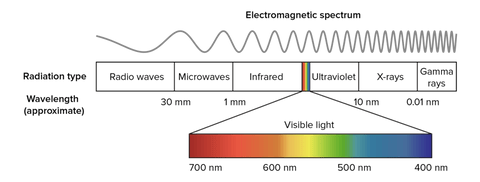
By analyzing the laser beams, they therefore take on a different color according to the wavelength; a blue beam (like the Longer Ray5 laser) has a wavelength of 450 nm, while green or red laser beams have different lengths. However, a laser beam does not necessarily belong to the visible spectrum, as it can also be generated as a different radiation. For example, there are some lasers belonging to the infrared, which are invisible but retain their abilities.

An example of an infrared laser is the CO₂ laser, which is a laser characterized by a wavelength between 940 nm and 1060 nm, which is generated within an active laser medium contained in an air- or water-cooled gas discharge tube. The gas contained within the laser tube consists mainly of carbon dioxide (CO2) and other gases, where an initial gas is excited by electric current but is not able to release a photon because of its chemical structure and then transfers its energy to a CO2 molecule that triggers the first photon. The operation is similar to a neon/fluorescent bulb, although in this case the photons generate a laser beam instead of optically isotropic light.

Given the high power obtainable (as the ratio between input and output power is very high), CO₂ lasers are widely used for metal engraving, for cutting materials, and for industrial welding. They are also very useful in surgery because the main constituent, water, of the cells absorbs very well the emitted infrared frequency. In addition, CO₂ lasers are also used for telemetry, as infrared can pass through the Earth's atmosphere easily, being almost completely transparent to infrared.

https://www.longer3d.com/collections/laser-engraver

By Academy | November 8, 2022