






Cleaning the Laser Window Lens and Galvo Mirror — Nano
Follow these steps to clean the laser window lens and galvo mirror:
1. Prepare alcohol and a lint-free cloth. 
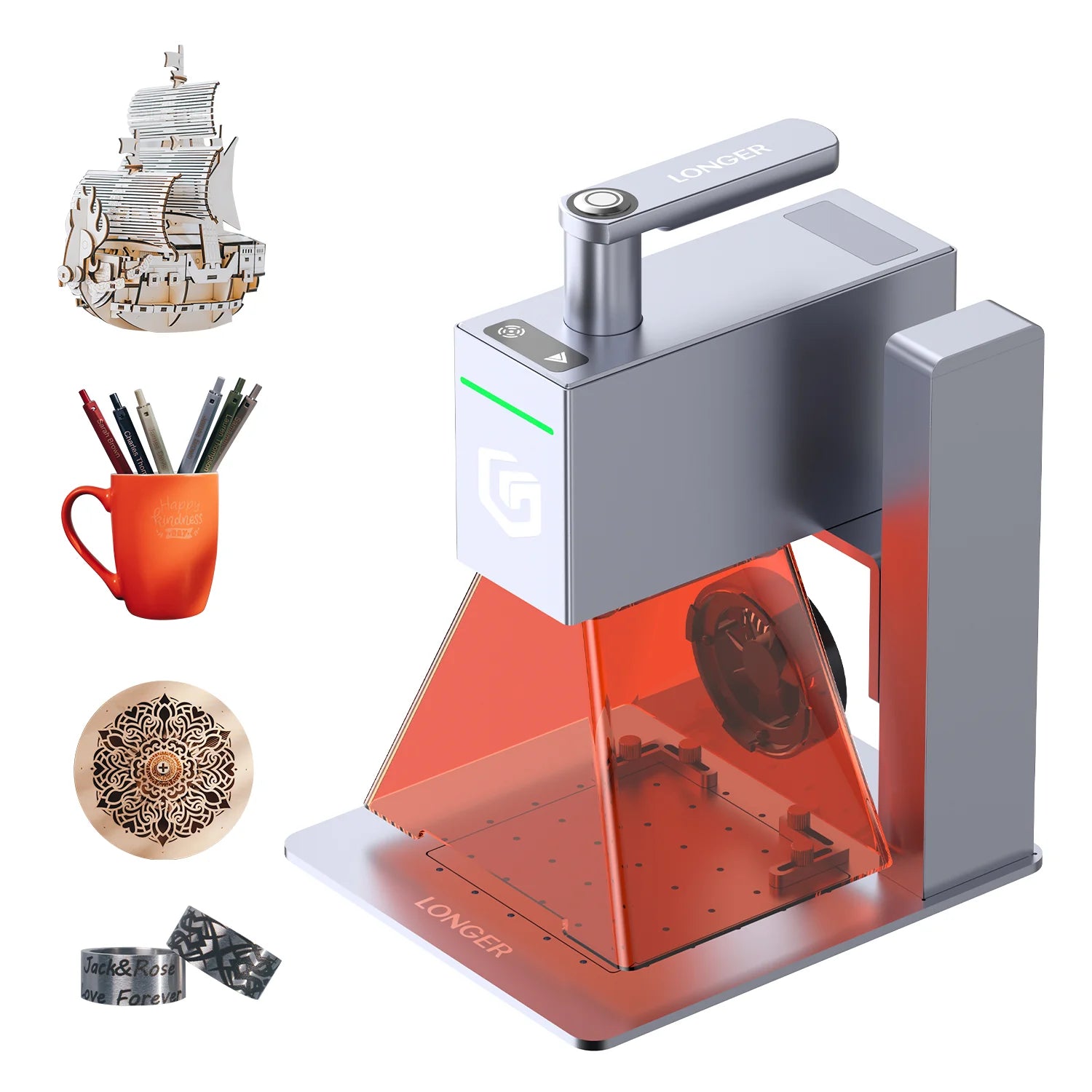
2. Rotate counterclockwise to remove the laser window lens. The galvo mirror and the laser window lens are shown below. 
3.Moisten the lint-free cloth with alcohol and gently wipe the front and back surfaces of both the galvo mirror and the laser window lens. Make sure to dry off any alcohol completely to avoid watermarks.
4.After cleaning, reinstall the laser window lens by rotating it clockwise back into place.
By Laser Engraver Blogs | November 13, 2025


 in
in






