Lasergravierer-Blog

Safety First: Exploring the Advanced Safety Features of the LONGER Nano Series Engraving Machines

LONGER’s Nano Series laser engravers combine precision and safety with features like real-time temperature monitoring, tilt detection, and flame-retardant shielding. This article details how these safety systems work together to deliver a secure and reliable engraving experience for creators at all levels.

By Lasergravierer-Blog | April 23, 2025
How to Enable Framing Mode on Lightburn for Longer Laser Engravers

LightBurn Framing Mode is essential for accurate laser engraving with Longer machines like Nano, B1, and Ray5. It lets users preview the engraving area before starting the job, minimizing material waste and errors. This guide walks you through enabling Framing Mode in LightBurn—just activate the laser fire button, set framing power to 2%, and you're ready to frame with precision. Perfect your setup and avoid costly mistakes with this simple yet crucial step in the engraving process.

By Lasergravierer-Blog | April 18, 2025
LONGER Research: How can the Nano Series Combines Lightweight Design with High Performance for the Best Laser Engraving Experience?

ABSTRACT
In today’s fast-paced world, efficiency and convenience are essential, especially for those seeking the best laser engraver to handle diverse engraving projects. The Nano series laser engraver, known for its compact and portable laser engraving machine design, exemplifies a balance of lightweight build and high functionality. Here, we’ll explore how this engraver cutter laser model achieves impressive portability while maintaining powerful performance, making it ideal for everything from wood engraving to intricate stone engraving.

1. Lightweight Design of the Nano Series

From the outset, the Nano series was designed as a portable laser engraver, with a focus on a streamlined layout that reduces unnecessary components and weight without compromising functionality. By integrating components like the main board, laser head, lenses, sensors, and galvanometer motors into a compact structure, the Nano series achieves the power of a full-sized laser cutter and engraver in a much smaller, lighter form.


Constructed from lightweight but high-strength aluminum alloy, this portable engraver prioritizes durability alongside weight reduction, creating an engraving machine for jewelry, glass, wood, and other materials. At a fraction of the weight of traditional frame lasers, the Nano series still provides outstanding power and precision, earning it a place among the best laser engravers for portability without sacrificing quality.

2. High Performance Capabilities of the Nano Series
The high-performance aspects of the Nano series cover several key features:

(1) Laser Power
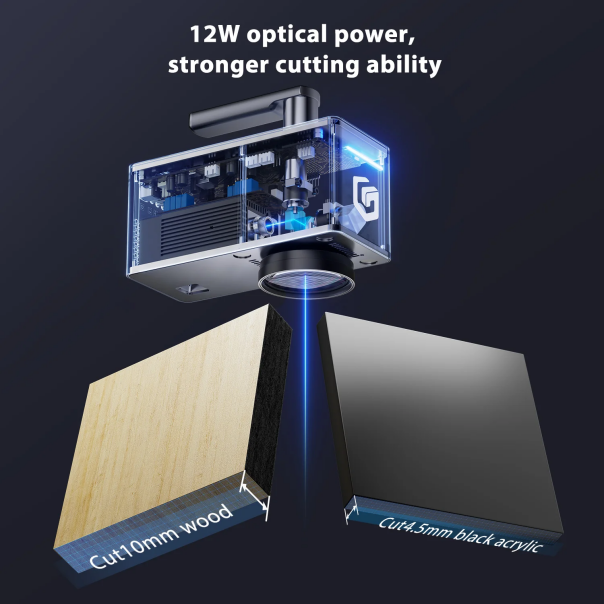
Equipped with high-power imported diode laser heads, the Nano series laser cutter offers significant power advantages. For example, the Nano Pro incorporates two high-performance laser chips, reaching up to 12W, providing a 20% increase over the more common 10W laser heads. This power boost enables the Nano Pro to cut wood up to 10mm thick and engrave color on stainless steel, making it a top choice as a laser engraver for wood and other materials.


(2) Engraving Speed
Using a high-speed galvo system, the Nano series enables engraving speeds that exceed those of traditional frame-based machines. Additionally, its unique distortion correction algorithm ensures precise laser beam positioning, making it highly effective for detailed wood engraving, glass engraving, and stone engraving applications. With speeds up to 5000mm/s and a preview speed of 32000mm/s, the Nano series stands out as a fast, reliable handheld laser engraver.


(3) Safety Measures 
Prioritizing user safety, the Nano series laser engraver includes temperature sensors and accelerometers. The laser engraver automatically shuts off if it detects sudden tilting or drops, providing peace of mind during operation. Additionally, the protective enclosure, made from a flame-resistant material, intercepts over 99.5% of blue light, protecting users’ eyes from potential harm (although proper laser goggles are always recommended during operation).


Conclusion
Combining portability, high performance, and safety, the Nano series is truly the best laser engraver for users who need a reliable, portable laser engraver and cutter for various materials and applications. Whether you’re setting up a little machine shop store or crafting intricate designs at home, the Nano series is the versatile, powerful solution you’ve been looking for.

By Lasergravierer-Blog | February 17, 2025
LONGER How to: Adjust the Engraving Position When Using a Rotary for Engraving

Using a rotary attachment allows your laser engraver to process cylindrical objects such as tumblers, bottles, mugs, and pipes. However, incorrect positioning can cause engraving misalignment, uneven graphics, or incomplete results. This guide explains how to adjust engraving position with rotary accessories correctly using Longer laser engravers.


Table of Contents


Quick Answer

To adjust engraving position when using a rotary attachment, you must properly align the object, configure the rotary settings in your engraving software, and confirm the laser start position before engraving. Accurate positioning helps prevent skewed artwork and ensures the engraving appears in the correct location on cylindrical objects.


What This Guide Covers

This tutorial explains:

  • How rotary engraving positioning works
  • How to align objects correctly
  • How to adjust the engraving starting position
  • Common rotary alignment mistakes
  • Troubleshooting positioning problems
  • Tips for improving engraving accuracy

This guide is beginner-friendly and suitable for Longer laser engraver users working with rotary attachments.


Why Rotary Engraving Position Adjustment Matters

Rotary engraving requires more precision than flat-surface engraving. Since cylindrical objects rotate during operation, even small alignment errors can affect engraving quality.

Correct rotary positioning helps:

  • Keep graphics level and centered
  • Prevent engraving distortion
  • Avoid engraving outside the target area
  • Improve repeatability for batch production
  • Reduce wasted materials

For businesses and hobbyists alike, accurate rotary alignment saves time and improves engraving consistency.


Before You Start

Requirements

Before adjusting engraving position with a rotary attachment, prepare the following:

  • Longer laser engraver
  • Compatible rotary attachment
  • Laser engraving software
  • Cylindrical object for testing
  • USB connection and power supply
  • Properly focused laser module

If your machine requires additional configuration, follow official machine specifications or instructions.


Precautions

Before beginning rotary engraving setup:

  • Ensure the machine is powered off before connecting the rotary attachment
  • Confirm the object is securely mounted
  • Avoid loose cables around moving components
  • Verify the laser focus before engraving
  • Use proper laser safety glasses
  • Test positioning using low-power framing before full engraving

Improper setup may cause engraving offsets or object slippage during rotation.


Step-by-Step Tutorial: How to Adjust Engraving Position with a Rotary

Step 1: Connect the Rotary Attachment

Action

Connect the rotary attachment to the laser engraver according to the machine instructions.

Expected Result

The machine recognizes the rotary accessory and prepares for cylindrical engraving operation.

Important Notes

  • Ensure the connection cable is fully inserted
  • Disconnect the Y-axis motor if required by your machine model
  • Follow official machine specifications or instructions

Step 2: Place the Cylindrical Object Correctly

Action

Position the cylindrical object securely on the rotary attachment rollers or chuck system.

Expected Result

The object rotates smoothly without wobbling or slipping.

Important Notes

  • Center the object carefully
  • Uneven placement may cause tilted engraving
  • Test manual rotation before starting engraving

Objects with irregular surfaces may require additional support.


Step 3: Adjust the Laser Focus

Action

Adjust the laser head height to achieve the correct focal distance.

Expected Result

The laser beam is focused properly on the surface of the cylindrical object.

Important Notes

  • Improper focus can reduce engraving quality
  • The highest point of the cylinder is usually used for focusing
  • Recheck focus after changing object size

If your machine includes automatic focus tools, follow official machine instructions.


Step 4: Configure Rotary Settings in Software

Action

Enable rotary mode in the laser engraving software and configure the required rotary parameters.

Expected Result

The software adjusts movement calculations for cylindrical engraving.

Important Notes

  • Use the correct roller or chuck mode if available
  • Enter the object diameter accurately
  • Incorrect diameter settings may distort engraving dimensions

Do not guess measurement values. Use actual measurements whenever possible.


Step 5: Set the Engraving Start Position

Action

Move the laser head to the desired engraving starting point on the object surface.

Expected Result

The engraving begins in the correct location during operation.

Important Notes

  • Use framing or preview mode first
  • Verify horizontal alignment before engraving
  • Small positioning adjustments may significantly affect results

This step is critical when engraving logos or text that must appear centered.


Step 6: Perform a Framing Test

Action

Run the framing or boundary preview function before engraving.

Expected Result

The laser path outlines the intended engraving area without firing at full power.

Important Notes

  • Confirm the artwork fits within the desired engraving area
  • Stop immediately if the object shifts or rotates incorrectly
  • Reposition the object if alignment appears uneven

Framing tests help prevent wasted materials and positioning errors.


Step 7: Start the Rotary Engraving Process

Action

Begin the engraving job after confirming alignment and positioning.

Expected Result

The laser engraves the design accurately onto the cylindrical surface.

Important Notes

  • Monitor the first few rotations carefully
  • Pause the job immediately if slipping occurs
  • Avoid touching moving components during engraving

Consistent object rotation is essential for clean engraving results.


Common Problems and Solutions

Problem Requirements Solution
Engraving appears tilted Object alignment check Reposition the object evenly on the rotary attachment
Design starts in the wrong location Verify origin position Reset the engraving start point and rerun framing
Object slips during engraving Secure object placement Tighten the chuck or adjust roller pressure
Engraving looks stretched Correct diameter input Re-enter accurate cylinder diameter settings
Laser engraving is blurry Proper focus adjustment Re-focus the laser on the object surface
Rotary does not rotate properly Connection verification Check rotary cable and machine configuration
Uneven engraving depth Stable object rotation Ensure the object rotates smoothly without wobble

Tips for Better Rotary Engraving Results

Use Accurate Diameter Measurements

Even small diameter measurement errors can affect engraving proportions. Use calipers or precision measuring tools when possible.


Always Run a Framing Test

Framing previews help verify alignment before engraving begins. This reduces wasted materials and setup errors.


Clean the Object Surface

Dust, oils, or fingerprints may affect engraving quality. Wipe the surface before engraving.


Start with Low-Speed Test Engravings

Testing with lower speeds allows you to confirm positioning and rotation accuracy before final production.


Keep the Rotary Attachment Level

Uneven rotary placement may cause inconsistent engraving depth or tilted graphics.


Frequently Asked Questions

Q: How do I adjust engraving position when using a rotary?

A: Position the object correctly, configure rotary settings, set the laser origin carefully, and run a framing test before engraving.


Q: Why is my rotary engraving not centered?

A: Incorrect object placement or improper origin settings are common causes. Re-align the object and verify the engraving start position.


Q: How do I align a rotary attachment on a laser engraver?

A: Place the rotary attachment securely, ensure the object rotates evenly, and confirm the laser head aligns with the intended engraving area.


Q: Why does my engraving appear stretched on a tumbler?

A: Incorrect diameter settings in the software can distort the engraving. Measure the object carefully and enter the exact diameter value.


Q: Can beginners use rotary engraving attachments?

A: Yes. Rotary attachments are beginner-friendly when proper alignment, focus, and framing procedures are followed.


Q: What objects can I engrave with a rotary attachment?

A: Rotary attachments are commonly used for tumblers, bottles, mugs, pipes, cylindrical containers, and similar round objects.


Q: Why is my rotary attachment slipping during engraving?

A: Slipping may occur if the object is not secured properly or if the rollers lack enough grip. Reposition the object and verify stability.


Q: How important is focus for rotary engraving?

A: Correct focus is extremely important. Poor focus can reduce engraving clarity and affect engraving consistency across curved surfaces.


Final Thoughts

Learning how to adjust engraving position with a rotary attachment is essential for producing clean and professional cylindrical engravings. Proper positioning, accurate alignment, and careful framing help improve engraving consistency while reducing setup mistakes.

Whether you are engraving tumblers, bottles, or custom gifts, taking time to configure the rotary correctly can greatly improve your final results. For additional setup tutorials, software guides, and troubleshooting resources, explore more tutorials from Longer3D Official Website.

By Lasergravierer-Blog | February 17, 2025
LONGER How to: Prevent Vibration When Using Chucks with the Longer Nano Pro 12W
Welcome to our guide on using the LONGER Nano series engravers with the rotary clamp! Getting the right focus is key to preventing any blurriness or distortion in your engraving patterns. Let’s dive in and explore how to quickly and accurately adjust the focus when using the Nano Pro 12W alongside the rotary clamp.
By Lasergravierer-Blog | October 29, 2024
LONGER How-to: Achieve Optimal Focusing with the LONGER Nano Series Using the Rotary
This guide provides essential steps for avoiding vibrations when using chucks on the Longer Nano. When engraving curved surfaces, chucks are used to secure cylindrical objects for rotational engraving. If the chuck is not properly adjusted, vibrations may occur during engraving, which can distort the design.
By Lasergravierer-Blog | October 29, 2024
LONGER Research: LONGER Nano Pro 12W Field Lens Function Introduction
The Nano Pro 12W laser engraver's field lens is designed with this focal length-to-wavelength relationship in mind, optimizing lens curvature and lens combinations to achieve a minimized spot size. This design not only enhances engraving detail but also enabling users to complete intricate engraving tasks in less time.
By Lasergravierer-Blog | October 28, 2024
LONGER Research: Introduction to Galvo Technology in LONGER Laser Systems
In LONGER's Nano series laser engraving machines, particularly the LONGER Nano Pro 12W, the structure of the galvo scanning marking head is composed of XY scanning mirrors, field lenses, galvos, and computer-controlled marking software.
By Lasergravierer-Blog | October 28, 2024
Type-C cables for Longer Nano

The Longer Nano Series, including the Nano Pro 12W and Nano 6W, is a compact yet powerful laser engraving solution designed for portability and versatility. Its streamlined connectivity system relies on USB Type-C interfaces, enabling stable power delivery and reliable data communication in a simple plug-and-play setup.

However, not all USB Type-C cables are created equal. Differences in power handling, data speed, and internal construction can significantly affect device performance and safety. Therefore, when replacing a cable for your Longer Nano device, it is essential to select one that fully meets the required specifications.

Understanding USB Type-C Cable Differences

USB Type-C has become a universal standard for modern electronics, covering charging, data transfer, and power delivery across devices such as smartphones, laptops, and professional equipment. Despite its standardized connector, cable capabilities vary widely.

1. Power Delivery Capacity

One of the most critical factors in Type-C cables is their voltage and current rating:

  • Low-power cables: typically support 5V at low current, suitable for small accessories like earbuds
  • High-power cables: support up to 5A current and higher voltages up to 20V
  • Fast-charging cables: designed for USB Power Delivery (PD) standards, enabling significantly higher power output

USB PD technology can deliver up to 240W of power, allowing efficient charging and operation of high-demand devices such as laptops and professional tools. The system dynamically negotiates power levels between the device and power source, adjusting voltage (commonly 5V, 9V, 15V, and 20V) to match real-time requirements.

2. Data Transfer Capabilities

Not all USB-C cables support high-speed data transmission.

  • Some cables are charge-only, with no data transfer capability
  • High-performance cables compliant with USB 3.1 Gen 2 can achieve speeds up to 10Gbps

For applications involving firmware updates, file transfer, or device communication, high-speed data support is essential to ensure stable performance and efficiency.

3. Build Quality and Electrical Stability

Cable construction directly impacts safety and performance. High-quality USB-C cables typically feature:

  • Thicker conductors for improved current handling
  • Reduced electrical resistance for better efficiency
  • Reinforced shielding to minimize interference
  • Durable connectors for long-term reliability

Thicker and better-engineered cables help prevent overheating under sustained high-power operation, which is particularly important for devices requiring stable energy input.

4. Certification and Smart Cable Features

When selecting a replacement cable for the Longer Nano Series, it is strongly recommended to choose cables that are:

  • Certified for USB Power Delivery (PD)
  • Compliant with USB 3.1 or higher data standards
  • Manufactured by reliable, certified brands

Some advanced cables also include built-in power displays, allowing users to monitor real-time wattage output. This can be a useful indicator of charging stability and compatibility with high-performance devices.

Recommended Cable Selection for Longer Nano

To ensure optimal performance and safety, users should choose USB Type-C cables that meet the following criteria:

  • Support USB Power Delivery (PD) fast charging
  • Comply with USB 3.1 Gen 2 or higher standards
  • Capable of stable high-current transmission (up to 5A)
  • Built with high-quality materials and reinforced connectors
  • From certified and reputable manufacturers

Using the correct cable ensures consistent power delivery, stable data communication, and reliable engraving performance for the Longer Nano Series.

Conclusion

While USB Type-C has become a universal standard, its performance varies significantly depending on cable design and certification. For the Longer Nano Pro 12W and Nano 6W, selecting a properly rated PD-compatible and high-speed data cable is essential for maintaining stability, safety, and optimal engraving performance.

Choosing the right cable is not just a matter of convenience—it directly impacts the reliability and efficiency of your entire workflow.


By Lasergravierer-Blog | October 19, 2024
LONGER Research: Engrave everywhere with Longer Nano

Longer Nano is an innovative and powerful laser engraver, capable of engraving various types of materials quickly and anywhere. The strength of Longer Nano, based on its portability and ability to make engravings anywhere, is ensured by the Longer Laserburn smartphone App; This app is able to process various types of images, both graphic and vector, and depending on the type of image chosen it is possible to choose different engraving methods.

Engraving of graphic images
Graphic images are those in jpg, png, etc format, and are the most common type of images.
Within Longer Laserburn you just need to select the Creation menu, then just upload a graphic image from your smartphone's gallery.


After importing the graphic image you can choose various types of effects, change the size, as well as change the brightness and contrast of the photo. Keep in mind that graphic images are greatly affected by resizing, as they are composed of pixels, and excessive magnification can result in a loss of resolution.

Finally, in the Layers menu, you can set the engraving parameters. As far as graphic images are concerned, the ideal Processing Method is Engrave, which results in a series of lines engraved one after the other, until the image is completely realized. The number of lines per mm can be set via "Accuracy" according to your preference, keeping in mind that more lines to be engraved takes longer.

Engraving vector images
Vector images are those in svg format, and are a less common type of image than graphic ones, however they are widely used to make logos and are usually presented in black and white.
Within Longer Laserburn you just need to select the Creation menu, then just upload a vector image from your smartphone's gallery. An excellent website to retrieve vector images can be https://www.freepik.com/.

After importing the vector image, you can only change the size, as vector images do not have any editable graphic properties. On the other hand, vector images are not affected by scaling, so they can be scaled infinitely without ever losing in terms of definition.

Finally, in the Layers menu, you can set the engraving parameters. For vector images, you can choose whether to keep only the perimeter of the image or to insert a fill as well, so as to obtain various types of engraving effects.
In addition, it is also possible to choose between two different Processing Method methods, namely Engrave or Cut; as mentioned, Engrave results in a series of lines engraved one after the other, until the image is completely realized, while Cut follows exactly the perimeter of the image. Therefore, it can be deduced that Cut is better suited to engrave vector images without fill, composed only of the perimeter, while Engrave is more suitable for engraving vector images for which it has been decided to add a fill as shown above.


By Lasergravierer-Blog | October 14, 2024