Blog de grabador láser

Nano Pro: Sudden Stop During Engraving

If the machine suddenly stops during engraving, the main causes are:

1. Data Loss

If connected via USB, a loose USB port connection or a damaged cable may cause the connection to be lost. Replace the USB cable if necessary.

2. Machine Alarm

During engraving, alarms can be triggered by vibration, tilting, or other unsafe conditions. When an alarm occurs, the red indicator light will turn on and the engraving will stop.

 Once the alarm is cleared, the machine can resume engraving normally.

If the alarm does not clear automatically, connect the machine to a computer, open LightBurn or LaserBurn, and enter $X in the console to reset the alarm.

By Blog de grabador láser | November 13, 2025
How to Fix LaserBurn Connection Issues via IP on Nano Pro

Troubleshooting:

1. Network
Check whether the Nano Pro and the computer are on the same network. If they are not, IP connection will fail. You can configure the network through the screen or the mobile app.


2. Device in Use
Check whether the Nano Pro is already connected to another device or software via IP. The Nano Pro only supports one active IP connection at a time.

By Blog de grabador láser | November 13, 2025
Unable to connect to Lightburn or LaserGRBL for Nano

1)  Using the wrong Type-c cable

Please  use  the data cable to connect the computer to the third port of

engraver. This is.

2)  Can not find GH430 driver

For Windows systems, it needs to right-click the computer and select Manage, click Device Manager, click to expand Ports (COM & LPT), find the port corresponding to the CH340 driver, and then select this port in LightBurn; that is, to manually choose the right port that the engraver is connected to by clicking where you see '(Choose)' in the Laser Window.

For macOS, please go to About This Mac > Overview > System Report, select USB under Hardware, and there will be USB Serial if the driver is installed automatically. Select the cu.wchusbserial14230 port in LightBurn by clicking where you see '(Choose)' in the Laser Window.

If no ports are listed in the drop-down, it means that no engravers were found, which could mean that it isn't plugged in correctly, isn't powered, or the PC is missing a driver. It needs to download the CH340 driver from the link and double-click it to install:

Tutorial Video for Installing CH340 Drivers on macOS Version 14 and Earlier, https://www.youtube.com/watch?v=FBd1uEA9QUw

Tutorial Video for Installing CH340 Drivers on macOS Version 14 and Earlier, https://www.youtube.com/watch?v=JX-XsjLFei0

https://drive.google.com/drive/folders/1Sc-TKuez-mz--38Vp6DeL-p GmQcQdHW4.

3) The GH340 driver port is occupied.

Before connecting,  please  make  sure  that  the  CH340  port  is  not occupied by software such as serial communication tools, cura, etc.

4)  The configuration file is not imported or damaged

For LaserGRBL, In order to meet the use of Nano Pro in LaserGRBL, it must to import custom buttons.  Right-click in the  blank area at the     bottom      and     select      Import     custom      buttons,     open LaserNano.zbn file to import, click YES to confirm, then there are three new Nano, Slide, Rotary icons, etc.

LaserNano.zbn file is stored in the software's directory of the SD cards. 

For LightBurn, it will prompt a 'New Device Wizard,' or click "Devices" in the laser control module to import the engraver. Click Import’,  select the  Nano Pro.lbdev  file,  and  click  OK  to  add  the Nano Pro configuration to LightBurn. The macro commands will be successfully added in the Console window and Nano Pro device.

would appear in the list of devices to the right of the 'Devices' button in the Laser window when the configuration file is imported successfully.

5)  Baud rate setting error

If the baud rate is set incorrectly, the machine will be unable to connect.

LaserGRBL:

Select this port from the COM port list, and set the baud rate to 961200.

Lightburn:

Click the button, select this port from the COM port list, and set

961200 baud rate.

By Blog de grabador láser | November 13, 2025
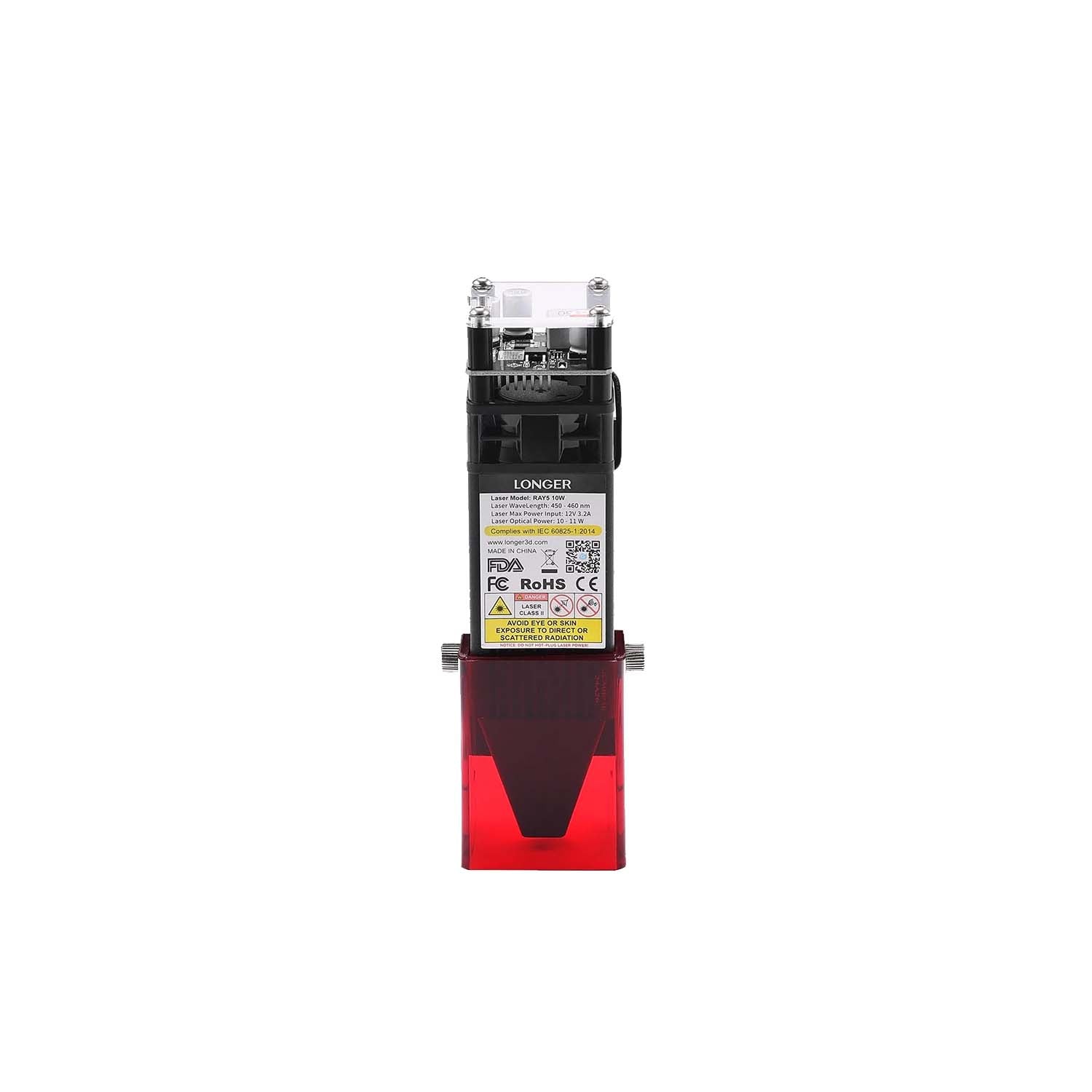
Laser Fan Replacement for Ray5 10W / 5W

1、Use a Phillips screwdriver to unscrew the screws.

2、Disconnect the fan cable from the mainboard and remove the fan.

3、Connect the new fan's cable to the mainboard and install the fan into the laser head, making sure the intake side faces up and the exhaust side faces down.

4、Secure the fan again using a Phillips screwdriver.

By Blog de grabador láser | November 11, 2025
Lens Window and Nozzle Cleaning for Ray5 10W / 5W

Cleaning the lens window and nozzle of a laser engraver is an essential and routine maintenance task.
A dirty lens window can severely reduce laser power, causing weak or uneven engraving/cutting.
A clogged nozzle can disrupt the flow of assist air, resulting in poor cutting quality and even potential damage to the laser head due to insufficient cooling.

Below is a detailed and safe cleaning guide.

Core Principles: Safety First!

Power Off and Cool Down:
Always turn off the laser engraver and unplug the power cord before cleaning.
Wait until the laser head is completely cool, especially after recent use when it may still be very hot.

Extreme Gentleness:
Both the lens window and nozzle are delicate and fragile (especially the coating on the lens surface).
Any scratch can cause permanent damage. Handle with care and apply very light pressure during cleaning.

Use Proper Tools:
Prepare professional cleaning tools.
Avoid using paper towels or clothing that can leave fibers or cause scratches.

Part 1: Cleaning the Laser Head Lens Window

The lens window protects the internal mirrors and lenses of the laser module, and it is the most likely component to accumulate smoke and dust.

Required Tools:

Anhydrous alcohol (≥99% purity): Evaporates quickly without leaving water stains.
Avoid medical alcohol, which contains water and other additives.

Lint-free cotton swabs/lens cleaning sticks: With wooden or plastic handles wrapped in microfiber.

Air blower/camera dust blower: For removing large dust particles.

Gloves (optional but recommended): Prevent fingerprints and oil stains.

Cleaning Steps:

1. Remove the Lens Window:

Gently unscrew the lens holder (usually counterclockwise).

Place the lens on a clean, soft surface such as lint-free paper or tissue.

2. Blow Off Dust:

Use the air blower to gently blow both sides of the lens to remove surface dust and particles.
This prevents scratches during wiping.

3. Alcohol Cleaning:

Take a new lint-free swab and apply 1–2 drops of anhydrous alcohol—it should be damp, not dripping.

Start from the center of the lens and gently wipe outward in a spiral motion.
Do not wipe back and forth.

Use a new swab, moistened again with alcohol, to repeat the spiral cleaning for a deeper cleanse.

4. Dry and Inspect:

Use a clean, dry, lint-free swab to absorb any residual alcohol, again moving from center outward.

Hold the lens toward a light source (e.g., phone flashlight) and inspect from multiple angles.
Ensure there are no fingerprints, watermarks, or dust.
If contamination remains, repeat the previous steps.

5. Reinstall the Lens:

Ensure the lens holder is clean (use the air blower if needed).

Carefully reinstall the lens in its original orientation (the coated side usually faces inward—if unsure, refer to its direction before removal).

Screw the retaining ring back securely but not too tightly to avoid cracking the lens.

Part 2: Cleaning the Nozzle

The nozzle directs assist air (or oxygen/nitrogen) to the cutting point, helping to remove molten material and provide cooling.
It often becomes clogged with smoke residue or melted debris.

Required Tools:

Same as those for lens cleaning: anhydrous alcohol and lint-free swabs.

Fine needle, nozzle cleaner, or toothpick (for unclogging small holes).

A small container (for soaking the nozzle).

Cleaning Steps:

1. Remove the Nozzle:

The nozzle is usually threaded under the laser head. Unscrew it counterclockwise.

Be aware that some accumulated dust may fall out.

2. Physical Unclogging:

If the nozzle outlet is blocked by molten debris, use a fine needle or nozzle cleaner to gently clear the hole.
Be very careful not to enlarge or scratch the inner surface—this could affect airflow precision.

For double-layer nozzles, check the gaps between layers for blockage.

3. Soaking and Brushing:

For stubborn oil or residue, soak the nozzle in anhydrous alcohol for 10–15 minutes.

After soaking, use a lint-free swab or a soft brush (like an old toothbrush) to gently clean the inside and outside of the nozzle, especially around the outlet.

4. Rinse and Dry:

Rinse the nozzle again with fresh anhydrous alcohol.

Use the air blower to completely dry both the inside and outside of the nozzle, ensuring no moisture remains.
This is critical, as moisture can affect cutting performance.

5. Reinstall the Nozzle:

Once fully dry, screw the nozzle back into place.
Tighten it securely, but avoid overtightening to prevent thread damage.

Recommended Cleaning Frequency

Daily / Before Each Use:
Use an air blower to remove surface dust from the lens window and nozzle.

Weekly or Every 40 Hours of Operation:
Perform a full visual inspection and clean thoroughly if any contamination is visible.

Clean Immediately If Any of the Following Occur:

Laser power output drops noticeably (cutting depth decreases at the same power).

Engraving/cutting lines become uneven or blurry.

Sparks are unusually large or have strange colors during cutting.

A garlic-like (ozone) smell appears—this may indicate lens contamination causing beam refraction.

By Blog de grabador láser | November 11, 2025
Laser Window Lens Replacement for Ray5 10W / 5W

1. Remove the laser protective cover
Rotate the pump connection port counterclockwise to remove it.

Use an M1.5 hex wrench to loosen the nozzle screws through the small hole under the dovetail slot, then remove the nozzle (for 10W lasers).

10W

2. Unscrew the window lens counterclockwise.  

3. Install the new window lens, then reattach the nozzle and pump connection port.

By Blog de grabador láser | November 11, 2025
Laser Module Replacement for Ray5 10W / 5W

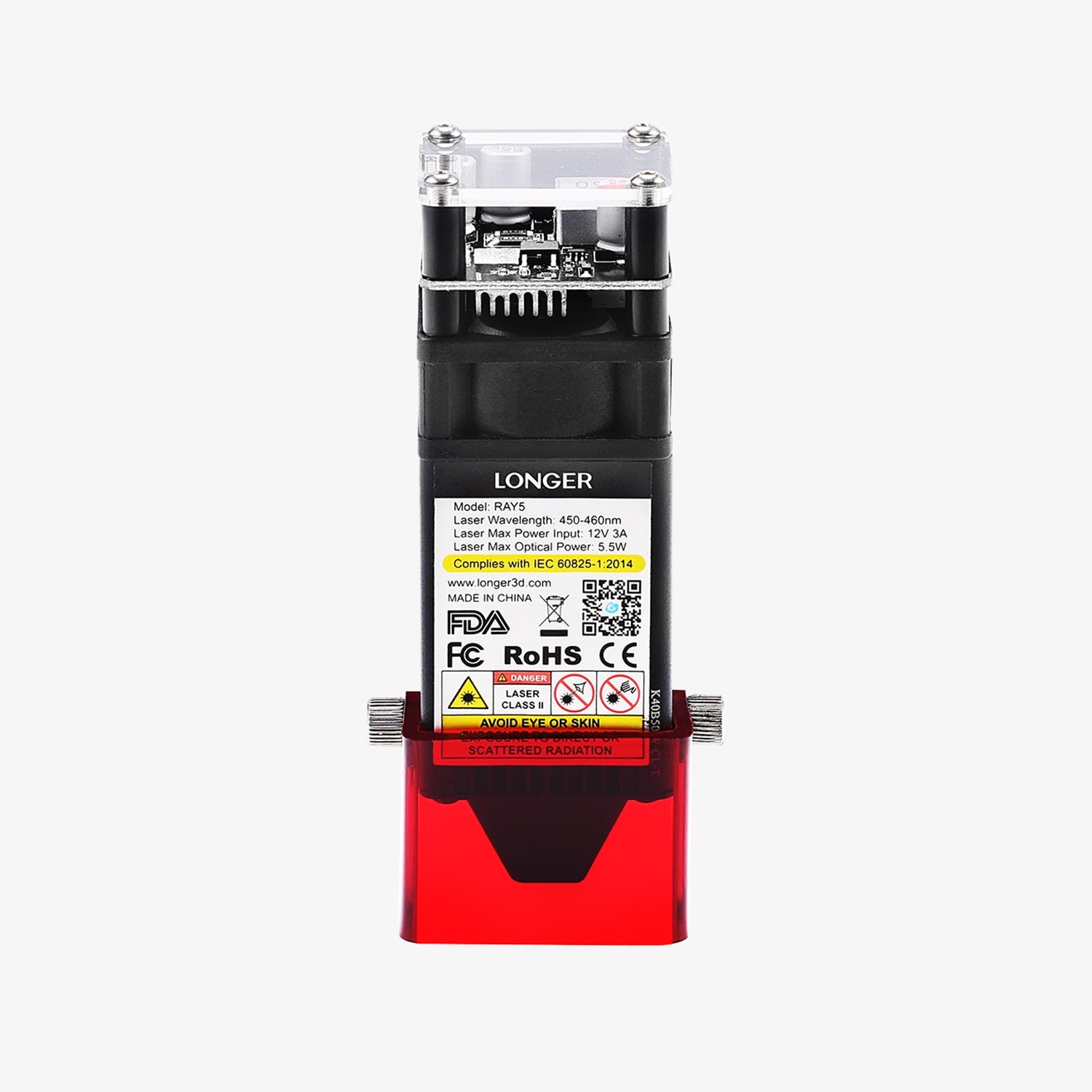
First, unplug the laser module’s cable. Turn the M420 hand screw clockwise to loosen it and remove the original laser module. Then, install the new laser module onto the X-axis frame and turn the M420 hand screw counterclockwise to tighten and secure the laser module.

By Blog de grabador láser | November 11, 2025
Motor Replacement for Ray5 10W / 5W

Replacing the X-axis or Y-axis motor is similar and not dependent on the machine model. This example uses the Ray5 40W X-axis motor.

1. Unplug the X/Y-axis motor cable. 

2. Loosen the X/Y-axis timing belt.

3. Use a 2.5 mm hex wrench to loosen the four screws and remove the X/Y-axis motor.

4. When installing the new motor, the X-axis motor connector should face left, and the Y-axis motor connector should face backward. Make sure the timing belt is properly seated on the coupling and adjusted to the correct tension, then plug in the motor cable. Motor replacement is complete.

By Blog de grabador láser | November 11, 2025
Display Screen Replacement for Ray5 10W / 5W

1. Use an M5 hex wrench to loosen the screws securing the control box, then remove the control box.

2. Use an M2 hex wrench to loosen the screws on the back panel of the control box and open the control box.

3. Disconnect the cable from the display’s mainboard.

4. Use an M2.5 hex wrench to loosen the screws on the mainboard and remove the old display screen. Install the new display screen, secure it with the original screws using the M2.5 hex wrench, and reconnect the cable.

5. Close the control box, tighten the back panel screws with an M2 hex wrench, and reinstall the control box onto the machine.

6. Replacement complete.

By Blog de grabador láser | November 11, 2025
Mainboard Replacement for Ray5 10W / 5W

The replacement method is similar for Ray5 20W and Ray5 40W. This example uses the Ray5 40W.

1. Use an M5 hex wrench to loosen the screws securing the control box, then remove the control box.

2. Use an M2 hex wrench to loosen the screws on the back panel of the control box and open the control box.

3. Disconnect or unscrew all cables connected to the mainboard.

4. Use an M2.5 hex wrench to loosen the screws securing the mainboard, remove the old mainboard, and install the new mainboard. Secure it with the original screws using the M2.5 hex wrench.

5. Reconnect the original cables to their corresponding ports (tighten as needed). The bundled cables have labels for correct placement.

6. Close the control box, tighten the back panel screws with an M2 hex wrench, and reinstall the control box onto the machine.

Replacement complete.

By Blog de grabador láser | November 11, 2025