

Academy

Hotend Replacement for Longer FDM 3D Printer - LONGER
Hotend Replacement for Longer FDM 3D Printer

While using an FDM 3D printer, you may need to replace the hotend. In fact, a little space between the heatbreak and nozzle, or a failure of the heatsink fan, or any other type of problem could cause a clog that prevents normal extrusion during printing, and the only way to repair the fault is to disassemble or replace the hotend.

Replacing the hotend is an easy procedure but one that requires the utmost attention.
In order to proceed with the replacement, follow these steps.

Disassembly

1) Unscrew the screw that holds the thermistor in place and remove the thermistor and temperature sensor

Unscrew the screw that holds the thermistor in place and remove the thermistor and temperature sensor

2) Disassemble the Hotend, then unscrew the screw that holds the Heatsink in place and remove the heatsink.

Disassemble the Hotend, then unscrew the screw that holds the Heatsink in place and remove the heatsink.

3) Remove the PTFE tube from the heatbreak.

4) In case the end of the PTFE tube is damaged, cut the damaged part, taking care to make a vertical cut at 90 degrees; an inaccurate cut will cause molten material to leak during printing, causing a new clog. In order to proceed to a precise cut, it is recommended to use a "PTFE cutter" available as an accessory for 3D printing or you can proceed to print an STL file by searching on Thingiverse for "PTFE cutter."

Replacement

1) Screw the Heatbreak correctly into the heatblock.

Screw the Heatbreak correctly into the heatblock.

2) Screw the Nozzle into the Heatblock

3) Install the Heatsink

4) Mount the Hotend on the 3D printer

5) Unscrew a little the Nozzle (about half a turn), then insert the PTFE tube until it hits with the nozzle.

6) Insert the thermistor and the temperature sensor into the block, fixing them with the appropriate screw

7) Heat the Hotend up to 200°C, then screw the Nozzle well so that it is tight with the PTFE tube and the heatbreak.

Heat the Hotend up to 200°C, then screw the Nozzle well so that it is tight with the PTFE tube and the heatbreak

Once you have completed these steps, the new hotend will be ready to use.
The correct assembly ensures good operation and avoids new clogs due to leakage of molten material between the heatbreak and the nozzle.
https://www.longer3d.com/products/lk5-pro-fdm-3d-printer

By Academy | March 28, 2023
LONGER New Dual Blower Kit installation tutorial - LONGER
LONGER New Dual Blower Kit installation tutorial

Last mont LONGER 3D release a new accessories for FDM 3D printers.

This dual blower kit perfectly fit for LONGER LK4/LK4 PRO/LK1/LK5 PRO and compatiable with U20/U30/U30 PRO 3D Printer, improves the quality of printing, have strong power on cooling nozzle to get a better and smooth surface of model.

And installation steps, some 3D printers fans didn’t know. Now you can follow our turorial step by step.

https://www.youtube.com/embed/zEA-eM5sfho

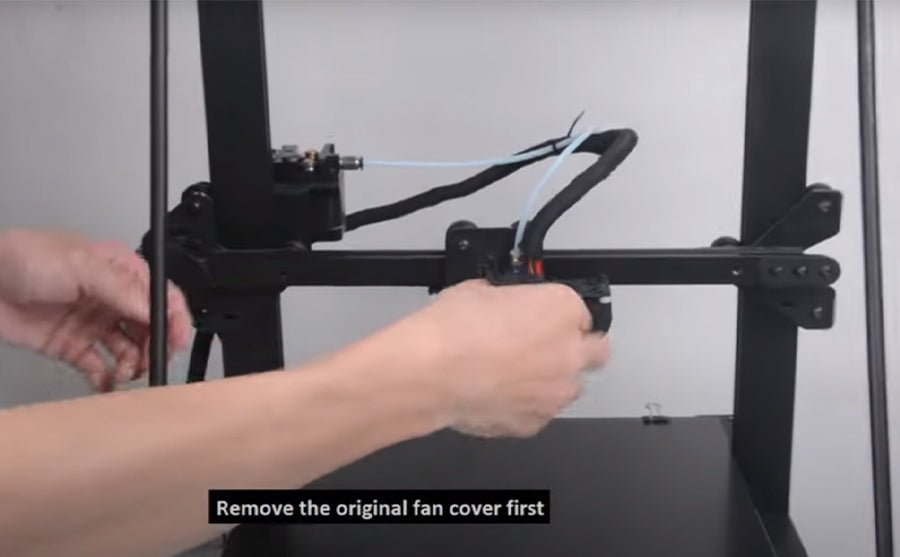
So install new dual blower kit for your FDM printer, you need remove the old hot end fan cover and sheet metal first, the fixed the new dual blower kit in the gantry beams, connect the fan wires in order, then done.

Ps: The plugs do NOT get replaced the same as the stock fan, they must be switched exactly opposite. (Former red/black gets new blue/yellow & visa versa.) 

If you going to install BL touch, please download support bracket for the BL Touch

Longer 3D collect all 3D printers coupon in discount  page. If you need 3D printers or upgrade part from LONGER 3D, check the link and find out coupon code you need.

Original post: https://www.longer3d.com/blogs/academy/longer-new-dual-blower-kit-installation-tutorial

https://www.longer3d.com/products/lk5-pro-fdm-3d-printer

By Academy | November 8, 2021
How to fix extruder in abnormal - LONGER
How to fix extruder in abnormal

When there's issue of exturder from Longer LK1/LK4/LK4 PRO/LK5 PRO 3d printer, how to fix it? There are usually two reasons in which the extruder works abnormally.


1. Clogged nozzle
In this case, you can refer to the method of cleaning the nozzle above.
2. Damaged extruder
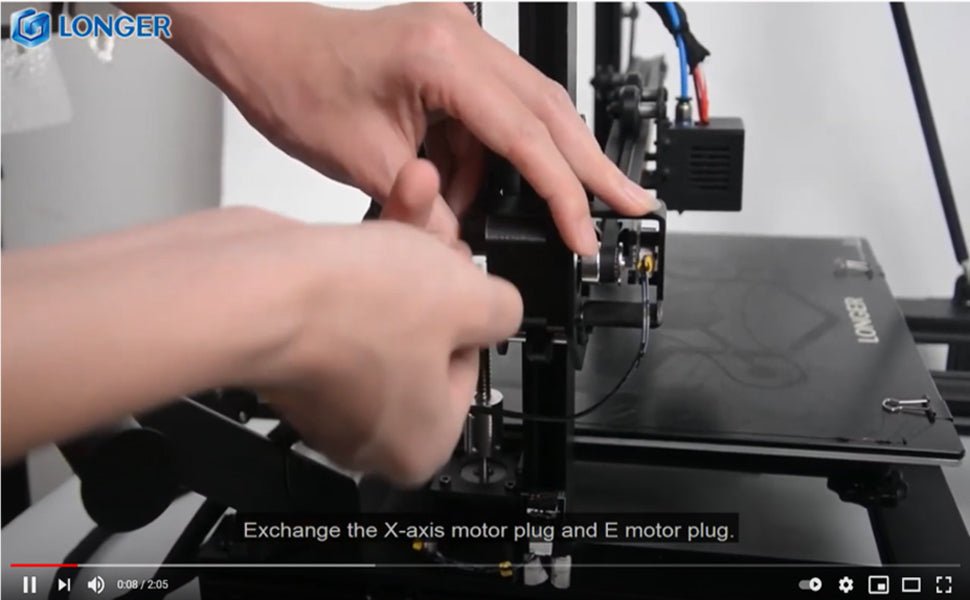
You can exchange the extruder cable with the X-axis cable. Start the machine, control the X axis, and let the extruder work. Observe if they work. If the X-axis is working properly, then the extruder motor is malfunctioning. At this time you can only replace with a new motor.
But if the X-axis does not work after the cable is exchanged. It may be a cable or motherboard failure. At this time, change the Y-axis cable to the extruder, and the motherboard's extruder port cable to the X-axis. If the X axis is working properly, then the cable is intact. If the X-axis still does not work, it means that the motherboard and cable need to be replaced with a new one.
You can refer to the video in the link below.


Watch video get more detail: https://youtu.be/XCjrieoyZ1c

https://www.longer3d.com/products/lk5-pro-fdm-3d-printer

By Academy | March 29, 2021
How to Add LONGER 3D Printers into Cura 4.8 Version - LONGER
How to Add LONGER 3D Printers into Cura 4.8 Version

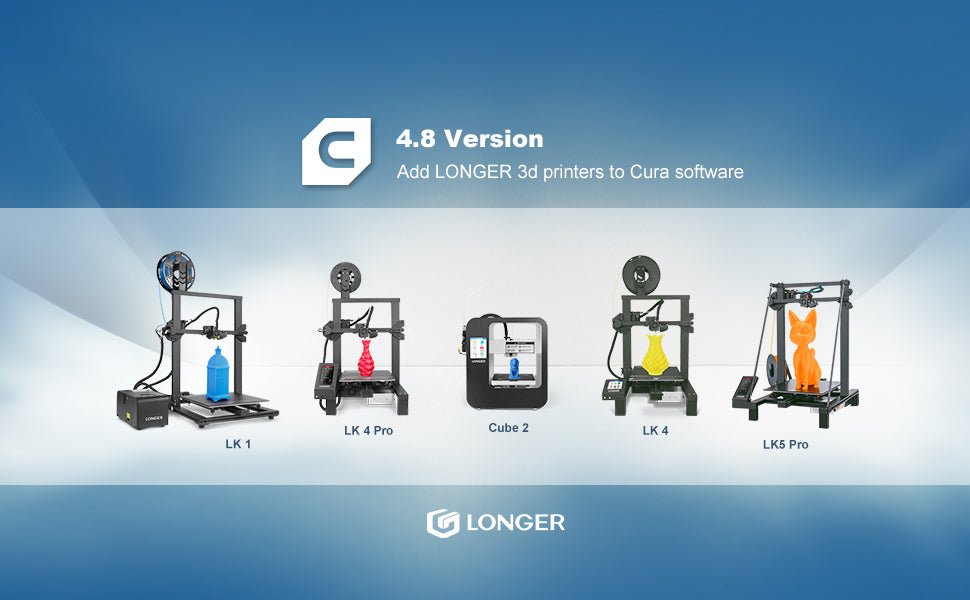
Reach this link to watch how to add LONGER 3D Printers into latest Cura software. And get more knowledge about longer lk4 pro cura settings, longer lk4 cura settings, and longer lk5 pro cura settings.

Add Longer 3d printers into Cura 4.8

To download the resources files of LONGER >>[Resources files]<<, with latest printing parameter, the quality of printing will be perfect on conifguration. 

https://www.longer3d.com/products/lk5-pro-fdm-3d-printer

By Academy | February 5, 2021