Lasergravierer-Blog

Z-Axis Lifting Malfunction Fix for Nano

If the Z-axis lifting fails, you can replace the column control board by following these steps:

1. Remove the L-shaped support bracket

Turn the hand-tightened nut counterclockwise to remove the L-shaped support bracket. 

2. Remove the column housing

Use a hex wrench to remove the 12 screws on the inner and outer sides of the column.

Remove the positioning plate and column cover to take out the column housing.

3. Disconnect and remove the column control board

Disconnect the cables on both sides of the column control board.

Use a hex wrench to remove the 4 screws fixing the column control board.

4. Remove the rear screws

Remove the 2 screws on the back of the column control board to fully take it out.

5. Install the new column control board

Place the new column control board in its original position.

Secure it with screws and reconnect all the cables as they were originally.

6. Reassemble the column housing

Place the column housing, positioning plate, and column cover back in order.

Use a hex wrench to secure all screws.

7. Reinstall the L-shaped support bracket

Reattach the L-shaped support bracket. The Z-axis control board replacement is now complete.

By Lasergravierer-Blog | November 13, 2025
Nano Pro: Sudden Stop During Engraving

If the machine suddenly stops during engraving, the main causes are:

1. Data Loss

If connected via USB, a loose USB port connection or a damaged cable may cause the connection to be lost. Replace the USB cable if necessary.

2. Machine Alarm

During engraving, alarms can be triggered by vibration, tilting, or other unsafe conditions. When an alarm occurs, the red indicator light will turn on and the engraving will stop.

 Once the alarm is cleared, the machine can resume engraving normally.

If the alarm does not clear automatically, connect the machine to a computer, open LightBurn or LaserBurn, and enter $X in the console to reset the alarm.

By Lasergravierer-Blog | November 13, 2025
How to Fix LaserBurn Connection Issues via IP on Nano Pro

Troubleshooting:

1. Network
Check whether the Nano Pro and the computer are on the same network. If they are not, IP connection will fail. You can configure the network through the screen or the mobile app.


2. Device in Use
Check whether the Nano Pro is already connected to another device or software via IP. The Nano Pro only supports one active IP connection at a time.

By Lasergravierer-Blog | November 13, 2025
Unable to connect to Lightburn or LaserGRBL for Nano

1)  Using the wrong Type-c cable

Please  use  the data cable to connect the computer to the third port of

engraver. This is.

2)  Can not find GH430 driver

For Windows systems, it needs to right-click the computer and select Manage, click Device Manager, click to expand Ports (COM & LPT), find the port corresponding to the CH340 driver, and then select this port in LightBurn; that is, to manually choose the right port that the engraver is connected to by clicking where you see '(Choose)' in the Laser Window.

For macOS, please go to About This Mac > Overview > System Report, select USB under Hardware, and there will be USB Serial if the driver is installed automatically. Select the cu.wchusbserial14230 port in LightBurn by clicking where you see '(Choose)' in the Laser Window.

If no ports are listed in the drop-down, it means that no engravers were found, which could mean that it isn't plugged in correctly, isn't powered, or the PC is missing a driver. It needs to download the CH340 driver from the link and double-click it to install:

Tutorial Video for Installing CH340 Drivers on macOS Version 14 and Earlier, https://www.youtube.com/watch?v=FBd1uEA9QUw

Tutorial Video for Installing CH340 Drivers on macOS Version 14 and Earlier, https://www.youtube.com/watch?v=JX-XsjLFei0

https://drive.google.com/drive/folders/1Sc-TKuez-mz--38Vp6DeL-p GmQcQdHW4.

3) The GH340 driver port is occupied.

Before connecting,  please  make  sure  that  the  CH340  port  is  not occupied by software such as serial communication tools, cura, etc.

4)  The configuration file is not imported or damaged

For LaserGRBL, In order to meet the use of Nano Pro in LaserGRBL, it must to import custom buttons.  Right-click in the  blank area at the     bottom      and     select      Import     custom      buttons,     open LaserNano.zbn file to import, click YES to confirm, then there are three new Nano, Slide, Rotary icons, etc.

LaserNano.zbn file is stored in the software's directory of the SD cards. 

For LightBurn, it will prompt a 'New Device Wizard,' or click "Devices" in the laser control module to import the engraver. Click Import’,  select the  Nano Pro.lbdev  file,  and  click  OK  to  add  the Nano Pro configuration to LightBurn. The macro commands will be successfully added in the Console window and Nano Pro device.

would appear in the list of devices to the right of the 'Devices' button in the Laser window when the configuration file is imported successfully.

5)  Baud rate setting error

If the baud rate is set incorrectly, the machine will be unable to connect.

LaserGRBL:

Select this port from the COM port list, and set the baud rate to 961200.

Lightburn:

Click the button, select this port from the COM port list, and set

961200 baud rate.

By Lasergravierer-Blog | November 13, 2025
How to make an object positioning grid for Longer Nano & Longer Nano Pro

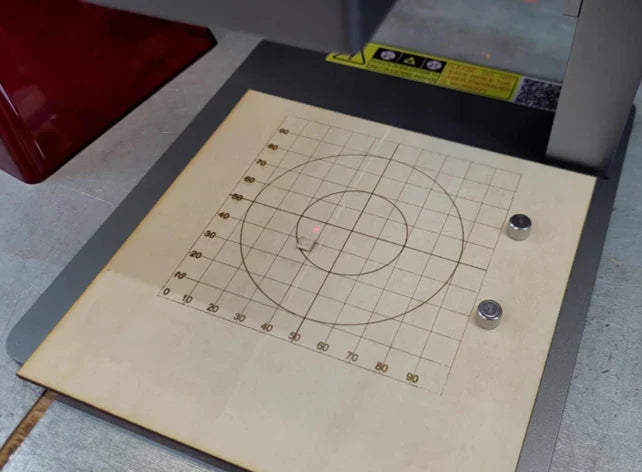
The Longer Nano and Nano Pro offer precision engraving via Galvo technology, but due to manual calibration, users may find the laser misaligned with the machine’s metal base. This guide walks you through creating a custom object positioning grid using plywood and LightBurn to ensure perfect alignment with the laser head. The engraved grid provides a consistent reference point for placing materials like business cards, improving accuracy, repeatability, and reducing material waste. Just be sure not to move the plywood after engraving, as it serves as the fixed alignment guide.

By Lasergravierer-Blog | July 5, 2025
How to engrave black acrylic with Nano series engraving machine

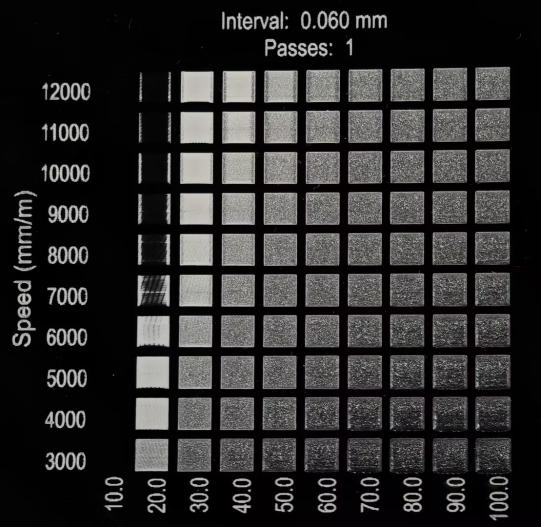
This guide explores black acrylic engraving with the LONGER Nano Pro laser engraver, highlighting differences between cast and extruded sheets, and demonstrating optimal LightBurn settings (speed 10000 mm/min, power 30%) to achieve sharp image quality on cast acrylic surfaces.

By Lasergravierer-Blog | May 7, 2025
LONGER How to: Batch Engraving Business Cards with LONGER Nano Series: A Smarter Way to Personalize Your Brand

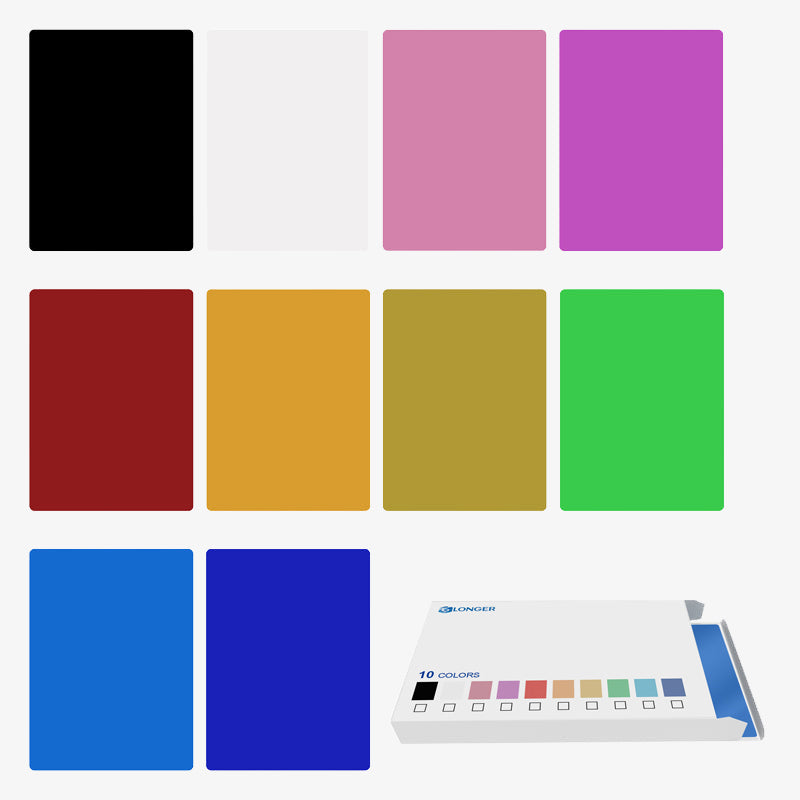
Batch engraving anodized aluminum business cards has never been easier or more precise. With the LONGER Nano Series laser engraving machine, creative professionals and business owners can produce sleek, customized cards that leave a lasting impression. This guide walks through the complete process—from setup and positioning to design import and laser parameter adjustment—ensuring efficient and professional-grade results every time.

By Lasergravierer-Blog | April 23, 2025
Safety First: Exploring the Advanced Safety Features of the LONGER Nano Series Engraving Machines

LONGER’s Nano Series laser engravers combine precision and safety with features like real-time temperature monitoring, tilt detection, and flame-retardant shielding. This article details how these safety systems work together to deliver a secure and reliable engraving experience for creators at all levels.

By Lasergravierer-Blog | April 23, 2025
LONGER Research: How can the Nano Series Combines Lightweight Design with High Performance for the Best Laser Engraving Experience?

LONGER Research: How can the Nano Series Combines Lightweight Design with High Performance for the Best Laser Engraving Experience?

ABSTRACT
In today’s fast-paced world, efficiency and convenience are essential, especially for those seeking the best laser engraver to handle diverse engraving projects. The Nano series laser engraver, known for its compact and portable laser engraving machine design, exemplifies a balance of lightweight build and high functionality. Here, we’ll explore how this engraver cutter laser model achieves impressive portability while maintaining powerful performance, making it ideal for everything from wood engraving to intricate stone engraving.

1. Lightweight Design of the Nano Series

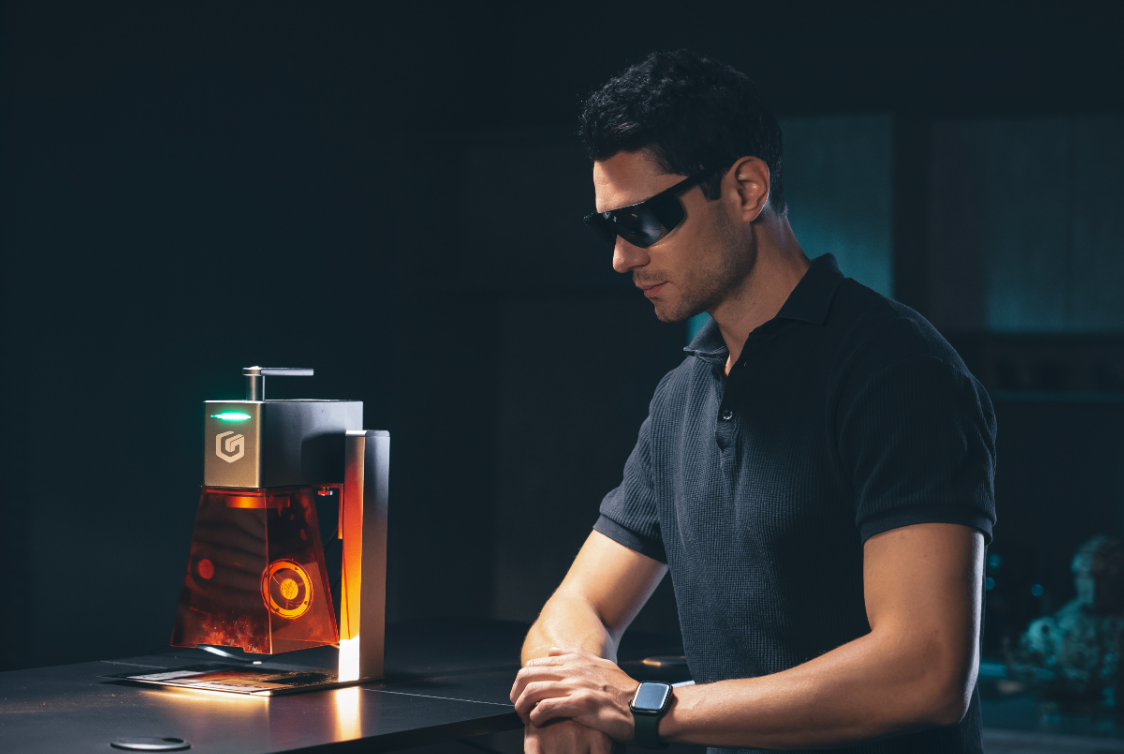
From the outset, the Nano series was designed as a portable laser engraver, with a focus on a streamlined layout that reduces unnecessary components and weight without compromising functionality. By integrating components like the main board, laser head, lenses, sensors, and galvanometer motors into a compact structure, the Nano series achieves the power of a full-sized laser cutter and engraver in a much smaller, lighter form. 

Constructed from lightweight but high-strength aluminum alloy, this portable engraver prioritizes durability alongside weight reduction, creating an engraving machine for jewelry, glass, wood, and other materials. At a fraction of the weight of traditional frame lasers, the Nano series still provides outstanding power and precision, earning it a place among the best laser engravers for portability without sacrificing quality.

2. High Performance Capabilities of the Nano Series
The high-performance aspects of the Nano series cover several key features:

(1) Laser Power
Equipped with high-power imported diode laser heads, the Nano series laser cutter offers significant power advantages. For example, the Nano Pro incorporates two high-performance laser chips, reaching up to 12W, providing a 20% increase over the more common 10W laser heads. This power boost enables the Nano Pro to cut wood up to 10mm thick and engrave color on stainless steel, making it a top choice as a laser engraver for wood and other materials.

(2) Engraving Speed
Using a high-speed galvo system, the Nano series enables engraving speeds that exceed those of traditional frame-based machines. Additionally, its unique distortion correction algorithm ensures precise laser beam positioning, making it highly effective for detailed wood engraving, glass engraving, and stone engraving applications. With speeds up to 5000mm/s and a preview speed of 32000mm/s, the Nano series stands out as a fast, reliable handheld laser engraver.

(3) Safety Measures 
Prioritizing user safety, the Nano series laser engraver includes temperature sensors and accelerometers. The laser engraver automatically shuts off if it detects sudden tilting or drops, providing peace of mind during operation. Additionally, the protective enclosure, made from a flame-resistant material, intercepts over 99.5% of blue light, protecting users’ eyes from potential harm (although proper laser goggles are always recommended during operation).


Conclusion
Combining portability, high performance, and safety, the Nano series is truly the best laser engraver for users who need a reliable, portable laser engraver and cutter for various materials and applications. Whether you’re setting up a little machine shop store or crafting intricate designs at home, the Nano series is the versatile, powerful solution you’ve been looking for.

By Lasergravierer-Blog | February 17, 2025
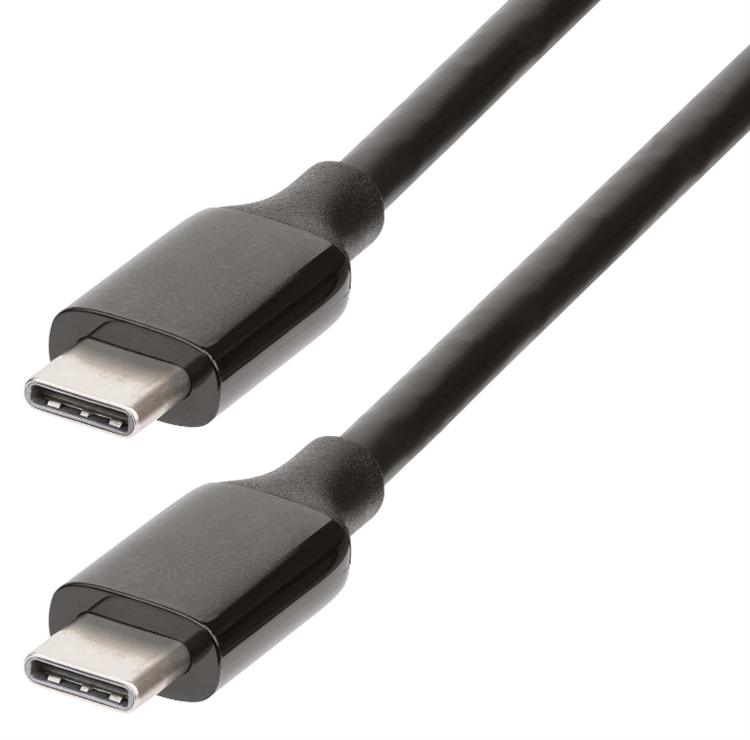
Type-C cables for Longer Nano

Longer Nano Series (Longer Nano Pro 12W and Nano 6W) is a powerful and versatile laser engraver, as it allows you to engrave multiple types of materials anywhere thanks to its compact size. Adopting the latest technologies, it allows it to be used in a practical and simple way, and for this reason all its connections are made via USB Type-C cables. Type-C cables allow a stable and secure connection, but at the same time they are easily usable cables even without particular problems; however, not all Type-C cables are created equal, and the differences are often not easily recognizable. Therefore, if one of the Type-C cables in your Longer Nano needs to be replaced as a result of loss or damage, you should carefully choose a Type-C cable that does not cause any problems.

USB Type-C cables have become a common standard for charging and data transfer in many modern devices, from mobile phones to laptops. However, their specifications can vary greatly, affecting performance and type of use. One of the most important aspects to consider in Type-C cables is their voltage and current capacity. Some cables only support 5V and a few milliamps (mA), making them only suitable for charging low-power devices such as earbuds. Other cables, on the other hand, can support much higher currents, up to 5A, allowing fast charging of devices such as smartphones and laptops. In addition, some cables are designed to support higher voltages of up to 20V, which is essential for fast charging. Fast charging is a feature of Type-C cables that adopt Power Delivery (PD) technology, which can provide up to 240W of power, allowing you to quickly charge devices such as laptops and tablets. Due to the great power, it is important that the cable is certified for fast charging, to avoid compatibility and safety issues.

When a device is connected to a PD-compatible power source, these two communicate with each other to determine the amount of power needed. Then both the voltage and current are adjusted according to the needs of the device, providing exactly the amount of energy required. PD technology supports various voltage levels, ranging from 5V up to 20V, in intermediate increments of 9V and 15V, allowing it to adapt to different power needs.

Another issue to keep in mind is that some cables are designed for charging only and do not support data transfer. Only cables certified to the USB 3.1 Gen 2 standard can transfer data at very high speeds of up to 10Gbps, so if you need to transfer large amounts of data, it's essential to choose a cable that supports fast transfer speeds.

So, based on these premises, when it is necessary to replace one of the Type-C cables of Longer Nano it is good to choose a cable compatible with PD and USB 3.1, so as to be sure that everything works at its best. When choosing, keep in mind that thicker cables can support higher currents without overheating, they also use better materials for connectors and internal wires, reducing resistance and improving the efficiency of charging and data transfer. Certifications are also important, so a cable from a certified brand, which ensures full compatibility with PD and USB 3.1 can be a good choice. Usually cables equipped with these characteristics also integrate a display that indicates the instantaneous power supplied, and which can therefore guarantee their full compatibility with the assigned task.


By Lasergravierer-Blog | October 19, 2024