

Academy

Hotend Replacement for Longer FDM 3D Printer - LONGER
Hotend Replacement for Longer FDM 3D Printer

While using an FDM 3D printer, you may need to replace the hotend. In fact, a little space between the heatbreak and nozzle, or a failure of the heatsink fan, or any other type of problem could cause a clog that prevents normal extrusion during printing, and the only way to repair the fault is to disassemble or replace the hotend.

Replacing the hotend is an easy procedure but one that requires the utmost attention.
In order to proceed with the replacement, follow these steps.

Disassembly

1) Unscrew the screw that holds the thermistor in place and remove the thermistor and temperature sensor

Unscrew the screw that holds the thermistor in place and remove the thermistor and temperature sensor

2) Disassemble the Hotend, then unscrew the screw that holds the Heatsink in place and remove the heatsink.

Disassemble the Hotend, then unscrew the screw that holds the Heatsink in place and remove the heatsink.

3) Remove the PTFE tube from the heatbreak.

4) In case the end of the PTFE tube is damaged, cut the damaged part, taking care to make a vertical cut at 90 degrees; an inaccurate cut will cause molten material to leak during printing, causing a new clog. In order to proceed to a precise cut, it is recommended to use a "PTFE cutter" available as an accessory for 3D printing or you can proceed to print an STL file by searching on Thingiverse for "PTFE cutter."

Replacement

1) Screw the Heatbreak correctly into the heatblock.

Screw the Heatbreak correctly into the heatblock.

2) Screw the Nozzle into the Heatblock

3) Install the Heatsink

4) Mount the Hotend on the 3D printer

5) Unscrew a little the Nozzle (about half a turn), then insert the PTFE tube until it hits with the nozzle.

6) Insert the thermistor and the temperature sensor into the block, fixing them with the appropriate screw

7) Heat the Hotend up to 200°C, then screw the Nozzle well so that it is tight with the PTFE tube and the heatbreak.

Heat the Hotend up to 200°C, then screw the Nozzle well so that it is tight with the PTFE tube and the heatbreak

Once you have completed these steps, the new hotend will be ready to use.
The correct assembly ensures good operation and avoids new clogs due to leakage of molten material between the heatbreak and the nozzle.
https://www.longer3d.com/products/lk5-pro-fdm-3d-printer

By Academy | March 28, 2023
LONGER New Dual Blower Kit installation tutorial - LONGER
Tutorial di installazione del kit doppio del doppio doppio

Ultimo Mont. Più lungo 3D. Rilasciare i nuovi accessori per le stampanti FDM 3D.

Questo Kit Dual Blower. perfettamente adatto per LK4 / LK4 PRO / LK1 / LK1 /LK5 Pro. E compatibile con la stampante 3D U20 / U30 / U30 Pro, migliora la qualità della stampa, ha una forte potenza sull'ugello di raffreddamento per ottenere una superficie migliore e liscia del modello.

E passaggi di installazione, alcuni fan della stampante 3D non lo sapevano. Ora puoi seguire il nostro passo temporale.

https://www.youtube.com/embed/zEA-eM5sfho

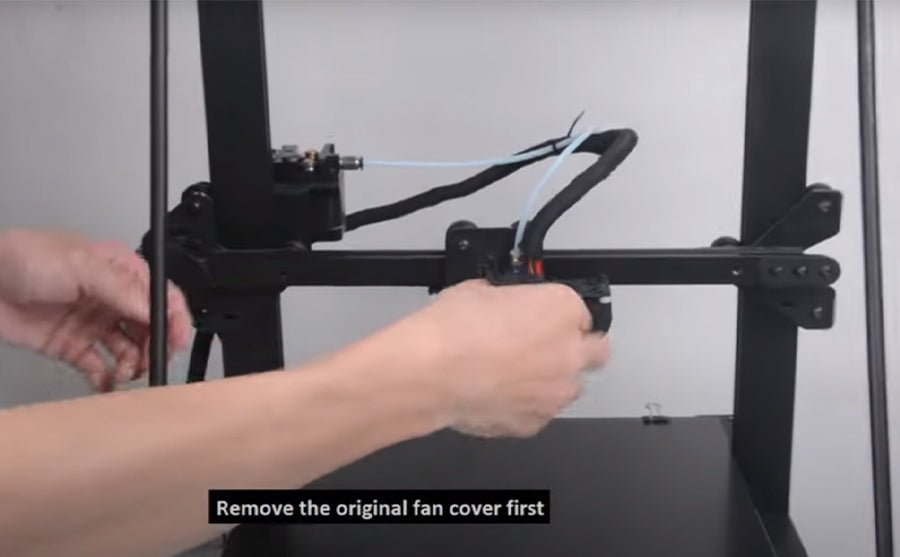
Quindi installare il nuovo kit doppio soffiatore per la stampante FDM, è necessario rimuovere prima il vecchio coperchio della ventola a caldo e la lamiera prima, il nuovo kit doppio doppio soffiatore nei fasci di cavalletto, collegare i fili della ventola in ordine, quindi fatto.

PS: Le spine non vengono sostituite come la ventola delle scorte, devono essere commutate esattamente opposte. (L'ex rosso / nero ottiene nuovo blu / giallo e visto versa.)

Se hai intenzione di installare BL Touch, si prega di scaricare Staffa di supporto per il BL Touch

Più lungo 3D raccoglie tutto Coupon 3D Stampanti nella pagina di sconto. Se hai bisogno di stampanti 3D o parte di aggiornamento da 3D più lunghi, controllare il collegamento e scoprire il codice coupon di cui hai bisogno.

Post originale:https://global.longer3d.com/longer-new-dual-blower-kit-installation-tutorial/

By Academy | November 8, 2021
How to fix extruder in abnormal - LONGER
Come fissare l'estrusore in anormale

Quando c'è un problema di EXTURDER dalla stampante 3D LK1 / LK4 / LK4 PRO / LK5 LK4, come risolverlo? Di solito ci sono due ragioni in cui l'estrusore funziona in modo anomalo.


1. Ugello ostruito
In questo caso, è possibile fare riferimento al metodo per pulire l'ugello sopra.
2. Estrusore danneggiato
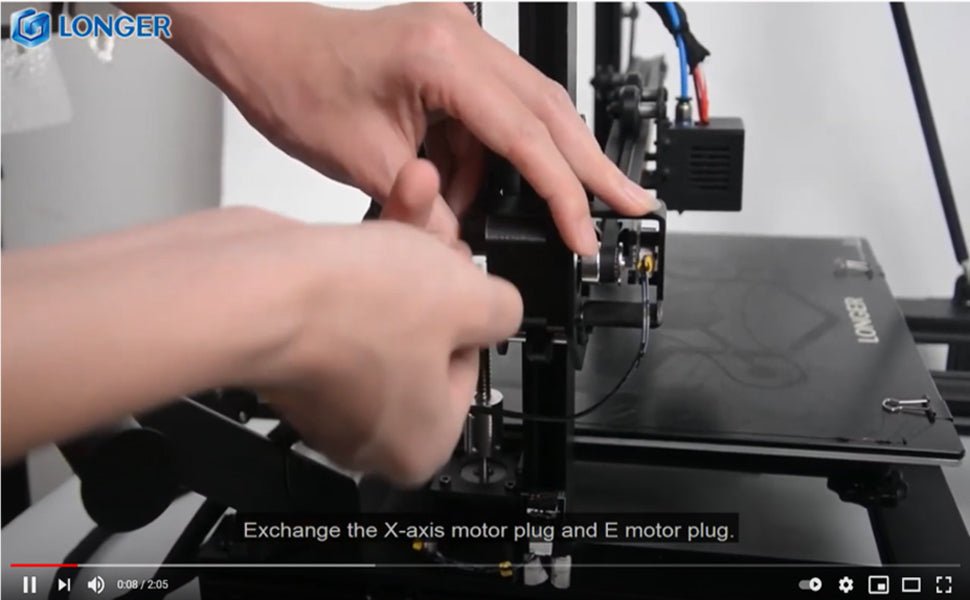
È possibile scambiare il cavo dell'estrusore con il cavo dell'asse X. Avviare la macchina, controllare l'asse x e lasciare il lavoro dell'estrusore. Osserva se lavorano. Se l'asse X funziona correttamente, il motore dell'estrusore è malfunzionante. In questo momento puoi solo sostituire con un nuovo motore.
Ma se l'asse X non funziona dopo che il cavo viene scambiato. Potrebbe essere un cavo o un fallimento della scheda madre. In questo momento, modificare il cavo dell'asse y all'estrusore e il cavo della porta della scheda madre dell'estrusore all'asse X. Se l'asse X funziona correttamente, il cavo è intatto. Se l'asse X ancora non funziona, significa che la scheda madre e il cavo devono essere sostituiti con uno nuovo.
Puoi fare riferimento al video nel link sottostante.


Guarda il video Ottieni più dettagli:https://youtu.be/XCjrieoyZ1c

By Academy | March 29, 2021
How to Add LONGER 3D Printers into Cura 4.8 Version - LONGER
Come aggiungere stampanti 3D più lunghe in versione CURA 4.8

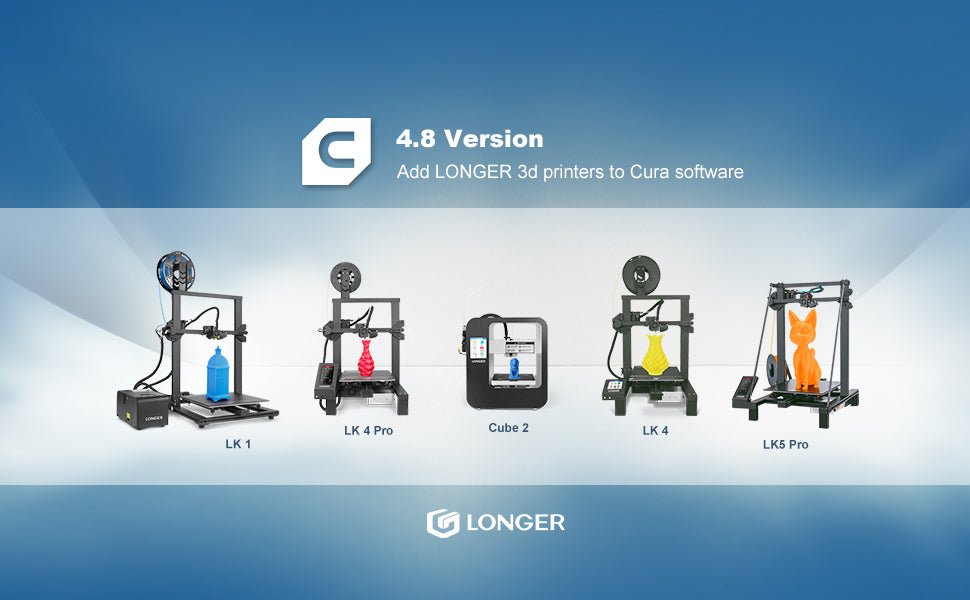
Raggiungi questo link per guardare come aggiungere più a lungo Stampanti 3D. nell'ultimo software CURA. E ottieni più conoscenze sulle impostazioni di LK4 Pro CURA più lungo, le impostazioni di CURA LK4 più lunghe e le impostazioni di LK5 Pro CUA.

Aggiungi stampanti 3D più lunghi in CURA 4.8

Per scaricare i file delle risorse di più a lungo >> [ReSurces Files.] <<, con il più recente parametro di stampa, la qualità della stampa sarà perfetta sulla congurazione.

By Academy | February 5, 2021