

Academy

TCHC TR6 Anti Leakage Hotend - LONGER
TCHC TR6 Anti Leakage Hotend

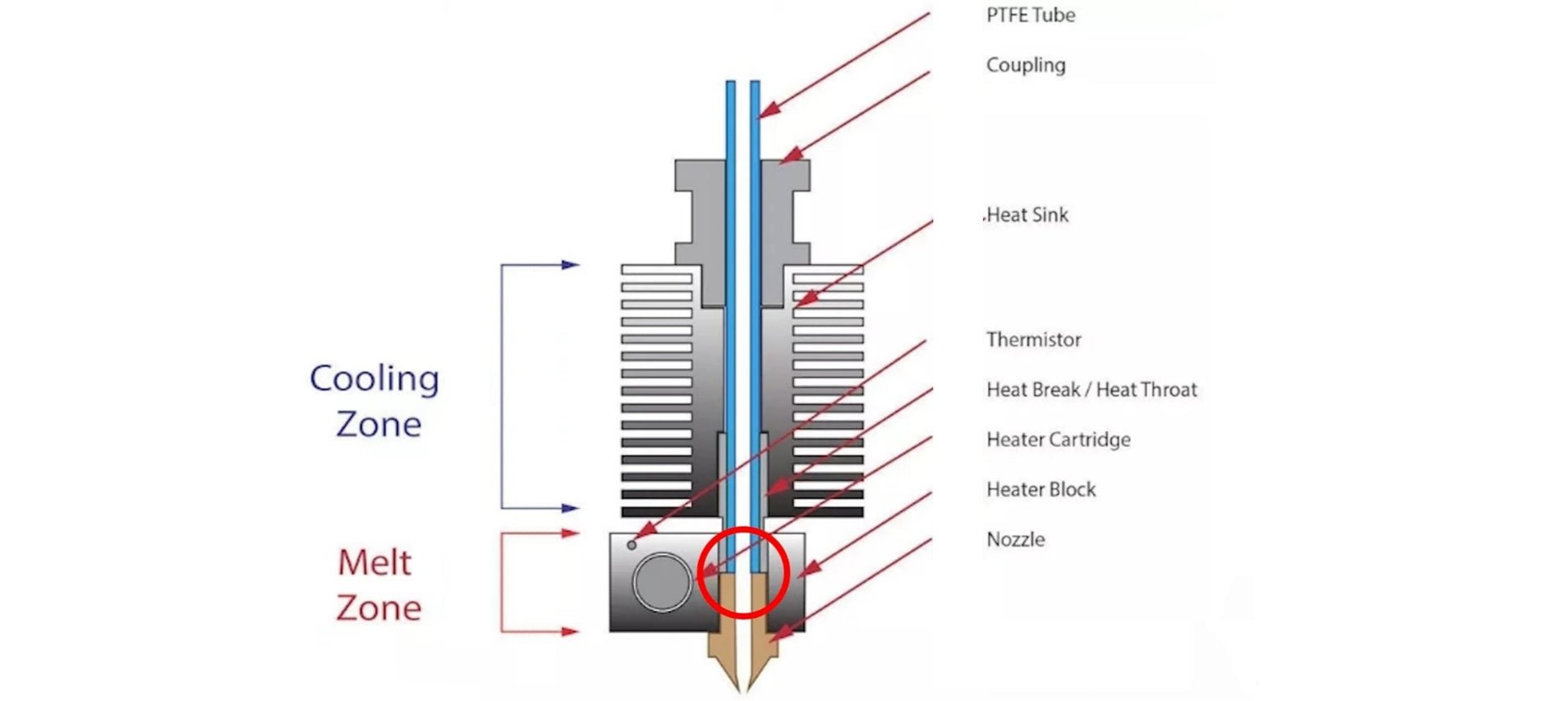
The Hotend is the part of an FDM 3D printer that deals with the melting and deposition of molten plastic material. A Hotend consists of a Nozzle that deals with depositing the molten material, a Heatblock that deals with the melting of the material and a Heatbreak that keeps the hot zone separate from the cold zone of the Hotend. The Heatbreak can be equipped with a heat sink, which in turn is equipped with a fan.

When assembling a Hotend, care must be taken to ensure that the PTFE tube is in beating with the Nozzle. This implies that the PTFE tube is inserted inside the Heatbreak, then the filament flows inside the PTFE tube and reaches the Nozzle directly, without intermediate zones; therefore, it is essential that the PTFE is tightly tightened and joined to the Nozzle, so that the filament flows forcibly through the exit hole of the Nozzle. In the event that there is even a slight gap between PTFE and Nozzle, then leakages of molten filament from the top edge of the Heatblock can occur, causing fillings and damage to both the print and the printer.

TCHC TR6 Anti Leakage Hotend

In addition, the PTFE tube, in the part in contact with Nozzle and Heatblock, tends to reach the same melting temperature set for the filament, however this is not a problem as PTFE supports temperatures up to 300C very well before melting, well beyond the normal printing temperatures of PLA, PETG and ABS. On the other hand, the higher the printing temperature, the greater the amount of heat that the Heatbreak must dissipate; in fact, when the heat is not dissipated properly, it tends to rise inside the PTFE causing the filament to melt in areas far from the nozzle, resulting in obstructions that prevent the filament from passing. In addition, the PTFE tube inside the Heatbreak also begins to lose its characteristics, thus causing obstructions. For this reason, it is necessary to accompany the Heatbreak with a heatsink with fan, in this way the passage of heat is quickly interrupted.

TCHC TR6 Anti Leakage Hotend 1

To solve these two problems, you can switch to a Hotend like the Hotend Trianglelab TCHC TR6 Model B, which is a Hotend with Bi-Metal thin wall Heatbreak; in this way the PTFE tube is not in contact with the hot Nozzle, but stops high in the Heatsink, where the temperature is cold. Therefore, the filament passes from PTFE to Bi-Metal thin wall Heatbreak when it is still solid, and so leakages of molten material cannot occur. In addition, the Bi-Metal thin wall Heatbreak is welded inside the Nozzle already factory, and therefore it is not possible for losses of molten material between the Bi-Metal thin wall Heatbreak and the Nozzle.

TCHC TR6 Anti Leakage Hotend 2

With this type of Hotend it is therefore possible to definitively solve two problems that afflict users of a 3D printer, namely the leakage of molten material between PTFE and Nozzle, and the deformation of the PTFE tube due to the high temperatures reached during the printing of materials such as PETG / ABS / NYLON.

TCHC TR6 Anti Leakage Hotend 3

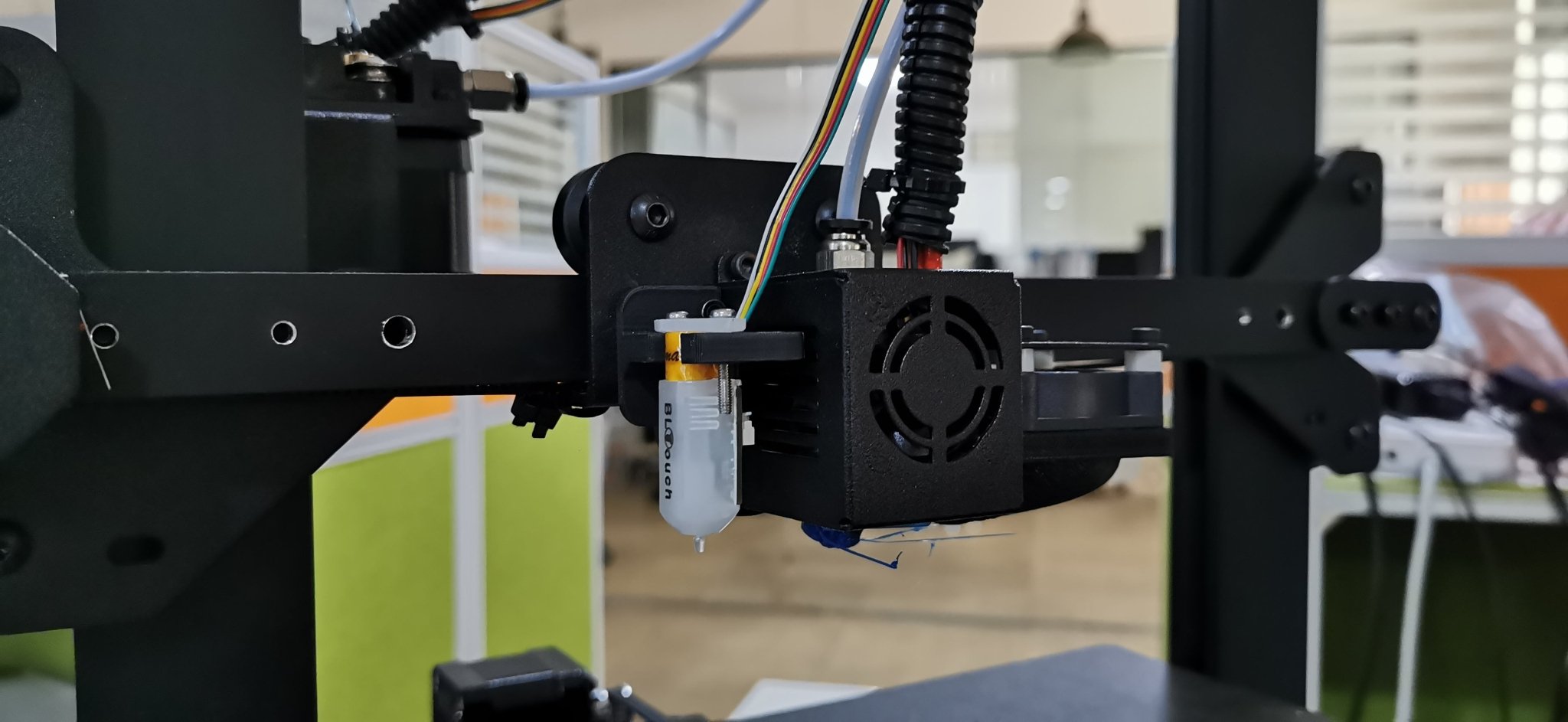
The Hotend Trianglelab TCHC TR6 Model B is the same size as the Hotend MK8 of the Longer FDM 3D printers, so the installation is very user friendly and plug & play. The new Hotend fits both the Longer Classic Printhead and the new Longer Dual Blower, although the Longer Dual Blower is recommended as it provides greater heat dissipation of the Heatsink, as it has a much larger fan than normal. For installation, simply remove the print head cover and the fans, then just unscrew the old Hotend MK8 and screw the new Hotend TCHC TR6 Model B. Instead, as regards the connection of the cables, simply connect the two white cables of the heating resistor to the HEATER port on the mainboard, instead or two black cables of the temperature sensor must be connected to the TH port of the mainboard. The most skilled and experienced users can simply cut the cables of the old Hotend and solder them to the cables of the new Hotend.

TCHC TR6 Anti Leakage Hotend 4

Once the assembly and calibration procedures have been completed, you can immediately proceed with printing. You may need to reduce the retraction values inside the slicer and adjust small settings, however 3D printing will be much easier and more enjoyable thanks to this anti-leakage and PTFE-free Hotend in the hot zone.
By Academy | October 8, 2023
Mesh Bed Levelling for LK4PRO & LK5PRO - LONGER
Mesh Bed Levelling for LK4PRO & LK5PRO

LO 

Some users of Longer FDM printers prefer to use a BL-TOUCH automatic leveling system in order to obtain more precise and higher quality prints, as well as making the printing bed leveling process easier and more immediate.

However, the standard automatic leveling procedure is for the BL-TOUCH sensor to remeasure the plane points before each new print. This procedure takes time, and is often useless, especially in the case of making daily prints, the print bed maintains calibration and the printer is never moved. If these conditions are met, then you can simply recall a previous plan mesh before starting a new print, without the need to create a new one.
If you want to print using the last saved mesh, simply change the START GCODE for BL-TOUCH to the following START GCODE:


-- BL-TOUCH START GCODE --
G21 ; metric values
G90 ; absolute positioning
M82 ; set extruder to absolute mode
M107 ; start with the fan off
; confirm BL-touch safety
M280 P0 S160 ; BL-Touch Alarm release
G4 P100 ; Delay for BL-Touch homing
G28 X0 Y0 ; move X/Y to min endstops
G28 Z0 ; move Z to min endstops
; reconfirm BL-touch safety
M280 P0 S160 ; BL-Touch Alarm realease
G4 P100 ; Delay for BL-Touch
; bed leveling
M420 S1 Z5 ; enable bed leveling
; prepare hot-end
G92 E0 ; Reset Extruder
G1 Z2.0 F3000 ; Move Z Axis up little to prevent scratching of Heat Bed
G1 X0.1 Y20 Z0.3 F5000.0 ; Move to start position

G1 X0.1 Y150.0 Z0.3 F1500.0 E15 ; Draw the first line

G1 X0.4 Y150.0 Z0.3 F5000.0 ; Move to side a little

G1 X0.4 Y20 Z0.3 F1500.0 E30 ; Draw the second line

G92 E0 ; Reset Extruder

G1 Z2.0 F3000 ; Move Z Axis up little to prevent scratching of Heat Bed

G1 X5 Y20 Z0.3 F5000.0 ; Move over to prevent blob squish
; -- end of BL-TOUCH START GCODE -- 


In this way, printing will start immediately, without mesh the print bed, using the last calibration made. However, sometimes you will need to create a new mesh, especially if the print plate has been moved or if the printer has been moved; in this case, simply create open "Notepad" on your laptop and paste the following GCODE:
; bed leveling
G28 X0 Y0 ; move X/Y to min endstops
G28 Z0 ; move Z to min endstops
G29; Auto leveling
M500 ; save data of G29 and M420
M420 S1 ; enable bed leveling

For last, save the file as levelling.gcode (be careful, do not save as .txt) and copy the GCODE you just created into the microSD of your printer. Whenever it will be necessary to calibrate the printing plate, simply start the GCODE from the printer display, like any other print file, and wait for the measurement to complete.


By Academy | August 23, 2023
BL-Touch Installing Guide for LK4PRO & LK5PRO - LONGER
BL-Touch Installing Guide for LK4PRO & LK5PRO

Longer LK4PRO & LK5PRO are two FDM printers capable of producing high-quality 3D prints. However, you can increase the ease and quality of printing by installing a BL-TOUCH or 3D-TOUCH compatible automatic leveling sensor.


Preparation

Wiring

  1. Switch-off the printer
  2. Find the position of motherboard, then screw down the mainboard cover
  3. Unplug the Z-MIN wire (2-pin) from the mainboard
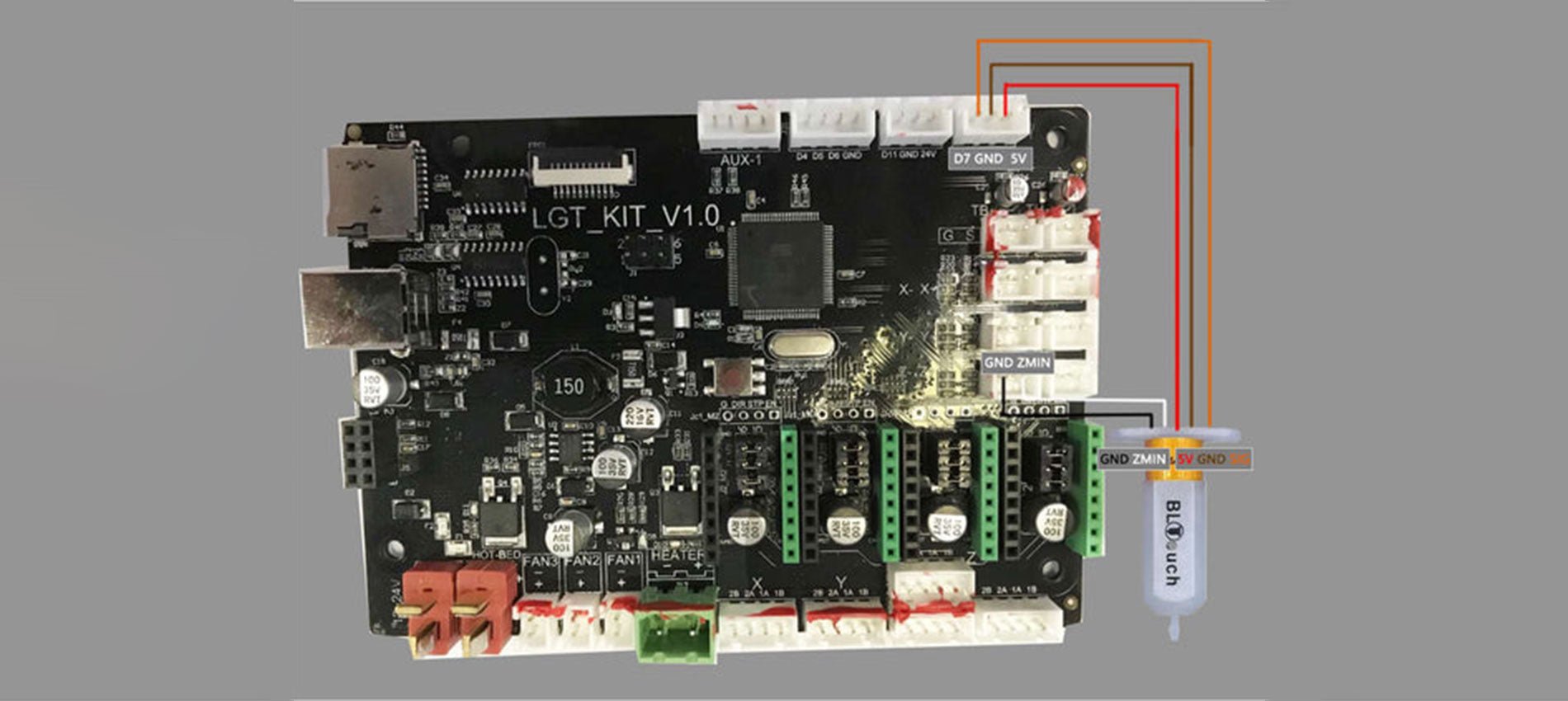
  4. Connect the sensor's cables to the motherboard, as the picture below shows.
    Connect the sensor's cables to the motherboard
  5. Screw up the mainboard cover
  6. Remove the Z endstop switch, as picture showing below
    Remove the Z endstop switch
  7. Screw down the left 2 screws of the printhead module and mount the BL-TOUCH as picture showing below (follow the same step if you have DualBlower)
    Screwdown left 2 screws of PrintHead module and mount the BL-TOUCH

Configuration

  • Confirm BL-TOUCH wiring and mounting is complete
  • Power ON the printer
  • Connect PC and printer with the modified USB cable.
  • Open Pronterface software, select serial port (115200 baudrate) and connect it to the printer

Adjusting Z-Offset

  1. Clean up bed and nozzle, and ensure no materials stick on 
  2. Send M851 Z0 to reset Z offset value.
  3. Send G28 to home XYZ axis
  4. Send G1 F60 Z0 to lower Z axis to the software origin. 
  5. Send M211 S0 to inactivate software endstop function
  6. Place a sheet of paper (0.10 mm approximately) on the bed and use Pronterface to lower the nozzle 0.1 mm by 0.1 mm until you feel friction between the nozzle and the sheet of paper (the paper is not to be jammed but not too free either). Then remove the sheet
  7. Send M114 to get the current Z height value (usually negative) and take note of it. This is the z-offset value we need
  8. Send M851 Z-x.x to set z-offset. (x.x is the value of previous value; for example, if previous value is -1.2, then send M851 Z-1.2.)
  9. Send M500 to save current settings
  10. Send M211 S1 to reactivate software endstop function. 
  11. Send G28 to home XYZ axis
  12. Send G1 F60 Z0 to test if the Z axis could go back to the actual Z origin by checking the clearance between the bed and the nozzle if it is about 0.1 mm (the thickness of a sheet of paper). If not, please repeat steps from 1 to 11.

START GCODE replacement

Inside the Slicer software (Cura, Slic3r, Simplify3D), replace the original START GCODE with the following START GCODE for BL-TOUCH.

-- BL-TOUCH START GCODE --
G21; metric values
G90: absolute positioning
M82: Set extruder to absolute mode
M107: start with the fan off
; confirm BL-touch safety
M280 P0 S160 ; BL-Touch Alarm release
G4 P100 ; Delay for BL-Touch homing
G28 X0 Y0 ; move X/Y to min endstops
G28 Z0 ; move Z to min endstops
; reconfirm BL-touch safety
M280 P0 S160 ; BL-Touch Alarm Release
G4 P100 ; Delay for BL-Touch
; bed leveling
G29: Auto leveling
M420 Z5 ; set LEVELING_FADE_HEIGHT
M500: save data of G29 and M420
M420 S1 ; enable bed leveling
; prepare hot-end
G92 E0 ; Reset Extruder
G1 Z2.0 F3000 ; move the Z Axis up little to prevent scratching of the heat bed.
G1 X0.1 Y20 Z0.3 F5000.0 ; Move to start position

G1 X0.1 Y150.0 Z0.3 F1500.0 E15 ; Draw the first line

G1 X0.4 Y150.0 Z0.3 F5000.0 ; Move to side a little

G1 X0.4 Y20 Z0.3 F1500.0 E30 ; Draw the second line

G92 E0 ; Reset Extruder

G1 Z2.0 F3000 ; move the Z Axis up little to prevent scratching of the heat bed.

G1 X5 Y20 Z0.3 F5000.0 ; Move over to prevent blob squish
; -- end of BL-TOUCH START GCODE -- 

By Academy | August 23, 2023
Hotend Replacement for Longer FDM 3D Printer - LONGER
Hotend Replacement for Longer FDM 3D Printer

While using an FDM 3D printer, you may need to replace the hotend. In fact, a little space between the heatbreak and nozzle, or a failure of the heatsink fan, or any other type of problem could cause a clog that prevents normal extrusion during printing, and the only way to repair the fault is to disassemble or replace the hotend.

Replacing the hotend is an easy procedure but one that requires the utmost attention.
In order to proceed with the replacement, follow these steps.

Disassembly

1) Unscrew the screw that holds the thermistor in place and remove the thermistor and temperature sensor

Unscrew the screw that holds the thermistor in place and remove the thermistor and temperature sensor

2) Disassemble the Hotend, then unscrew the screw that holds the Heatsink in place and remove the heatsink.

Disassemble the Hotend, then unscrew the screw that holds the Heatsink in place and remove the heatsink.

3) Remove the PTFE tube from the heatbreak.

4) In case the end of the PTFE tube is damaged, cut the damaged part, taking care to make a vertical cut at 90 degrees; an inaccurate cut will cause molten material to leak during printing, causing a new clog. In order to proceed to a precise cut, it is recommended to use a "PTFE cutter" available as an accessory for 3D printing or you can proceed to print an STL file by searching on Thingiverse for "PTFE cutter."

Replacement

1) Screw the Heatbreak correctly into the heatblock.

Screw the Heatbreak correctly into the heatblock.

2) Screw the Nozzle into the Heatblock

3) Install the Heatsink

4) Mount the Hotend on the 3D printer

5) Unscrew a little the Nozzle (about half a turn), then insert the PTFE tube until it hits with the nozzle.

6) Insert the thermistor and the temperature sensor into the block, fixing them with the appropriate screw

7) Heat the Hotend up to 200°C, then screw the Nozzle well so that it is tight with the PTFE tube and the heatbreak.

Heat the Hotend up to 200°C, then screw the Nozzle well so that it is tight with the PTFE tube and the heatbreak

Once you have completed these steps, the new hotend will be ready to use.
The correct assembly ensures good operation and avoids new clogs due to leakage of molten material between the heatbreak and the nozzle.

https://www.longer3d.com/products/lk5-pro-fdm-3d-printer

By Academy | March 28, 2023
Longer LK4 Pro & LK5 Pro – Upgrades by @Ciubecca - LONGER
Più lk4 pro & lk5 pro - Upgrade di @ciubecca

Tutto Stampanti 3D più lunghe Offri prestazioni eccellenti e garantiscono un'alta qualità della stampa, tuttavia alcuni utenti adorano installare aggiornamenti utili per cambiare l'aspetto estetico o le caratteristiche della stampante. Per questo motivo, questo articolo intende presentare alcuni degli aggiornamenti più installati dagli utenti, offerti da @ciubecca Nicola.


1) PIÙ A LUNGO Lk4pro & Lk5pro Copertina di visualizzazione


Questo aggiornamento consente di installare un coperchio sul display delle stampanti LK4Pro & LK5Pro più lunghe, in modo da proteggere lo schermo dalla polvere quando la stampante non è in uso

Link per scaricare: https://www.thingiverse.com/thing:4929422


2) Monte barra a LED regolabile LK4Pro e LK5PRO più lunghi


Questo aggiornamento consente di installare una lampada attraverso un supporto regolabile, in modo da ottenere una buona illuminazione della piastra di stampa di LK4Pro & LK5Pro.

Link per scaricare: https://www.thingiverse.com/thing:4980580


3) Scheda Mini SD più lunga LK4PRO & LK5Pro/supporto USB


Questo aggiornamento consente di installare un supporto per schede microSD, pendrives USB e schede SD, in modo da avere sempre qualsiasi tipo di memoria flash accanto alla stampante

Link per scaricare: https://www.thingiverse.com/thing:5230892


4) Coperchio frontale LK4Pro e LK5Pro più lungo con ricordo di livellamento del letto


Se non hai bisogno del prefu primati, questo aggiornamento può essere una buona scelta; Questo aggiornamento è un promemoria che ti consente di ricordare da quale direzione devi girare le manopole di livellamento per sollevare o abbassare la superficie di stampa

Link per scaricare: https://www.thingiverse.com/thing:4981797


5) Tappo a vite più lungo LK4Pro e LK5Pro


Un aggiornamento semplice quanto funzionale, dei limiti semplici per coprire le viti del telaio in alluminio delle stampanti LK4Pro & LK5Pro. Scegli il tuo colore preferito per personalizzare la stampante al massimo!

Link per scaricare: https://www.thingiverse.com/thing:5186277


6) Pinze a spool più lunga LK4Pro & LK5Pro


Alcune bobine di filamenti tendono a muoversi sul portabanca; Pertanto, se questo è un problema per te, puoi installare questo aggiornamento, che consente di tenere la bobina nella sua posizione

Link per scaricare: https://www.thingiverse.com/thing:5186749


7) Bracci flessibili più lunghi lk4pro & lk5pro


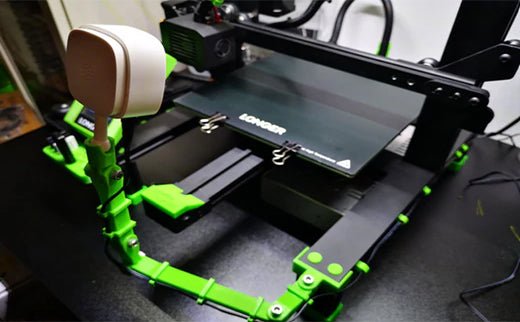
Questo aggiornamento consiste in un braccio flessibile, che è stato utilizzato per installare una fotocamera in grado di registrare il processo di stampa. Tuttavia, se hai una fotocamera diversa o se non hai bisogno di una fotocamera, è possibile modificare il design originale e utilizzare il braccio flessibile per qualsiasi tipo di personalizzazione che hai in mente. Dai vita alle tue idee!

Link per scaricare: https://www.thingiverse.com/thing:5186245

By Academy | June 16, 2022
How to upgrade LONGER LK4 PRO into a mini-LK5 PRO - LONGER
Come aggiornare Lk4 Pro più lungo in un mini-LK5 Pro

Le nostre stampanti 3D LK4 Pro e LK5 Pro più lunghe sono molto simili, ma le differenze tra loro non sono limitate solo alla diversa area di stampa, ma su LK5 Pro ci sono altri piccoli miglioramenti che rendono questa stampante molto superiore a LK4 Pro.

Tuttavia, se possiedi già un LK4 Pro e non si intende acquistare anche LK5 Pro, ecco una serie di suggerimenti per rendere il tuo LK4 Pro come un mini-LK5Pro, migliorando così la sua capacità di stampa e la struttura hardware.


1) Portata cavo del focolaio

LK4 Pro ha un cavo di alimentazione del focolaio semplicemente collegato tramite un connettore a clip. Questo, a seguito di movimenti ripetuti durante la stampa, può scollegare, piegare o rompere; Per questo motivo è davvero importante installare una staffa del cavo che fa correggere la connessione, esattamente come per LK5 Pro. A tale proposito:

  1. Scarica più a lungo la parentesi ufficiale: https://www.thingiverse.com/thing:4818795
  2. Stampalo utilizzando l'altezza del livello 0,1 mm e il riempimento al 100% come impostazioni consigliate
  3. Procedere all'installazione come segue:
    • Svitare e rimuovere le manopole di livellamento 4, rimuovere il focolaio
    • Posizionare la staffa sul piano di metallo, posizionare la molla di livellamento nel compartimento della staffa
    • Assemblare nuovamente il focolaio e avvitare le manopole di livellamento 4
    • Collegare il cavo alla staffa usando due morsetti di fissaggio
  4. Questo è il risultato finale:


2) griglia di protezione della ventola della scheda principale

La ventola della scheda principale di LK4 Pro non ha una griglia protettiva come quella della LK5PRO, quindi se non si dispone di una griglia metallica compatibile, puoi installarne una stampata. A tale proposito:

  1. Scarica la griglia ufficiale della scheda principale più lunga:

https://www.thingiverse.com/thing:4957827

  1. Stampalo utilizzando l'altezza del livello 0,1 mm e il riempimento al 100% come impostazioni consigliate
  2. Procedere all'installazione come segue:
    • Svitare le 4 viti della ventola della scheda principale
    • Posizionare la griglia
    • Avviare le 4 viti
    • Nota: a causa della griglia, è necessario utilizzare 4 viti più a lungo degli originali
  3. Questo è il risultato finale:


3) Porta bobina sul lato

La stampante LK4 Pro prevede l'installazione del supporto della bobina nella parte superiore; Tuttavia, se si preferisce installare il supporto spool sul lato della stampante, come per Lk5 Pro, ecco un aggiornamento pratico per stampare e installare facilmente:

  1. Scarica la staffa ufficiale più lunga per il titolare della bobina: https://www.thingiverse.com/thing:4957817
  2. Stampalo utilizzando l'altezza di livello 0,2 mm e il riempimento al 100%come impostazioni consigliate
  3. Procedere all'installazione come segue:
    • Collegare il supporto originale della bobina alla staffa, utilizzando due bulloni di dimensioni corrette
    • Collegare la staffa alla stampante usando almeno due NUT T
  4. Questo è il risultato finale:


4) Piastra ultrabase in lattice micro-perforato

Diversamente da Lk5 Pro, che è dotato di una lastra di vetro micro-perforata, Lk4 Pro ha una lastra di vetro coperta da un film in ceramica ruvida, eccellente per avere un'adesione perfetta di stampa, tuttavia spesso può essere difficile rimuovere le stampe dal vetro , poiché l'adesione rimane invariata anche con una piastra fredda.

Per questo motivo, potrebbe essere una buona soluzione per procedere con l'installazione di una piastra di vetro micro-perforata anche sul LK4 Pro, in modo da ottenere un'eccellente adesione durante la stampa e una facile rimozione delle stampe dalla piastra fredda. In effetti, la piastra di lattice micro-perforata più lunga è dotata di micropori, che con calore (a partire da 60 ° C) si "attacca" al primo strato di stampa, garantendo così un'eccellente adesione fintanto che la piastra rimane calda. Alla fine della stampa, il raffreddamento dei micropori rilascia gradualmente la superficie stampata, quindi l'oggetto stampato verrà semplicemente posizionato sulla piastra e può essere facilmente rimosso.

Questo aggiornamento può essere molto facilmente, in quanto può essere acquistato in tutti i nostri negozi ufficiali più lunghi, a un prezzo molto basso:


Una volta installati tutti questi aggiornamenti, il tuo LK4 Pro sarà come un Mini-LK5 Pro!
La nostra guida termina qui, ma se hai bisogno di più pezzi di ricambio o desideri effettuare ulteriori aggiornamenti, non esitare a contattarci sulle nostre pagine ufficiali di Facebook o al nostro indirizzo e -mail:support@longer3d.com

By Academy | June 16, 2022
LONGER New Dual Blower Kit installation tutorial - LONGER
Tutorial di installazione del kit doppio del doppio doppio

Ultimo Mont. Più lungo 3D. Rilasciare i nuovi accessori per le stampanti FDM 3D.

Questo Kit Dual Blower. perfettamente adatto per LK4 / LK4 PRO / LK1 / LK1 /LK5 Pro. E compatibile con la stampante 3D U20 / U30 / U30 Pro, migliora la qualità della stampa, ha una forte potenza sull'ugello di raffreddamento per ottenere una superficie migliore e liscia del modello.

E passaggi di installazione, alcuni fan della stampante 3D non lo sapevano. Ora puoi seguire il nostro passo temporale.

https://www.youtube.com/embed/zEA-eM5sfho

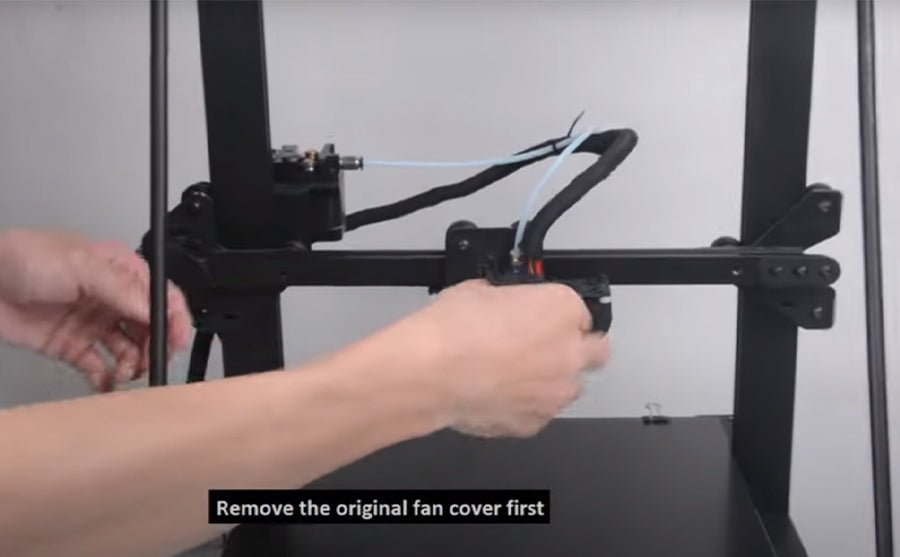
Quindi installare il nuovo kit doppio soffiatore per la stampante FDM, è necessario rimuovere prima il vecchio coperchio della ventola a caldo e la lamiera prima, il nuovo kit doppio doppio soffiatore nei fasci di cavalletto, collegare i fili della ventola in ordine, quindi fatto.

PS: Le spine non vengono sostituite come la ventola delle scorte, devono essere commutate esattamente opposte. (L'ex rosso / nero ottiene nuovo blu / giallo e visto versa.)

Se hai intenzione di installare BL Touch, si prega di scaricare Staffa di supporto per il BL Touch

Più lungo 3D raccoglie tutto Coupon 3D Stampanti nella pagina di sconto. Se hai bisogno di stampanti 3D o parte di aggiornamento da 3D più lunghi, controllare il collegamento e scoprire il codice coupon di cui hai bisogno.

Post originale:https://global.longer3d.com/longer-new-dual-blower-kit-installation-tutorial/

By Academy | November 8, 2021
LONGER LK4, LONGER LK5 PRO Upgrades【Firmware Update】 - LONGER
Upgrade LK4 più lunghi, più lunghi LK5 Pro 【Aggiornamento del firmware】

Una guida dettagliata sugli aggiornamenti LK5 Pro più lunghi e su come aggiornare LUNG LK4 Pro in semplici passaggi

1.Since la scheda madre della stampante LK4 Pro, LK5 Pro è una scheda madre open source, utilizzare nastro adesivo elettrico per incollare i perni sul lato della presa del cavo USB prima di collegarti al computer per isolare il computer dalla fornitura della scheda madre della stampante . Se i pin non sono collegati, la stampante non funzionerà correttamente.


2. Per collegare il computer alla stampante, è necessario installare il driver, che può essere installato sul sito Web ufficiale più lungo. Il collegamento ufficiale del sito Web è il seguente:

https://www.longer3d.com/blogs/news/printer-download-guildelines


Download del firmware 3D più lungo


3. Dopo aver incollato i perni del cavo USB con nastro adesivo, è possibile collegare la stampante al computer, quindi è necessario aggiornare il firmware della stampante attraverso il Software Affetting CURA.


4. GURA Software versione 4.8 o 4.9 non aggiunge un PIÙ A LUNGO Stampante per impostazione predefinita. Devi aggiungerlo manualmente. Il seguente collegamento è il video di aggiungere una stampante più lunga a CURA4.8 o 4.9. Fare riferimento al video nel collegamento per aggiungere una stampante più lunga;

MAC OS: https://www.youtube.com/watch?v=XKqRb434USw&t=6s

FINESTRE: https://www.youtube.com/watch?v=jdLYBYFEBlQ&t=9s


Se il computer non può connettersi alla stampante, fare riferimento alle operazioni video nel link sottostante.

https://www.youtube.com/watch?v=KwmKZmtTOPw&t=10s


5.Prossimo, è necessario salvare il firmware sul tuo computer. Il collegamento del firmware del modello corrispondente è inferiore:

https://drive.google.com/file/d/11X1MZV4ll47kG4dhw2PgXniOwwo7UkmP/view?usp=sharing


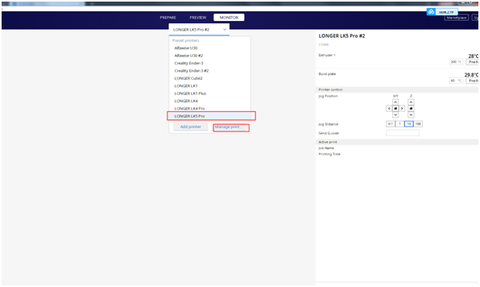
6. Dopo il download del firmware è completo, accendere la potenza della stampante, collegare la stampante al computer, aprire il software CURA e selezionare la pagina "Monitor" per controllare la stampante. E l'aggiornamento del firmware è anche completato in questa pagina.

Più lungo 3D - CURA SOLFWARE

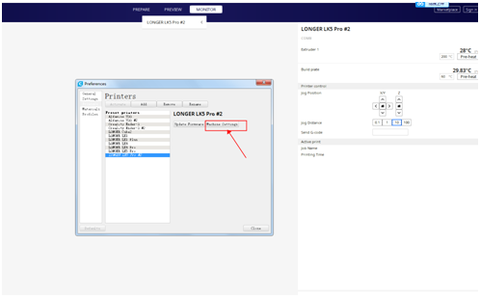
Successivamente, sulla pagina "Monitor", selezionare il modello corrispondente per aggiornare il firmware, quindi fare clic su "Gestisci stampanti", l'operazione è la seguente


Fai clic su "Aggiorna firmware" nella casella di opzione "Preferenze" pop-up, fare riferimento alla figura seguente.

Aggiornamento del firmware- 3D 3D


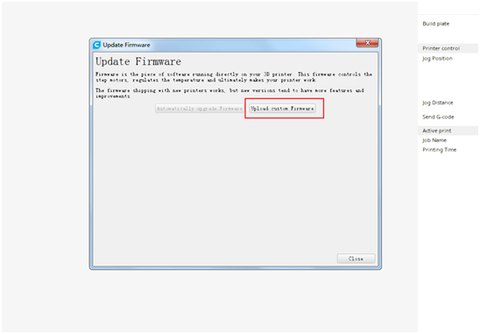
Nella casella Pop-up "Aggiornamento firmware", fai clic su "Carica firmware personalizzato"

Carica firmware personalizzato


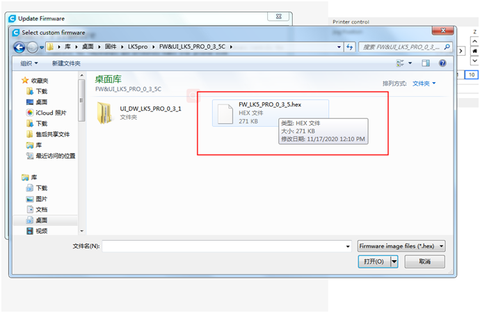
Quindi selezionare il file con il formato suffisso ".hex" nel pacchetto di installazione del firmware da caricare e puoi iniziare a aggiornare il firmware della stampante. Non tagliare il potere della stampante o spegnere il computer durante il processo di aggiornamento del firmware e assicurarsi anche che il cavo USB sia collegato correttamente.

Quindi selezionare il file con il formato suffisso ".hex"

Base stampante FDM LK5 Pro LK5 Pro su misura stampata 300x300x400mm, se si è interessati, controlla la pagina ottieni più dettagli: https://global.longer3d.com/lk5-pro-fdm-3d-printer/


Fonte dell'articolo:https://global.longer3d.com/longer-lk4-pro-lk5-pro-3d-printer-firmware-update/

By Academy | July 23, 2021
How to fix extruder in abnormal - LONGER
Come fissare l'estrusore in anormale

Quando c'è un problema di EXTURDER dalla stampante 3D LK1 / LK4 / LK4 PRO / LK5 LK4, come risolverlo? Di solito ci sono due ragioni in cui l'estrusore funziona in modo anomalo.


1. Ugello ostruito
In questo caso, è possibile fare riferimento al metodo per pulire l'ugello sopra.
2. Estrusore danneggiato
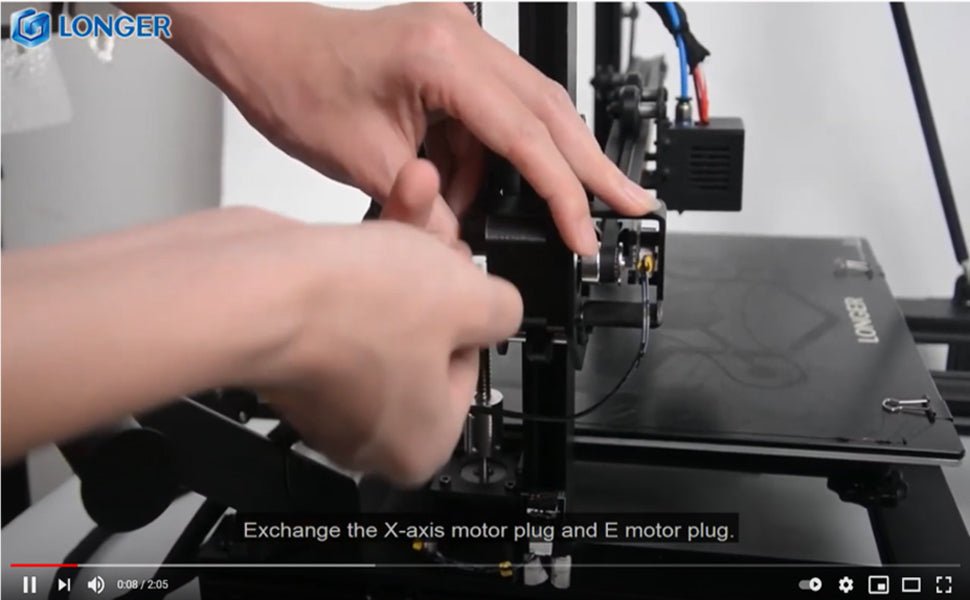
È possibile scambiare il cavo dell'estrusore con il cavo dell'asse X. Avviare la macchina, controllare l'asse x e lasciare il lavoro dell'estrusore. Osserva se lavorano. Se l'asse X funziona correttamente, il motore dell'estrusore è malfunzionante. In questo momento puoi solo sostituire con un nuovo motore.
Ma se l'asse X non funziona dopo che il cavo viene scambiato. Potrebbe essere un cavo o un fallimento della scheda madre. In questo momento, modificare il cavo dell'asse y all'estrusore e il cavo della porta della scheda madre dell'estrusore all'asse X. Se l'asse X funziona correttamente, il cavo è intatto. Se l'asse X ancora non funziona, significa che la scheda madre e il cavo devono essere sostituiti con uno nuovo.
Puoi fare riferimento al video nel link sottostante.


Guarda il video Ottieni più dettagli:https://youtu.be/XCjrieoyZ1c

By Academy | March 29, 2021
LONGER LK4 PRO check by yourself guidelines - LONGER