Academy

LONGER LK5 Pro Full Use Tutorial: Assembly&Setup Instruction - LONGER
LONGER LK5 Pro Full Use Tutorial: Assembly&Setup Instruction

First of all

LONGER LK5 PRO firmware download: https://drive.google.com/drive/folders/1xvMYLhAvwqhYiqoT559U8gBzruGjQ_AE?usp=sharing


1. About LK5 PRO install steps

If you find it lost, please contact our technical team at support@longer.net; after confirmation, we will resend the new part to you.

We make video tutorials about installation steps; please follow:

https://www.youtube.com/watch?v=F_VzVxOhHSo

About LK5 PRO install steps

2. First turn on

The touch screen is not bright


Confirm whether the input voltage range of the switching power supply is consistent with the electricity voltage in the area and the screen cable is connected.
If still does not work, check the power indicator and the mainboard indicator (method: remove the bottom mainboard protective cover; refer to the video in the link below.)

https://www.youtube.com/watch?v=K8Jwu-faDfQ

Fan noise and abnormal sound.


Make sure that the fan blades are not damaged and that there are no foreign objects. You can email fan photos to support@longer.net help you confirm.

3. Leveling bed

The distance between the hot end nozzle and the hot bed is 0.1-0.2 mm. follow below video leveling bed: https://www.youtube.com/watch?v=TJ0MOFPuOTQ. If it still can't be solved, put the hot bed glass and aluminum substrate on a flat table to check whether there is bending, if the bed bending, contact LONGER 3D technical team: support@longer.net


4. Zeroing failed

Failed to return to zero/abnormal noise of return to zero/impact limit still does not stop motion. Please check whether the limit switch is complete and the installation condition, and follow the video: https://www.youtube.com/watch?v=m3sQGZVFDqY., check the cable installation condition.

About the Z-axis limit switch height adjustment, refer to the video in the link below.
https://youtu.be/F_VzVxOhHSo?t=255

5. Load/unload filament

Error8

Check the real-time hot-end temperature display on the screen. If it is negative, check the installation of the thermistor plug; make sure it is installed as below:

check the installation of the thermistor plug

If anything good about thermistor, that is hot end issue, in this case we should follow the below video to change hot end: https://www.youtube.com/watch?v=RwpLTFwFzAg

Error0 or Error12

Check the installation of the hot-end thermistor and the plug of the hot-end heating rod.
If the installation is normal, the cable may be broken. Replace the hot end;

The extruder is not working

  1. Check the installation of the extruder cable plug (E refers to the extruder).
    2. The extruder defaults to work after reaching the hot end set temperature (minimum 195 degrees). If it still cannot work, check the installation of the extruder motor wire.
    3. If it still can't work, exchange the X and E motor wire plugs, control the movement respectively, and report the situation to the after-sale service.

Filament cannot be extruded

When, without loading the filament, the extruder works fine, this situation is a hot end block. When the filament is not loaded, the extruder works abnormally; please contact the after-sales service directly support@longer.net

Nozzle smoking

Check the thermistor is completely detached or loosely installed (check when cooling); reinstall it.


6. Start printing

If LK5 PRO printer does not recognize the Micro SD card file


Use a tool to format the Micro SD card and reload the file.
Micro SD Card Formatting Software
https://drive.google.com/drive/folders/1TgCT1CBsjI4-7prSu1nEUXxQ6vhsJzms?usp=sharing
Micro SD card preload file download address
https://drive.google.com/drive/folders/1zz5mlLMBoa3DguuyG6YDHJJXnhL-XKnJ?usp=sharing
Dip the SD card in alcohol, pull out and insert it into the SD card slot several times. Wait for the alcohol to evaporate completely, and restart the machine to check whether it works again.

If still not work, contact LONGER 3D technical team: support@longer.net


Newly added files not recognized


LONGER LK5 PRO recognizes the Gcode file in the root directory of the Micro SD card and checks the format of the newly added file.
P.S. Gcode files can be generated by slicing software.
If still not work, contact LONGER 3D technical team: support@longer.net.


Error 9


Check that the touch screen displays the real-time hotbed temperature, and if it is negative, check the installation of the hotbed cable plug.
The cable is installed normally. Use a multimeter to check the resistance of the aluminum substrate.
video about measure the resistance of the hot bed socket: https://www.youtube.com/watch?v=yFV3JCilzA8

If still not work, contact LONGER 3D technical team: support@longer.net


Error 1/13


Check the heatbedcable plug installation.
Check the resistance of the aluminum substrate. If it is normal, replace the cable for testing. If the cable is still abnormal, contact LONGER 3D technical team: support@longer3d.com

The print size is too small


Check the computer slicing software to set the print format.
If this does not resolve, check the printer firmware information.
PS: LK5 Pro firmware and update guide files can be downloaded at the link: 

https://drive.google.com/file/d/1rRos32XckF5ZlI5tYlCTlyt22E_BlQXP/view?usp=sharing

LONGER LK5 PRO 3D printer firmware upgrade in this article:

https://www.longer3d.com/blogs/academy/longer-lk5-pro-full-use-tutorial Filament not sticking to platform

Check whether the slicing software parameters are the default parameters of the Cura Longer machine, and try to relevel (the proper distance between the nozzle and the printing bed is the thickness of a sheet of A4 paper). For leveling the bed, check the video in the link below.
https://www.youtube.com/watch?v=TJ0MOFPuOTQ
After leveling bed, add "ralf" while slicing the model
If still not work, please check, Check if the heat bed is bent in  3, Leveling bed

Filament not extruded


1. When the motor shaft of the extruder rotates, the engagement gear does not rotate; install the engagement gear fixing screw.
2. If the extruder does not work, switch the motor test; refer to the video.
https://www.youtube.com/watch?v=XCjrieoyZ1c
3. If the distance between the hot end nozzle and the hot bed is too close, relevel it.
4.
If the hot end is blocked, replace the hot end. Refer to 5.4 for the inspection method.


7. Other issue

Wrong firmware


Download the LK5 Pro firmware and update the guide file and update the firmware:
https://drive.google.com/file/d/1rRos32XckF5ZlI5tYlCTlyt22E_BlQXP/view?usp=sharing
Refer to 6.5.

During the printing process

If the power input is normal, it still display "Resume printing." In this situation, please update the firmware to the Marlin 2.0 version. the following is the firmware download link:
https://drive.google.com/file/d/10mY1k7CIIJYEa2HbqzdXNSre7h4x6Zfa/view?usp=sharing

Refer to the link below for the firmware update tutorial.
https://www.longer3d.com/blogs/academy/longer-lk5-pro-full-use-tutorial
After updating the firmware, the problem still cannot be solved; contact LONGER 3D technical team at support@longer.net

bending, After the printer turned on, the touch screen is stuck on the boot page, and the firmware cannot be loaded, please confirm the touch screen cable is connected situation, if cable not issue, please contact LONGER 3D technical team: support@longer.net

By Academy | February 24, 2022
How to Use 3D Printers to Print a Gift on Valentine’s Day - LONGER
How to Use 3D Printers to Print a Gift on Valentine’s Day

For centuries, Valentine’s Day has been an important day for millions of couples all over the globe. As soon as February begins, you see stores decorated with red heart balloons, teddy bears, and other Valentine's Day themed goodies. Finding a gift on Valentine’s Day for a loved one that's unique can be a little complicated. You might get lost going through multiple stores in an attempt to find something meaningful for your significant other. After all, the day is meant to be a symbol of your love.

You might have the perfect dinner planned at the best restaurant in town, but the gift is the real star of the show that they will cherish forever. Gifts are essential on Valentine's Day, just as it is on a birthday or any special occasion. However, the difference here is the meaning attached to the day. Valentine's Day gifts are practically your way of saying how much you love your significant other. It is a gift that they will cherish for years to come and consider a symbol of your love. The question then is how to give innovative and unique gifts. If you need some help, we've got great Valentine’s Day gift ideas for you.

Try Out a 3D Printer:

When it comes to Valentine’s Day gifts for her, we’re sure a personalized gift will be considered extra special. Think about a gift that you created on your own that was executed to perfection. Even if you feel as if you are unartistic or can’t draw well, a 3D printer can do all of that for you! Since it is a technological innovation that creates a physical object from s picture, it’s a great way to make Valentine’s Day gifts for him too.

All you need to do is get your hands on a 3D printer, and you can make new fantastic gifts on many Valentine's Days. The great thing about these is that there are no limits to what you can create. It's left to your imagination. It could be an inside joke, the place you met, a little keepsake, or even a big centerpiece.

What Can 3D Printers Do?

If you don't know much about 3D printers, then you're in for a surprise. These phenomenal devices can create a three-dimensional object from an image using CAD (computer-aided design). It works somewhat like ordinary printers but with a twist. Instead of using ink and paper, a 3D printer uses a material of your choice, such as plastics, composites, or biomaterials, to create the image that you instructed it to create.

For example, if you wanted to create a little figurine of a boat out of plastic, you just load a roll of plastic up into the printer. It will melt it and place it in a way that will create the figurine that was selected. You can create this image in any software as long as it is a 3D image. It does so by layering the materials that you selected to objects of any shape, size, rigidity, and color.

A Great 3D Printer:

How to Use 3D Printers to Print a Gift on Valentine’s Day

If you're interested in this excellent method to make Valentine's Day gifts, a great option is the LK5 Pro FDM 3D Printer from the trusted company LONGER 3D. This is one of the many 3D Printers that are available from LONGER, which has had multiple successful customers in the past. Moreover, now the Love Season Sale of LONGER has a huge discount. Here are some features of the LK5 Pro:

  • Assembly and structure:

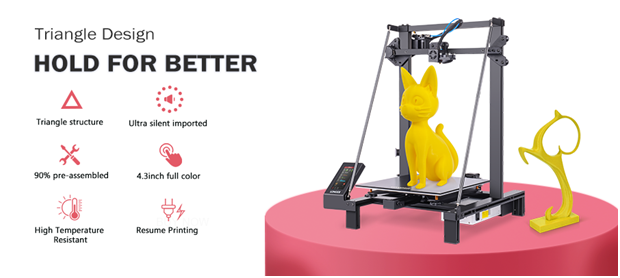
The LONGER LK5 Pro is one of the printers that comes mostly preassembled. It is incredibly annoying to put one together from scratch, but this one is much easier. It is an affordable 3D Printer that is 90% preassembled. It has a printing structure of 300*300*400 mm, which is pretty great for your Valentine's Day gifts. Its dual inclined rods, along with the stable triangular structure, hold all three axes steadily in place.

  • Glass bed:

The bed of the printer is immensely important. It needs to have enough friction for the project to stay in place during printing but be smooth enough to peel off once it is complete. The LK5 Pro has a glass bed coated with ceramic. This allows for both steadiness during printing and eases while peeling it off.

  • High temperature resistance:

The Teflon tubes within the printer can withstand up to 280℃. This means that the nozzle won't clog up with material, and the printing will be constant. No gaps or inconsistencies will occur due to nozzle blockage.

  • Quiet printing:

The printer has three kits of TMC2208 chipsets for all of the axis. This means the entire printing process will have an extremely low noise as the motor will not work too loudly. Unlike many other 3D printers, the LK5 Pro will work quietly throughout the printing process.

  • Touch screen control:

The printer has a 4.3-inch touch screen in color. This provides a better user interface that will help you work with the printer.


How to Make Your Valentine’s Day Gifts:

If your Valentine’s Day ideas now involve a 3D Printer, you might want to know how to make one. Here is a step-by-step method on how to make a fantastic gift on Valentine’s Day with a 3D printer:

  1. Create your image using any software and save it into an SD card. The extension should be “.gcode” as this is what the printer will recognize.
  2. Preheat your printer and grab your material. To check if the heat is alright, insert your material into the extruder until some of it starts coming out of the nozzle.
  3. Insert your SD card into the printer. On the touch screen, select print, then files, and select whatever you want to print. After this, hit print, and the printer will start doing its job.
  4. Wait for the printer to finish. When it is done, the screen will display a message saying the printing is complete.
  5. Peel your Valentine's Day gifts off the base, and you've got the perfect gift for your loved one.

What Can You Make:

Valentine's day 3D printed

With a 3D Printer like the LK5 Pro, you can make almost anything that you put your heart into. If you feel stuck, here are a few ideas:

  • A figurine of your first date. For example, if you went on a yacht ride, get the yacht printed out.
  • A little figurine of an inside joke. This could be anything at all. Think about a special moment in your relationship and get creative.
  • A model of something you plan to do together in the future. For example, design a house that the two of you plan to build with time or a city you’d like to visit.
  • Go classic with roses. Who wouldn’t want a bunch of roses that last forever? With a 3D printer, you can make it happen!

Summary:

Now you probably know what to do on Valentine's Day when you understand the power of 3D Printers. Giving your loved one a gift on Valentine’s Day is probably much easier now, isn’t it? We understand how important this gift can be, which is why an innovative gift that has a personal touch is a great idea. The LK5 Pro FDM 3D printer from Longer is a great option if you are looking for a phenomenal printer that will produce the best gift ever. It has multiple benefits and is extremely user-friendly. So, you can definitely create a perfect Valentine’s Day gift, or two, for your significant other in no time.

https://www.longer3d.com/products/lk5-pro-fdm-3d-printer

By Academy | February 10, 2022
How printing temperature calibration on FDM printers - LONGER
How printing temperature calibration on FDM printers

The printing temperature is a fundamental aspect if you want to achieve quality results. In fact, each type of filament requires a different printing temperature; for example, PLA requires temperatures between 190°C and 230°C, PETG requires temperatures between 220°C and 250°C, ABS requires temperatures between 230°C and 270°C, and so on.

Therefore, each type of material has a large extrusion temperature range, and to achieve the best results it is necessary to find the exact temperature for the particular material in use. In addition, the exact printing temperature for a certain PLA filament is not necessarily the same as for another PLA filament of a different brand or color; therefore, it is a good idea to calculate the printing temperature for each individual filament reel.

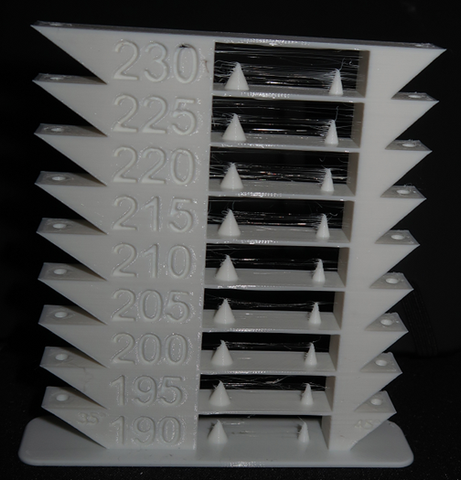
In order to get the exact printing temperature for your filament you can use a Temp-Tower. A Temp-Tower is the printing of a tower, printed at different temperatures as its height increases; in this way, different heights correspond to different temperatures, thus being able to obtain the correct printing temperature by observing what is the best level of the tower.

It is often possible to find ready gcodes of a Temp-Tower but it is strongly discouraged to use them, as a gcode made for an FDM printer different from your own, or with settings different from those normally used, cannot provide suitable results for your printer. For these reasons, it is a good idea to always create your own Temp-Tower gcode suitable for your printer and using your slicing settings, so as to obtain fully compatible results.

Creating a Temp-Tower is really easy:

1) Download the Temp-Tower stl file here:

Tower-Tower for PLA: https://www.thingiverse.com/thing:5159495
Tower-Tower for PETG: https://www.thingiverse.com/thing:5159499
2) Open the Temp-Tower file (in example, for PLA) in Cura

3) In Cura open the section Extensions – Post Processing – Modify G-Code

4) In the Post Processing Scripts menu click on Add a script and select the ChangeAtZ plugin

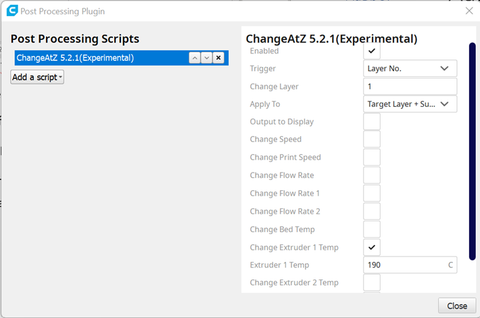
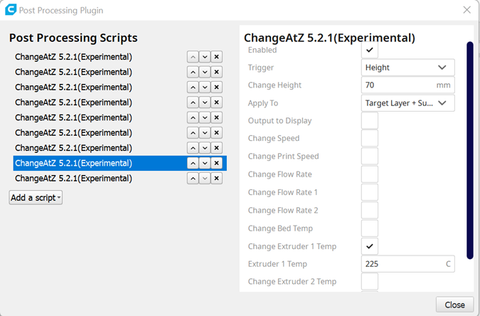
5) Configure the plugin as shown in the following figure:

How Printing Temperature Calibration on FDM printers

This script sets a temperature of 190°C at the starting layer.

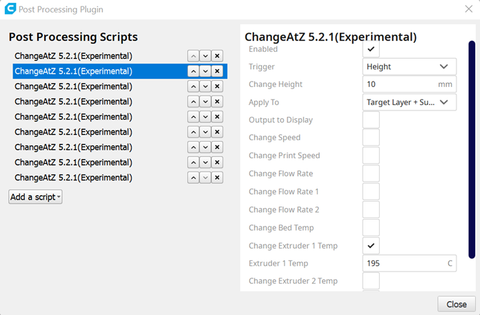
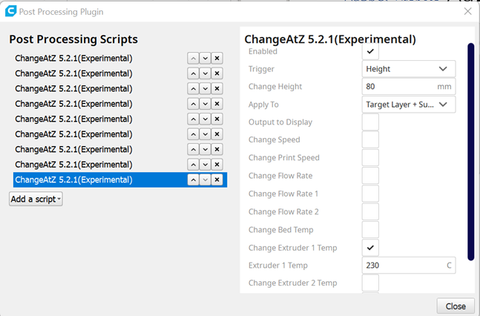
6) Since the temperature must vary as the height changes, it is necessary to set other scripts; in particular, for the attached Temp-Tower it is necessary to increase the printing temperature of +5°C to heights of 10 mm, 20 mm, 30 mm, 40 mm, and so on up to 230°C.

How Printing Temperature Calibration on FDM printers

How Printing Temperature Calibration on FDM printers

How Printing Temperature Calibration on FDM printers

How Printing Temperature Calibration on FDM printers


7) In this way, the temperature will vary with the height and each segment of the Temp-Tower will be made with a different printing temperature.

When the print is finished, observing the Temp-Tower you can determine the printed section with the best quality; this will provide the correct printing temperature for the filament used.


How Printing Temperature Calibration on FDM printers


Hope this article help you while you testing FDM printers. If you interested in LONGER 3D printers, please check LONGER 3D discount page, buy best price of 3D printers and relate products online.

Original article: https://www.longer3d.com/blogs/academy/how-printing-temperature-calibration-on-fdm-printers

https://www.longer3d.com/products/lk5-pro-fdm-3d-printer

By Academy | December 13, 2021
FDM printer bridging printing tutorial - LONGER
FDM printer bridging printing tutorial

The FDM 3D printing consists of a series of layers of molten material placed on top of each other; in this way, complex objects are created through a succession of layers. However, often some layers must be placed in areas without a base, so the layer is printed literally in a vacuum and it will inevitably fall down, but to overcome this problem it is possible to use supports, which act as a temporary scaffolding and can be removed once the print has been completed.

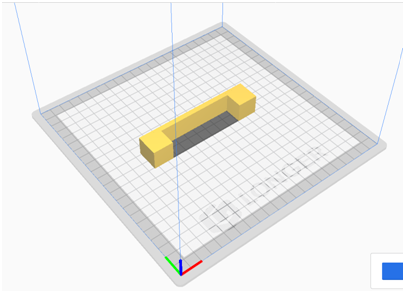
In some special cases it is possible to print suspended layers, without the use of supports. It may seem like an impossible feat, but over short straight distances you can print in a vacuum by instantly solidifying the layer using the air from the printer fans, thus creating a solid connection. This phenomenon is called Bridging and can be accomplished by means of some key print settings, such as flow, print speed and cooling.

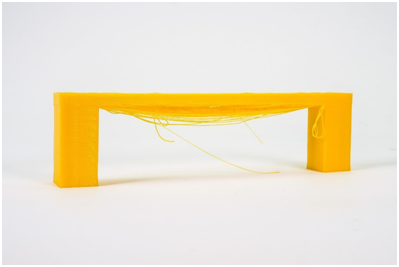
Depending on the settings used, the solidification of the layer may occur too slowly, thus causing it to sagging or lowering, as seen in the following photo.

FDM printer bridging printing tutorial

By the way, below are some tips on how to improve bridging printing.
For tests you can download this sample, which can be printed several times depending on the settings chosen, until you find a satisfactory result:
https://www.thingiverse.com/thing:476845

First you need to make sure that the print stream has been calibrated correctly; in this regard, it is possible to consult the previous lesson, relating to the "Printing Flow Calibration".

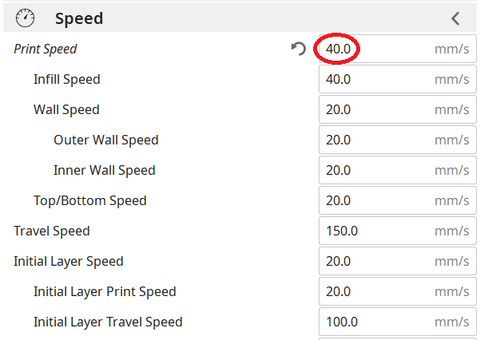
At this point, proceeding with the printing of the sample, if the bridging has unsatisfactory quality, it is possible to decrease the printing speed; progressively reducing the speed by about 5 mm/s it is possible to carry out various tests, until the ideal value is found.

FDM printer bridging printing tutorial

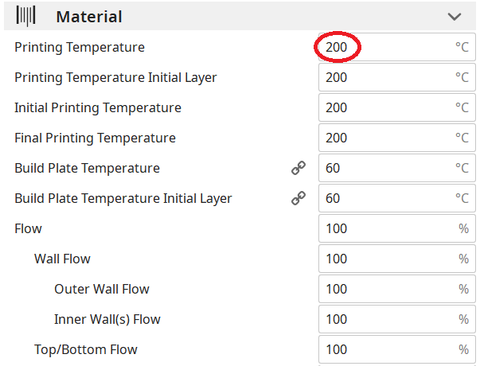
Printing temperature also plays a key role in bridging; in fact, the hotter the layer, the longer it takes for its solidification, thus causing a sagging. For this reason, by progressively reducing the printing temperature by about 5 ° C it is possible to carry out various tests, until the ideal value is found.

FDM printer bridging printing tutorial


If the bridge is very long and the geometry of the object allows it, it is often possible to rotate the object until the suspended part disappears completely, as shown in the figure. However, in most cases this is not possible (including the case of printing the sample), so it is a solution that can be counted on very rarely.

FDM printer bridging printing tutorial


Longer Dual Blower Kit

As mentioned from the beginning, for bridging the quality of air emitted by the cooling fan is fundamental, which must be able to instantly solidify the layer; for this reason, if changing the slicing settings is not enough, then the new Longer Dual Blower can help.

Dual blower kit LONGER 3D


The new Longer Dual Blower has been specially designed to allow a faster and more uniform emission of cooling air, thanks to two bilateral turbo fans and a double ventilation duct; in this way the prints are much more detailed and the bridging printing greatly improved.

The installation is very simple, and can be done by consulting this video guide: https://youtu.be/zEA-eM5sfho

Original post: https://www.longer3d.com/blogs/academy/fdm-printer-bridging-printing-tutorial

 https://www.longer3d.com/products/lk5-pro-fdm-3d-printer

By Academy | November 27, 2021
LONGER New Dual Blower Kit installation tutorial - LONGER
LONGER New Dual Blower Kit installation tutorial

Last mont LONGER 3D release a new accessories for FDM 3D printers.

This dual blower kit perfectly fit for LONGER LK4/LK4 PRO/LK1/LK5 PRO and compatiable with U20/U30/U30 PRO 3D Printer, improves the quality of printing, have strong power on cooling nozzle to get a better and smooth surface of model.

And installation steps, some 3D printers fans didn’t know. Now you can follow our turorial step by step.

https://www.youtube.com/embed/zEA-eM5sfho

So install new dual blower kit for your FDM printer, you need remove the old hot end fan cover and sheet metal first, the fixed the new dual blower kit in the gantry beams, connect the fan wires in order, then done.

Ps: The plugs do NOT get replaced the same as the stock fan, they must be switched exactly opposite. (Former red/black gets new blue/yellow & visa versa.) 

If you going to install BL touch, please download support bracket for the BL Touch

Longer 3D collect all 3D printers coupon in discount  page. If you need 3D printers or upgrade part from LONGER 3D, check the link and find out coupon code you need.

Original post: https://www.longer3d.com/blogs/academy/longer-new-dual-blower-kit-installation-tutorial

https://www.longer3d.com/products/lk5-pro-fdm-3d-printer

By Academy | November 8, 2021
Description in Longerware vs Lychee Slicer vs Chitubox - LONGER
Description in Longerware vs Lychee Slicer vs Chitubox

By using the same Longer resin 3d printer but different slicer, what's the meaning of each parameter in slicing software? Which is better, Lychee or Chitubox or longerware?

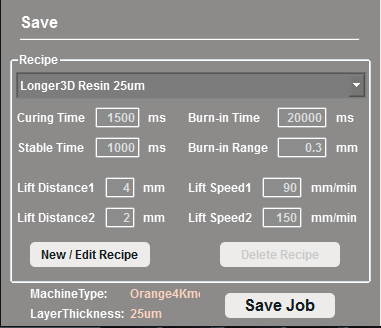
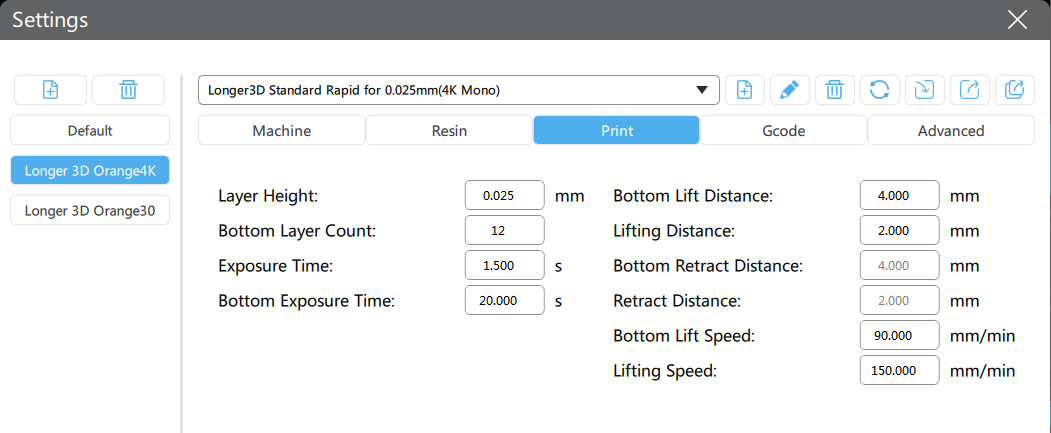
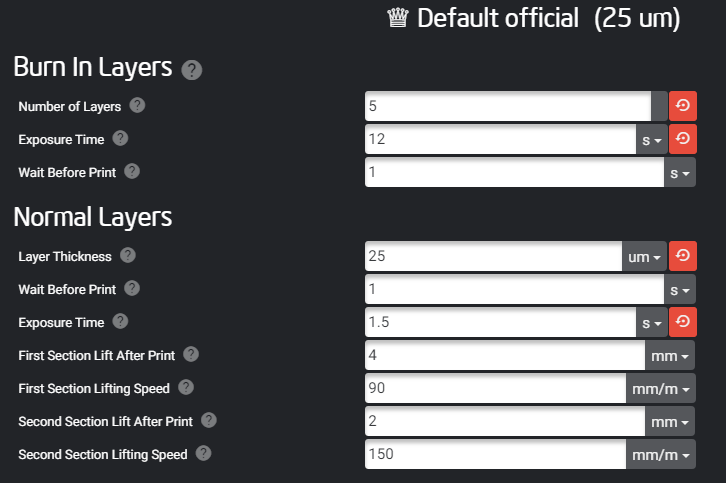
We attached Longerware vs Lychee Slicer vs Chitubox with default 25um printing parameter to make the comparison. 

LONGERWARE

Chitubox

Lychee

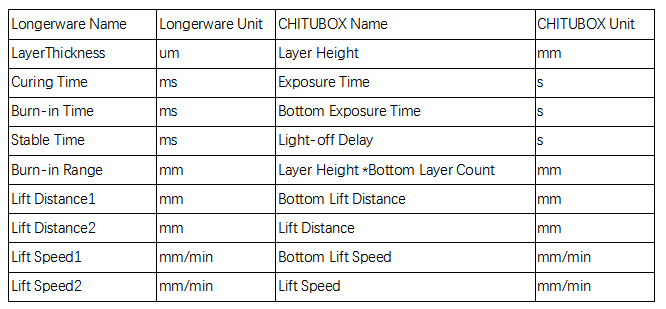
Regarding the different description between Longerware and Chitubox, please reference this image in different.

Longer Orange 4K is reaching 6480*3840 in resolution at 10.5/31.5um of subpixel and it's the finest LCD 3d printer in market right now. More information please reach this page to check >>> Orange 4K 

https://www.longer3d.com/collections/3d-printers-1

By Academy | August 25, 2021
LONGER LK4, LONGER LK5 PRO Upgrades【Firmware Update】 - LONGER
LONGER LK4, LONGER LK5 PRO Upgrades【Firmware Update】

A Detail Guide about LONGER LK5 Pro Upgrades and How to Upgrade LONGER LK4 Pro in Easy Steps

1.Since the motherboard of the LK4 Pro, LK5 Pro printer is an open source motherboard, use electrical tape to paste the pins on the side of the USB cable socket before connecting to the computer to isolate the computer from supplying power to the printer motherboard. If the pins are not attached, the printer will not work properly use.


2.To connect the computer to the printer, you need to install the driver, which can be installed on the LONGER official website. The official website link is as follows:

https://www.longer3d.com/blogs/news/printer-download-guildelines


LONGER 3D firmware download


3.After pasting the pins of the USB cable with tape, you can connect the printer to the computer, and then you need to update the printer's firmware through the slicing software cura.


4.Cura software version 4.8 or 4.9 does not add a LONGER printer by default. You need to add it manually. The following link is the video of adding a LONGER printer to cura4.8 or 4.9. Refer to the video in the link to add a LONGER printer;

MAC OS: https://www.youtube.com/watch?v=XKqRb434USw&t=6s

WINDOWS: https://www.youtube.com/watch?v=jdLYBYFEBlQ&t=9s


If the computer cannot connect to the printer, please refer to the video operation in the link below.

https://www.youtube.com/watch?v=KwmKZmtTOPw&t=10s


5.Next, you need to save the firmware to your computer. The firmware link of the corresponding model is below:

https://drive.google.com/file/d/11X1MZV4ll47kG4dhw2PgXniOwwo7UkmP/view?usp=sharing


6.After the firmware download is complete, please turn on the printer power, connect the printer to the computer, open the cura software, and select the "MONITOR" page to control the printer. And the firmware update is also completed on this page.

longer 3d - cura solfware

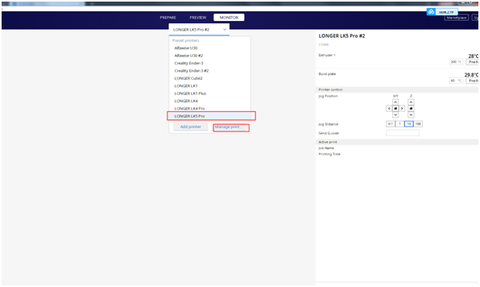
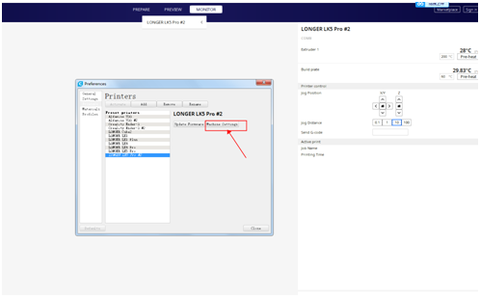
Next, on the "Monitor" page, select the corresponding model to update the firmware, and then click "Manage Printers", the operation is as follows


Click "Update Firmware" in the pop-up "Preferences" option box, refer to the figure below.

Firmware upgrade- LONGER 3D


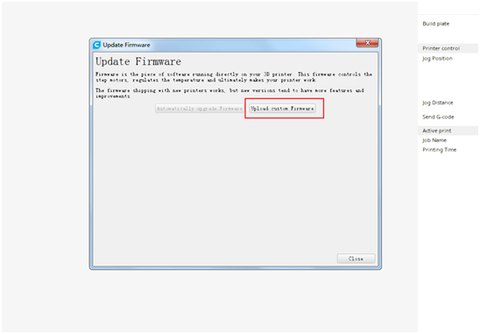
In the pop-up "firmware update" prompt box, click "upload custom firmware"

upload custom firmware


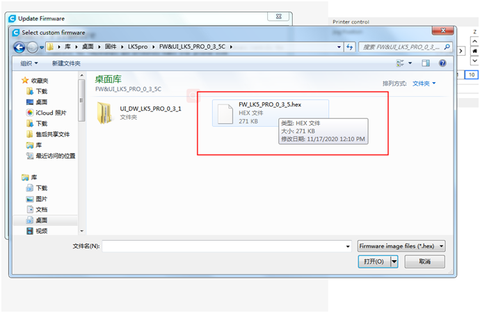
Then select the file with the suffix format ".hex" in the firmware installation package to upload, and you can start to update the printer's firmware. Do not cut off the power of the printer or turn off the computer during the firmware update process, and also ensure that the USB cable is properly connected.

Then select the file with the suffix format ".hex"

LONGER LK5 Pro FDM printer base on 300x300x400mm printed size, if you interested, check the page get more detail: https://www.longer3d.com/blogs/academy/longer-lk4-pro-lk5-pro-3d-printer-firmware-update


Article source: 

By Academy | July 23, 2021
FDM 3D printer loss parts, do you know this? - LONGER
FDM 3D printer loss parts, do you know this?

3D printer aways work days and night, as I know, some one have print a model, it cost very long time, funny. for high strength work, some part of FDM 3D printer, will loss. let me show you some part easy loss, you can check while you going to print big project, make sure every thing well before printing.

More than 1000 hour printing?

1, Nozzle kit

nozzle kit of 3d printers

The nozzle kit is installed on the hot end of the printer. There are generally two failure conditions:

  1. The nozzle or blue heat sink is blocked

There are many reasons for being blocked by the filament. For example, if the nozzle is too close to the print bed, the filament cannot be squeezed out. Or when you replaced the new Teflon tube, you did not insert the Teflon tube to the bottom, causing the filament to get stuck in the gap between them.

  1. The thermistor or heating rod is damaged

Generally, their cables are broken. But if the machine is used for a long time, it will naturally wear out.

Buy Longer 3d Printer nozzle kit here: https://www.longer3d.com/products/longer-nozzle-kit-for-lk1-lk4-lk4-pro-lk5-pro


2, Limit switch

limit switch of 3d printer

The iron plate on the limit switch will loosen after many collisions. So when your machine has been used for a long time, you need to check whether the limit switch is still working properly.


3, Filament sensor

The filament sensor is a part that is very easy to wear. Its function is to detect whether the filament is used up. So that the printer will not print air when the filament runs out when you are not next to the machine.

filament sensor of 3d printer
After the machine has been used for a long time. The filament sensor may not be able to sense the filament even when there is a filament. So when your printer’s touch screen shows that the filament cannot be sensed, please check your filament sensor.


4, Extruder gear

The brass gear on the extruder may wear out after a long period of filament extrusion. So when your machine has been used for a long time, you need to check whether your extruder gear is worn.

extruder gear


5, Z axis screw

Z-axis screw

After using the machine for a long time, you need to check whether the grease on the Z-axis screw is still enough to keep it working normally.

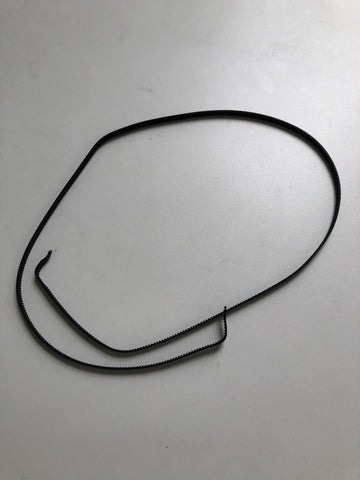
6, Synchronous belt and Synchronous wheel

Synchronous beltSynchronous wheel

When there is a layer shift in your print or your XY axis cannot move normally. It is very likely that the belt or wheel is worn out (there may be other reasons). You can try a new belt or wheel.

There is a possibility of wear on the surface of the synchronizing wheel and the bearings inside.

 https://www.longer3d.com/products/lk5-pro-fdm-3d-printer

By Academy | June 10, 2021
How to fix extruder in abnormal - LONGER
How to fix extruder in abnormal

When there's issue of exturder from Longer LK1/LK4/LK4 PRO/LK5 PRO 3d printer, how to fix it? There are usually two reasons in which the extruder works abnormally.


1. Clogged nozzle
In this case, you can refer to the method of cleaning the nozzle above.
2. Damaged extruder
You can exchange the extruder cable with the X-axis cable. Start the machine, control the X axis, and let the extruder work. Observe if they work. If the X-axis is working properly, then the extruder motor is malfunctioning. At this time you can only replace with a new motor.
But if the X-axis does not work after the cable is exchanged. It may be a cable or motherboard failure. At this time, change the Y-axis cable to the extruder, and the motherboard's extruder port cable to the X-axis. If the X axis is working properly, then the cable is intact. If the X-axis still does not work, it means that the motherboard and cable need to be replaced with a new one.
You can refer to the video in the link below.


Watch video get more detail: https://youtu.be/XCjrieoyZ1c

https://www.longer3d.com/products/lk5-pro-fdm-3d-printer

By Academy | March 29, 2021
LONGER LK4 PRO check by yourself guidelines - LONGER
LONGER LK4 PRO check by yourself guidelines
By Academy | February 5, 2021